 Documentation
AlphaTest Assessment Creation Guide
This guide teaches you everything you need to create, manage, and deliver digital assessments on the AlphaTest platform. Whether you're building a simple multiple-choice quiz or a timed fluency test with AI-graded essays, this documentation covers every step.
What Is AlphaTest?
AlphaTest is a platform for creating, managing, and delivering digital assessments to students. It uses the QTI 3.0 standard (Question and Test Interoperability) to store questions and tests in a structured, portable format.
You don't need to understand the deep technical details of QTI. All you need to know is that there are two building blocks:
- Questions (called "assessment items") — individual questions with their content, answer choices, and correct answers.
- Tests (called "assessment tests") — containers that group questions together and define how they're delivered.
The Playlist Analogy
Think of building a test like creating a music playlist:
You upload the songs (questions) first, then assemble the playlist (test).
Platform Architecture
qti.alpha-1edtech.ai
API Services
admin.alphatest.alpha.school
Test delivery
Key URLs
| Resource | URL | Purpose |
|---|---|---|
| QTI API Base | https://qti.alpha-1edtech.ai/api | Create/manage questions & tests |
| API Documentation (Swagger) | https://qti.alpha-1edtech.ai/docs/ | Interactive API explorer |
| API Reference (Scalar) | https://qti.alpha-1edtech.ai/scalar | Modern API reference |
| AlphaTest Admin | https://admin.alphatest.alpha.school | Test management dashboard |
| Dashboard | https://admin.alphatest.alpha.school/dashboard | Main admin landing page |
| Test Inventory | https://admin.alphatest.alpha.school/tests/inventory | Browse & manage tests |
| Test Assignment | https://admin.alphatest.alpha.school/tests/assignment | Assign tests to students |
| Custom Tests (Builder) | https://admin.alphatest.alpha.school/builder/test | Build & edit tests |
| Question Builder | https://admin.alphatest.alpha.school/question-builder | Create & edit questions |
| Passages Library | https://admin.alphatest.alpha.school/passages | Manage reading passages |
| Results | https://admin.alphatest.alpha.school/results | View test results & reporting |
| Timeline | https://admin.alphatest.alpha.school/timeline | One student's progress over time |
Prerequisites — What You Need Before Starting
Before you create your first test, make sure you have the following:
You need an account on the admin platform at admin.alphatest.alpha.school with the right permissions (at minimum: ability to assign tests). If you don't have one, contact your school's AlphaTest administrator or the platform team to request access.
To create new questions and tests, you need a client ID and client secret for the QTI API. Contact the AlphaTest platform team and ask: "I need API credentials (client ID and secret) to create assessments via the QTI API." They will provide you with two text strings that look like random characters.
Claude Code is a command-line AI assistant. To use it, open a terminal (on Mac: search for "Terminal" in Spotlight; on Windows: search for "Command Prompt" or "PowerShell"). Then type claude to start a session. Claude Code will handle the technical API calls for you — you just describe what you want in plain English.
Prepare your questions in a spreadsheet or document. For each question you'll need: the question text, answer choices (if applicable), the correct answer, the subject (e.g., Math, Reading), the grade level, and the question type (e.g., multiple choice, short answer).
Tutorial: Create Your First Quiz (Step by Step)
This walkthrough takes you from zero to a working quiz assigned to a student. Follow along exactly and you'll have a completed assessment in about 15 minutes.
Part 1: Create the Questions with Claude Code
Open your terminal and type claude to start Claude Code. Then have a conversation like this:
1. What is 1/4 + 1/4? (Answer: 2/4 or 1/2)
2. What is 1/3 + 1/6? (Answer: 1/2)
3. What is 3/8 + 1/8? (Answer: 4/8 or 1/2)
Please create these as QTI assessment items and upload them to the API at https://qti.alpha-1edtech.ai/api. My client_id is [YOUR_ID] and client_secret is [YOUR_SECRET].
Authenticating... Got the token.
Creating Question 1: "What is 1/4 + 1/4?"
Created successfully! Item ID:
_a1b2c3d4-e5f6-7890-abcd-ef1234567890Creating Question 2: "What is 1/3 + 1/6?"
Created successfully! Item ID:
_b2c3d4e5-f6a7-8901-bcde-f12345678901Creating Question 3: "What is 3/8 + 1/8?"
Created successfully! Item ID:
_c3d4e5f6-a7b8-9012-cdef-123456789012All 3 questions created. Save these IDs — you'll need them to assemble the test.
Part 2: Assemble the Test
Test created successfully!
Test ID:
_d4e5f6a7-b8c9-0123-defa-234567890123Copy this Test ID. You'll paste it into the AlphaTest admin platform to import the test.
_d4e5f6a7-b8c9-0123-defa-234567890123). You will paste this in the next step.
Part 3: Import into AlphaTest
- Open your browser and go to admin.alphatest.alpha.school/tests/inventory
- Log in with your admin account
- Click the "Add Test from QTI" button (top-right corner)
- Fill in the form:
- QTI Test ID: Paste the Test ID from Claude Code
- Name: G5 Math Fractions Quiz v1
- Subject: Select "Math" (or "Math-notQCed" if Math isn't available yet)
- Grade: Select "Fifth Grade"
- Click "Add Test", wait for the AI review (if it finds only warnings, choose Import anyway or Don't import; a question marked Loses the point must be fixed in the original test first), then click "Close"
Part 4: Preview Your Test
- Go to Custom Tests in the left menu
- Search for your Test ID or "G5 Math Fractions"
- Click "Open" to see the questions listed
- Click "Preview Test" to see exactly what students will see
- Verify: Do the questions display correctly? Are the fractions rendering properly? Is the correct answer marked?
Part 5: Assign It to Yourself (Self-Test)
- Go to Test Assignment in the left menu
- In the "OR provide Timeback ID" field, paste your Test ID
- Enter your own email address in the Student Email field
- Click "Assign"
- Click the generated link to take the test yourself
Glossary
Key terms used in this documentation, explained in plain language.
_a1b2c3d4-e5f6-7890-abcd-ef1234567890) that uniquely identifies a question or test. Every question and test gets its own UUID.\frac{3}{4} displays as the fraction ¾. The AlphaTest player automatically renders LaTeX as visual math.End-to-End Workflow
Here's the complete process from start to finish. Every step is covered in detail later in this guide.
| Step | Where | What You Do |
|---|---|---|
| 1. Prepare | Your notes / spreadsheet | Write question text, answer choices, correct answers, subject, grade, and type. |
| 2. Create questions | Claude Code / API | Generate the questions. Collect the returned question IDs. |
| 3. Assemble test | Claude Code / API | Bundle questions into a test. Get the Test ID. |
| 4. Import test | Admin Platform | Go to Test Inventory → Add Test from QTI. Enter Test ID, name, subject, grade. An AI review runs before the test is added. |
| 5. Add media | Claude Code / Admin | Narration (read-aloud) with the AlphaTest Authoring skill in Claude Code, or in the Question Builder; passages and images through Claude Code. |
| 6. Preview | Admin Platform | Go to Custom Tests, find your test, click Preview Test. |
| 7. Self-test | Admin Platform | Assign the test to yourself via Test Assignment. Complete it as a student. |
| 8. Assign | Admin Platform | Assign the test to students using their email addresses. |
Working with Claude Code
Claude Code is an AI assistant that can interact with the AlphaTest APIs for you. Instead of writing XML and making API calls yourself, you can describe what you want in plain English.
Watch: step-by-step walkthrough
Check the video below to see, step by step, how to create and publish a test with Claude Code.
Example Prompts
What to Provide Claude Code
| Input | Description | Example |
|---|---|---|
| Question text | The prompt the student will see | "What is 3/4 + 1/8?" |
| Answer choices / expected answer | The options or the correct answer | A) 5/8 B) 7/8 C) 1 D) 3/8 |
| Correct answer | Which option is right | B) 7/8 |
| Subject | Must match allowed subject exactly | Math, Reading, Language, Science |
| Grade | Grade level as string | "5" (fifth grade), "0" (K), "-1" (PreK) |
| Question type | The format | choice, text-entry, extended-text, etc. |
| Standard (optional) | Learning standard or topic | "Number Operations" |
Download the AlphaTest Authoring Skill
We package everything on this page into a ready-made Claude Code skill. Once installed, you just describe the test you want — for example, "Help me make a 10-question Grade 5 fractions test" — and Claude walks you through the whole process in plain English: planning the test (the blueprint), drafting the questions, generating a preview for you to review, publishing to QTI, and importing into AlphaTest. You never touch XML or commands.
alphatest-authoring.alphatest-authoring folder into your Claude Code skills folder: ~/.claude/skills/alphatest-authoring (create the skills folder if it isn't there)..env file and asks you to paste the Client ID and Client Secret from your AlphaTest contact. They stay on your computer.Creating Variants with Claude Code
A variant is a new question that measures exactly the same skill as a question you already trust. The standard, the difficulty and the kind of thinking stay the same. Only the surface changes: the names, the numbers, the story.
Variants let you reuse a good question without showing students the same words twice. They are useful for retakes, for practice before a test, and for giving two classes the same test with different questions.
What the Variants Skill Does
You give Claude a test. For every question in it, Claude writes three variants, checks them, and shows them to you next to the original. You decide which ones to keep. Then Claude delivers them in one of two ways, and it always asks you which one you want.
Download the AlphaTest Variants Skill
alphatest-variants.alphatest-variants folder into your Claude Code skills folder: ~/.claude/skills/alphatest-variants (create the skills folder if it is not there)..env file in that folder and asks you to paste the Client ID and Client Secret from your AlphaTest contact. They stay on your computer. If you already use the Authoring skill in that folder, your login is already there.What to Ask For
[Test ID]."[Test ID]."[Question ID]."What Happens, Step by Step
It tells you what it is going to do and waits for you to say yes.
A brand new test, or a new version of a test you name. It asks every time and never decides for you.
The standard, the skill, the level of thinking it requires, and the mistake behind each wrong answer. If a question does not say which standard it covers, Claude suggests one and asks you to confirm it.
Each variant must have the same structure as the original, must display correctly, and must be accepted by the platform. It is then solved a second time without looking at the marked answer, to confirm that the answer is right and that the question still measures the same skill at the same level. A variant that fails is rewritten. After three failed tries it is dropped.
Claude gives you a page to open in your browser. Each question shows the original on the left and its variants beside it, with the right answer highlighted. For multiple choice questions, the page also shows the mistake each wrong answer is meant to catch, so you can confirm the variants catch the same ones. You say which ones to keep, which to drop, and what to change.
Only after you say go. Then it gives you a Test ID and walks you through adding it in AlphaTest.
Adding the Result to AlphaTest
For a brand new test: open Tests in the sidebar, click Add test from QTI, paste the Test ID Claude gave you, give the test a name, pick the same subject and grade as the original questions, and click Add Test.
For a new version of a test you chose: open Tests in the sidebar, click Add test from QTI, paste the Test ID Claude gave you, turn on Make this a new version of an existing test, select your test, and click Add Test. The name and the settings come from your test. When you are done, tell Claude and it will confirm that every question arrived.
Students who already started the old version finish it normally. New assignments go to the new version.
What the Skill Leaves Out
When a faithful variant is not possible, Claude skips that question and tells you which one and why. It does not make something up. This happens with:
- Questions built on a picture that would have to change, such as labeling the parts of a diagram, clicking on a picture, choosing between photos, or a number line that has to be drawn by hand.
- Questions that use a special interactive widget.
- Questions where students upload a file or listen to recorded clips.
- Questions whose answer Claude cannot check on its own, such as a written answer with no scoring guide.
- Questions whose scoring is tied to the exact answer choices of the original, because a variant could be graded wrong.
- Questions whose reading passage could not be opened.
- Questions with an unusual ID that a variant could not point back to.
Questions based on a reading passage are supported. Their variants ask something new about the same passage.
Finding Your Variants Later
Open Variants in the sidebar. The page lists the original questions that have variants. Click one to see the variants that came from it. If the Created by me button is switched on, switch it off, because variants made with this skill are not filed under your name. If yours are not there yet, they are still in your test and work normally. Ask your AlphaTest contact to check.
If the variants went into a new version of one of your tests, that version holds AlphaTest's own copies of them. The Variants page shows the variants Claude published, not those copies, so editing a variant from the Variants page does not change your test.
Question Types Reference
AlphaTest supports a wide range of question formats through the QTI 3.0 standard. Each type uses a specific XML interaction element.
| Type | API Name | What the Student Does | Best For |
|---|---|---|---|
| Multiple Choice | choice | Picks one answer from a list | Knowledge checks, quick recall |
| Multiple Select | choice | Picks several answers ("select all that apply") | Questions with more than one right answer |
| Text Entry | text-entry | Types a short answer (number, word) | Math answers, fill-in-the-blank |
| Extended Text | extended-text | Writes a longer response (paragraph) | Essays, open-ended explanations |
| Inline Choice | inline-choice | Selects from dropdown menu in a sentence | Grammar, cloze exercises |
| Gap Match | gap-match | Drags words into blanks | Vocabulary, sentence completion |
| Hot Text | hottext | Clicks on correct word(s) in a passage | Identifying key terms |
| Order | order | Arranges items in correct sequence | Chronological events, process steps |
| Match | match | Sorts items into categories | Classification exercises |
| Hotspot | hotspot | Places points on a number line | Line plots, plotting values |
| Graphic Gap Match | graphic-gap-match | Click to place points on a coordinate grid (names optional), or a number line | Number lines, coordinate plotting |
| Plot a Line | plot-line | Click two points to draw lines on a coordinate grid (names optional) | Slope & linear functions (8.EE / 8.F), segments |
| Box Plot | box-plot | Place the five-number summary (min, Q1, median, Q3, max) on a number line; the box & whiskers draw automatically | Box-and-whisker plots (6.SP), spread & quartiles |
| Select a Point | select-point | Click a tick to plot a point or an inequality on a number line (open/closed endpoint + shaded ray; compound “between”) | Inequalities (6.EE), plotting points, bounded ranges |
| Slider | slider | Drag one handle along a track to a single numeric value (optional step snapping; horizontal or vertical) | Estimation, reading a value off a scale, “set the slider to …” |
| Portable Custom (PCI) | portable-custom | Interacts with specialized widget | Fraction editors, histograms |
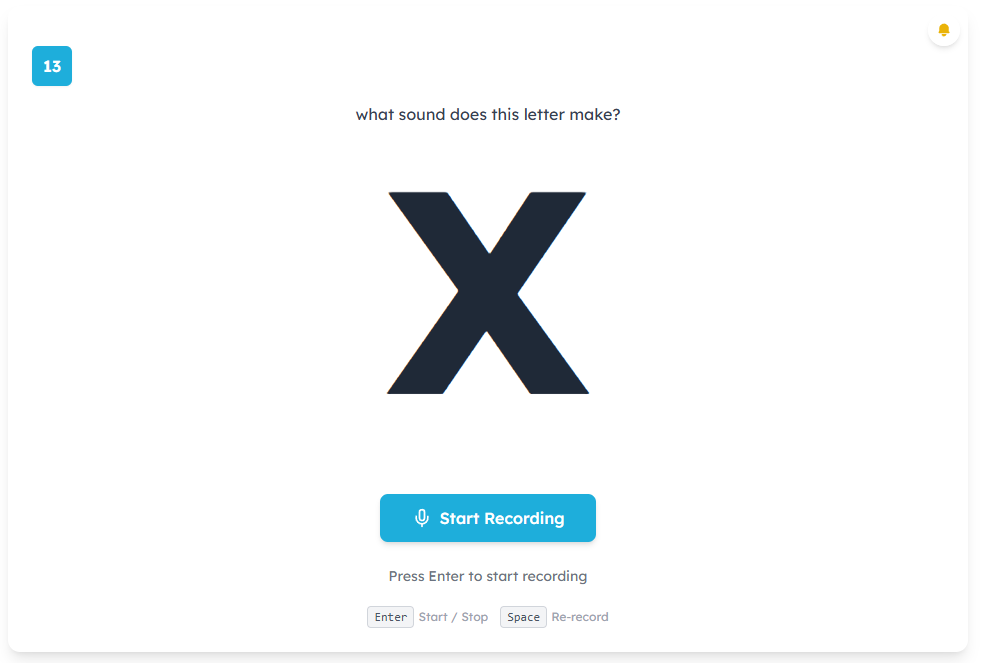
| Upload | upload | Uploads a file as response | audio (phonics) |
| Composite (Multi-part) | (several in one) | Answers two or more parts in a single question | Read a figure, then answer related blanks |
text-entry, not textEntry). Use these exact strings when searching the API or specifying question types.
What each type looks like
A quick visual reference of how each question type appears to students.
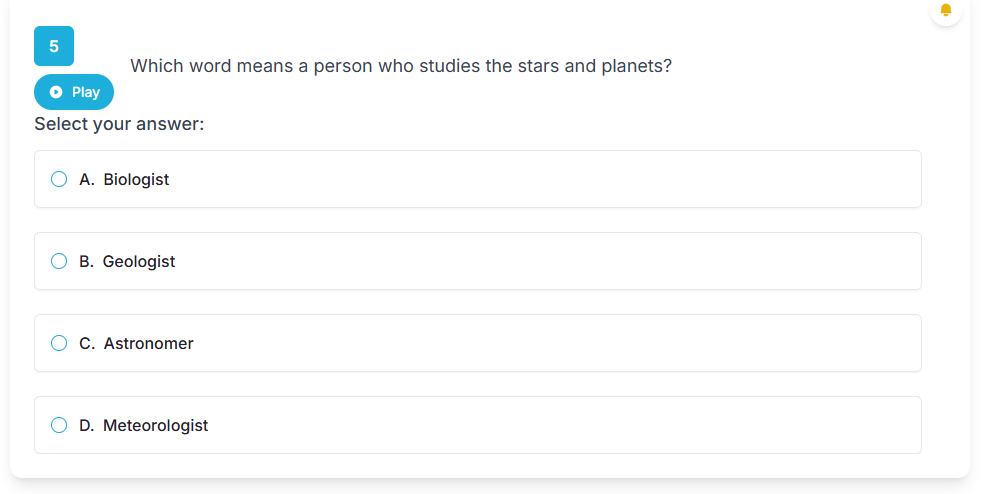
choice)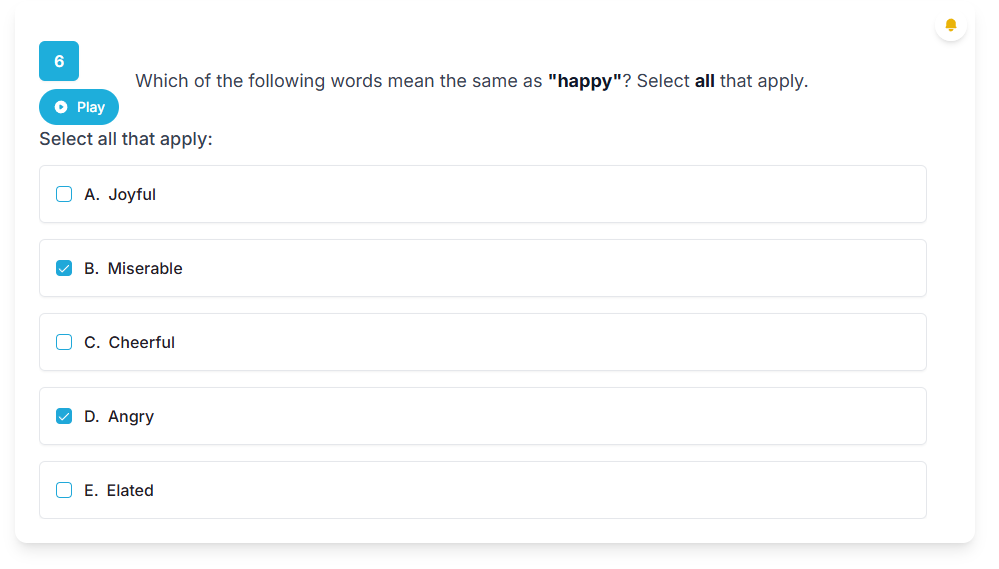
choice, multiple)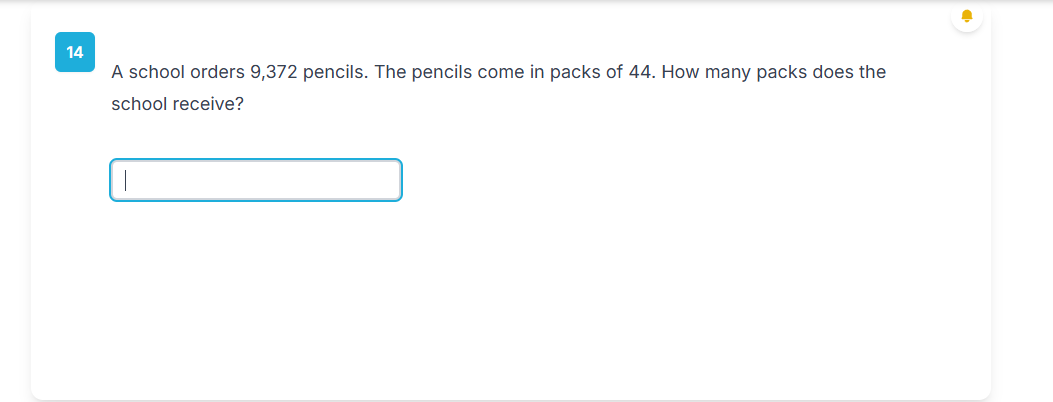
text-entry)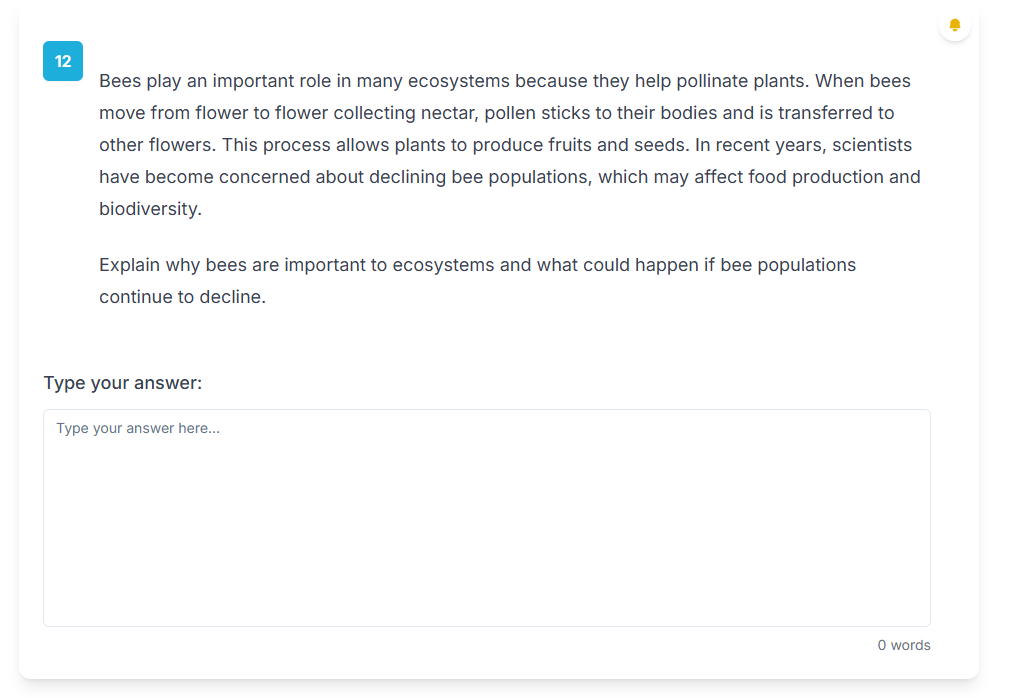
extended-text)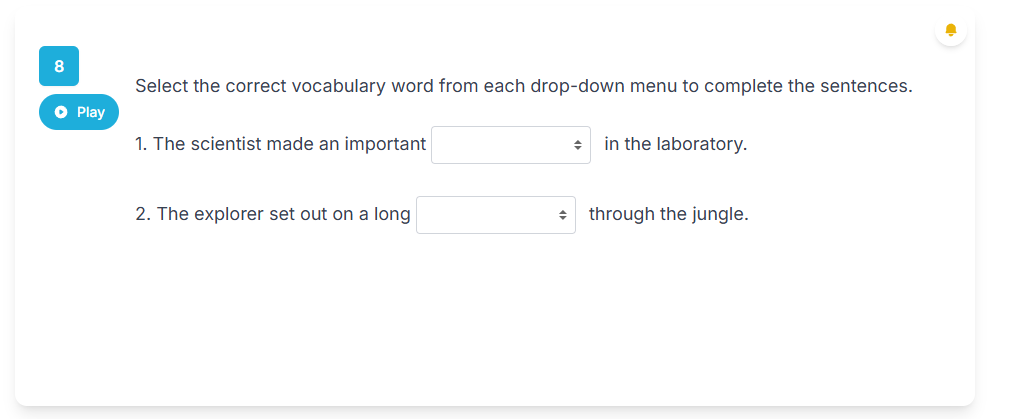
inline-choice)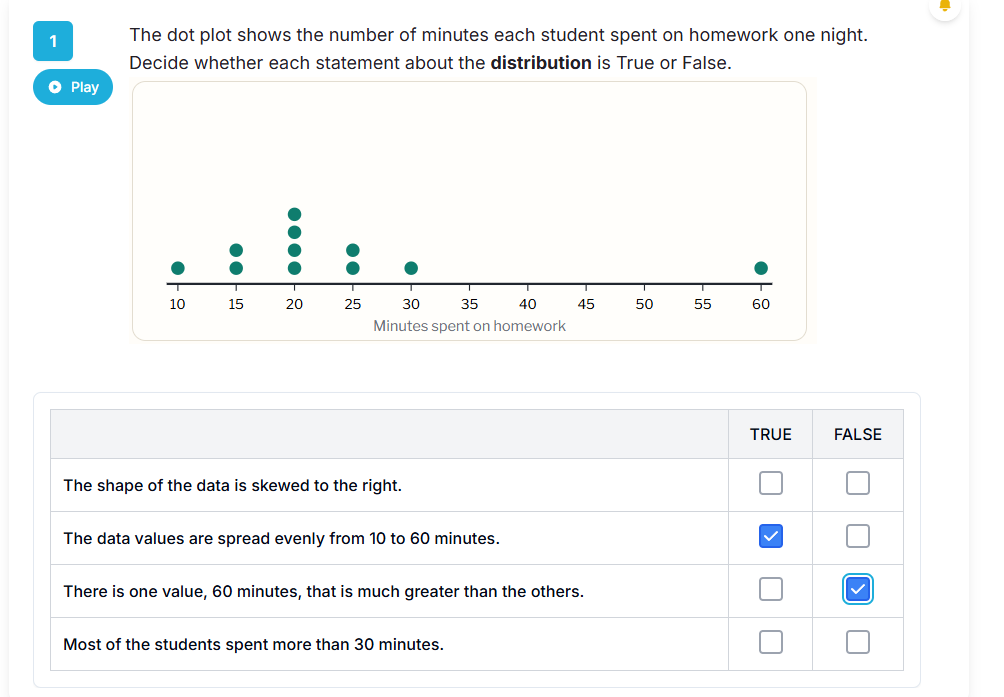
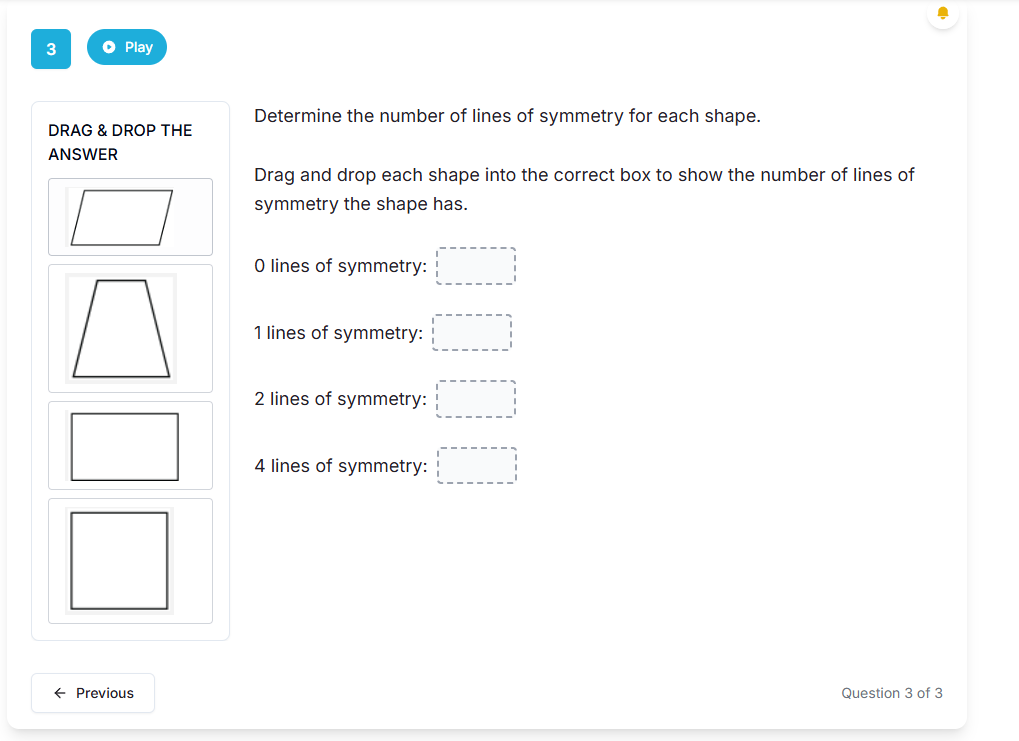
match)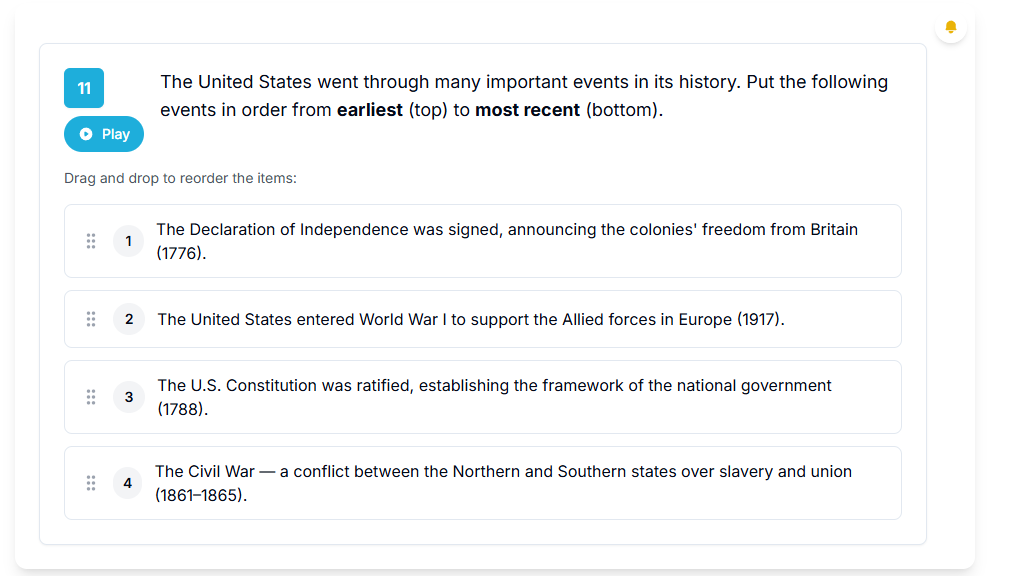
order)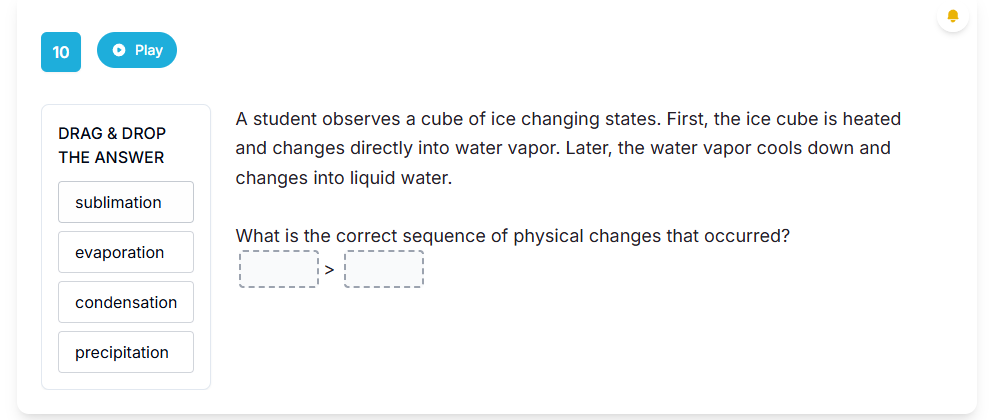
gap-match)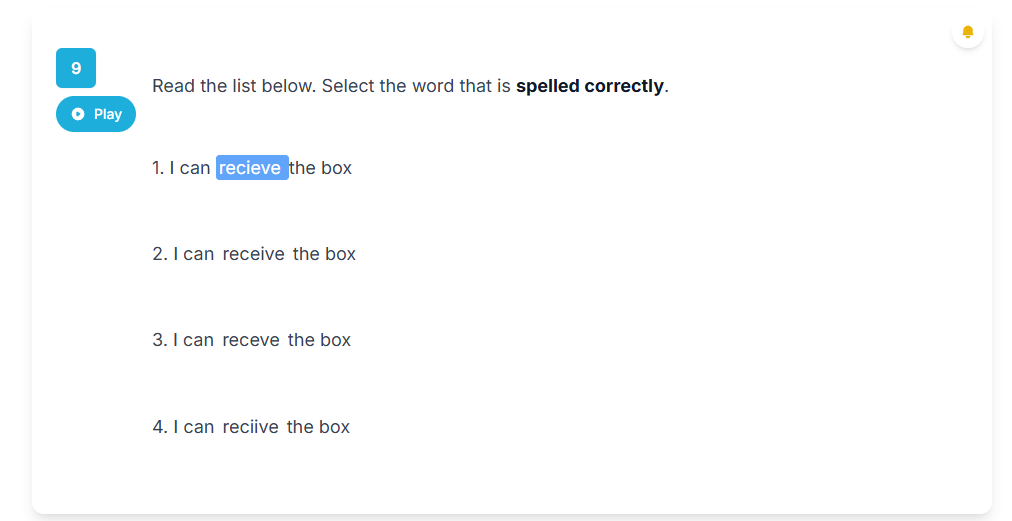
hottext)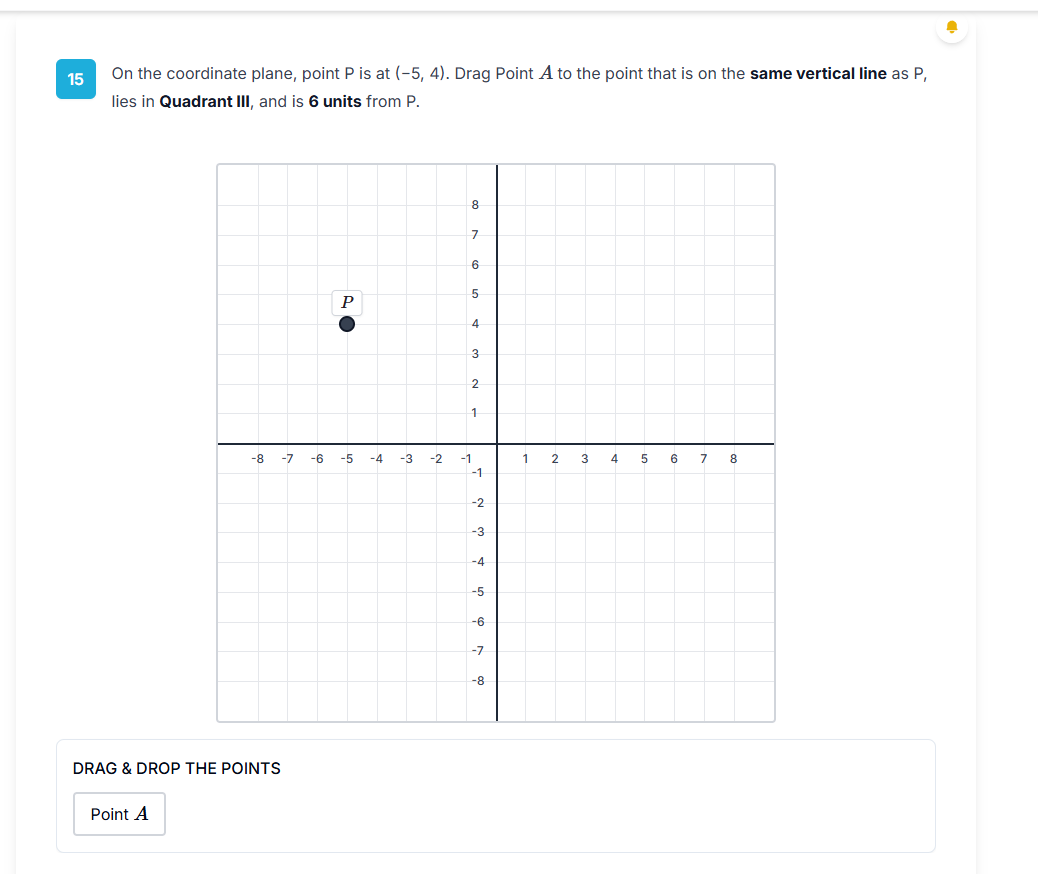
graphic-gap-match)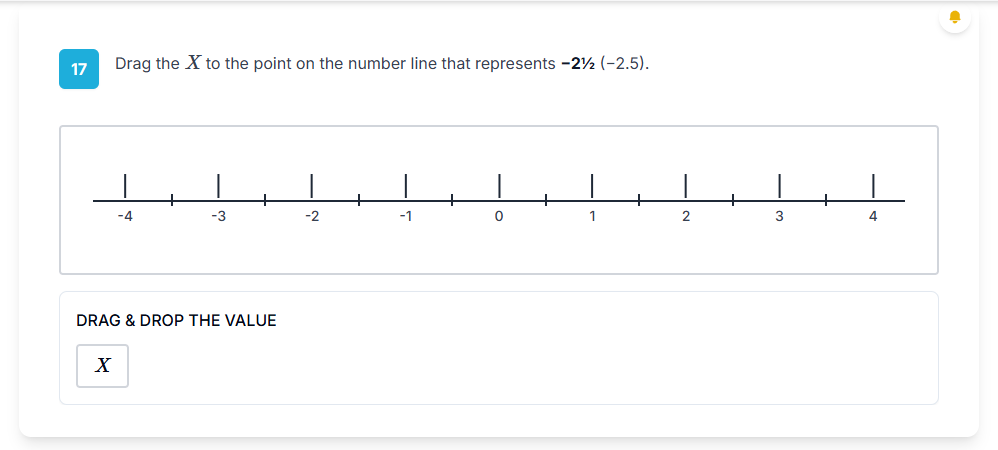
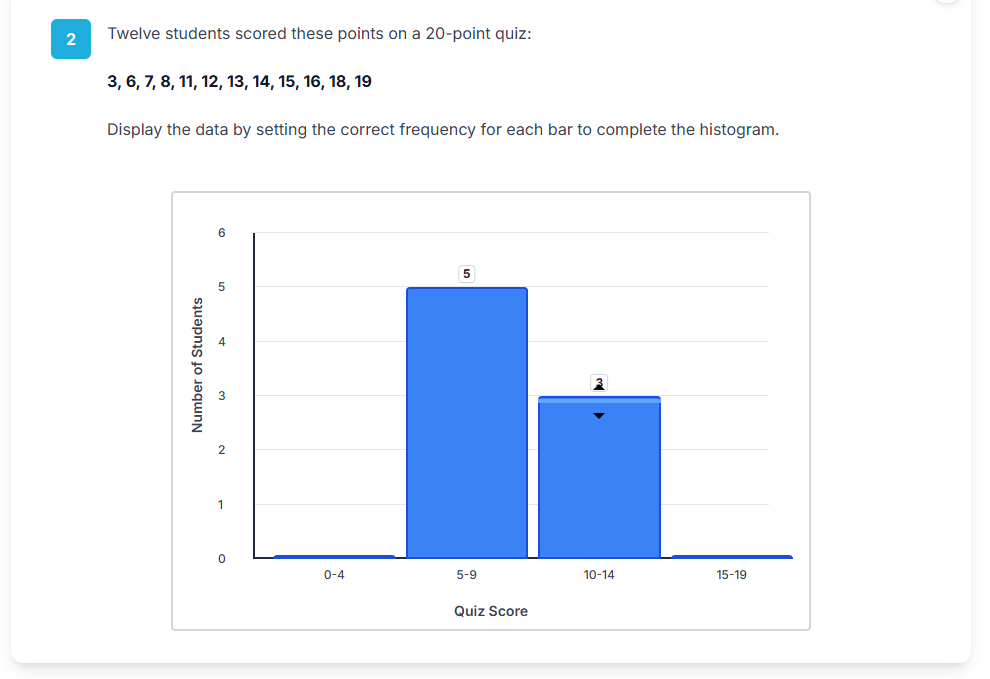
portable-custom)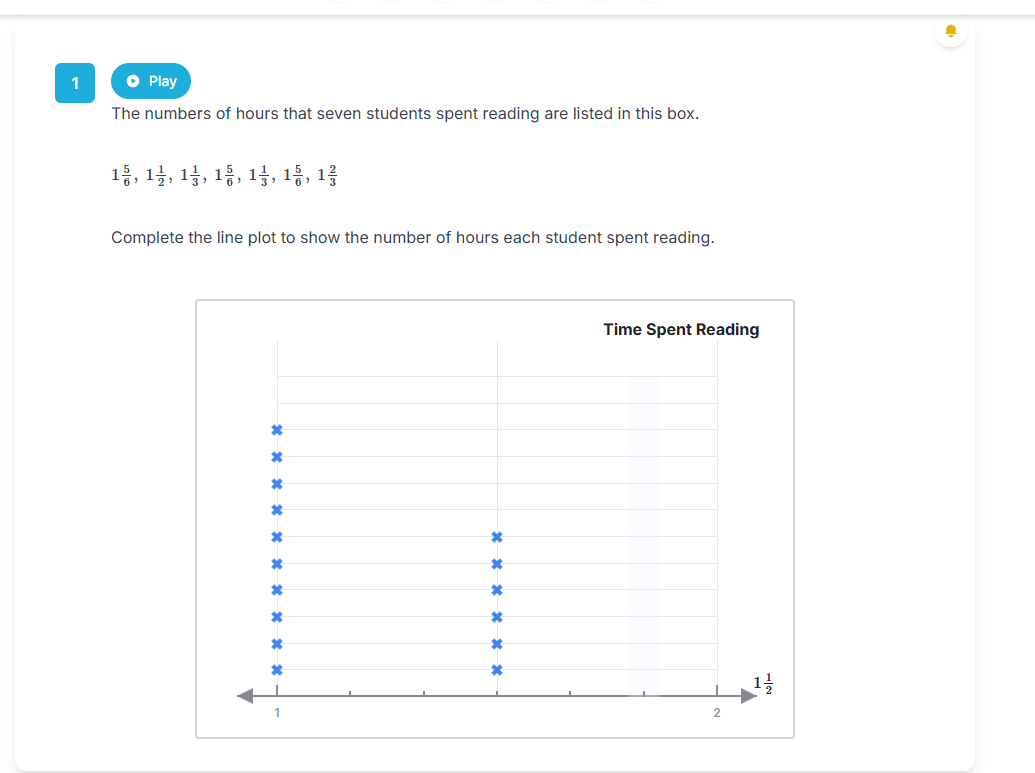
upload)Test Types Reference
| Test Type | How It Works | When to Use It |
|---|---|---|
| Standard Default |
No time pressure. Students navigate freely and submit at their own pace. | Regular quizzes, practice tests, homework assignments. |
| Timed Clock |
A countdown clock is displayed. The test auto-submits when time runs out. Students can still navigate freely between questions. | Exams, standardized test practice. |
| Fluency Speed |
A special timed test measuring speed. Students answer as many questions as possible before time runs out. They cannot go back to previous questions. Scored by correct answers per minute. | Math fact drills, speed reading checks. |
Configuration Comparison
<qti-time-limits> on the testthe only one that counts | time-dependent on the test | fluency in metadata | |
|---|---|---|---|
| Standard | (omit) | (set for you) | (omit) |
| Timed | max-time="PT40M" | (set for you) | (omit) |
| Fluency | max-time="PT2M" fluency="true" | (set for you) | "true" |
Only the first column reaches the student. time-dependent on the test is set automatically when the time-limits element is present (and time-dependent on a question is always "false", even inside a fluency test — it does not make anything timed). The fluency metadata entry only affects how the test is listed; the player takes the flag from the fluency attribute of <qti-time-limits>.
<qti-time-limits> inside the test itself. A test can therefore look completely correct here (marked fluency, 1 minute) and still be handed to students untimed: no countdown, no warm-up, the full tool toolbar (calculator, scratchpad, zoom) visible, and free navigation and review. Fix it with the authoring skill — ask Claude Code to "make this a 1-minute fluency test" (set_test_time_limit.py --test-id <id> --minutes 1 --fluency) — or set it in the Test Builder.
Adding a test checks its timing first, and answers one of three ways:
- Nothing claims it is timed — imported as usual. Nothing is invented for it.
- A length is stated but not stored inside the test — imported, and the missing part is written for it. The length was already there, so nothing is guessed.
- Anything that would change what a student experiences — refused, with an explanation of what to fix, and nothing is added to the inventory.
The refused cases are: marked as fluency with no time limit anywhere (a fluency test is its window — nobody can guess how fast a student should have to be); the settings and the stored limit disagreeing about how long; marked as fluency while the stored limit is an ordinary timed one (making it fluency would hide the tools, stop students going back, and switch the score to facts per minute); and a length that reads as text but means nothing, like PT0M.
All of them are fixed the same way — ask Claude Code to set the time limit (set_test_time_limit.py), or set it in the Test Builder, then import again. Asking Claude Code to "render-check the test" first tells you the same thing before you get to the import screen.
The same check applies when you edit a test in the Test Builder that hasn't been added to AlphaTest yet: the save is refused, with the same explanation, and nothing is changed. The Time limit box is in that same dialog — set it there and save again. A test that is already in the Test Inventory is not affected; you can keep editing it as normal.
Time Format (ISO 8601 Duration)
| Duration | Format |
|---|---|
| 60 seconds | PT60S |
| 2 minutes | PT2M |
| 30 minutes | PT30M |
| 1 hour | PT1H |
| 1 hour 30 minutes | PT1H30M |
Allowed Values
Subjects
The following subject names are accepted by AlphaTest. Use exactly as written — they are case-sensitive.
ELA • Math • Reading • Language • Science • Social Studies • Writing • Vocabulary
FastMath • Phonetic
Athena variants (e.g.,
Math-athena) = Athena program assessmentsISEE variants (e.g.,
Math-ISEE) = ISEE prep assessments. Note that ISEE also has section names that are not built from a Core Subject — use Quant-ISEE for the Quantitative Reasoning section.Unit variants (e.g.,
Math-unit) = Unit-level assessments (tests covering a single instructional unit rather than a full course)
Grades
| Level | Value |
|---|---|
| Pre-Kindergarten | "-1" |
| Kindergarten | "0" |
| 1st through 12th Grade | "1" through "12" |
Authentication
All QTI API endpoints require authentication using a security token. If you're using Claude Code, just provide your client ID and client secret and it handles the rest. The details below are for reference.
Getting a Token
curl -X POST https://prod-beyond-timeback-api-2-idp.auth.us-east-1.amazoncognito.com/oauth2/token \
  -H "Content-Type: application/x-www-form-urlencoded" \
  -d "grant_type=client_credentials&client_id=<your-client-id>&client_secret=<your-client-secret>"
Using the Interactive Docs
- Navigate to https://qti.alpha-1edtech.ai/docs/
- Click Authorize
- Enter your
client_idandclient_secret - Click Authorize to generate your Bearer token
https://prod-beyond-timeback-api-2-idp.auth.us-east-1.amazoncognito.com
Creating Questions (Assessment Items)
Claude Code will handle all the XML and API calls. The sections below explain the underlying details if you want more control.
Two Approaches
Step 1: Fetch a Real Example
Always start by fetching an existing question of the type you need:
GET https://qti.alpha-1edtech.ai/api/assessment-items?type=choice&subject=Math&grade=5&limit=1Replace type with the question type you need: choice, text-entry, extended-text, inline-choice, match, order, gap-match, hottext, graphic-gap-match, plot-line, box-plot, select-point, slider, or upload.
hotspot) items and Portable Custom (portable-custom) items are stored by the API with type: "unknown", so ?type=hotspot and ?type=portable-custom will not return them. Filter with ?type=unknown, or search the rawXml for numberLinePlot / qti-portable-custom-interaction instead.From the response, use only the rawXml field.
Step 2: Modify the XML
From the fetched rawXml, change:
identifier: Generate a new UUID V4 prefixed with_(e.g.,_89393d74-b77b-47e7-8d2d-b68e6ff834d9)- Question text inside
<qti-prompt>or<qti-item-body> - Answer choices and their
identifierattributes: new UUIDs for each - Correct answer in
<qti-correct-response>: must match a choice UUID - Remove any
<qti-catalog>audio blocks anddata-audio-*attributes (unless you have audio files)
Keep everything else: namespace declarations, schema locations, outcome declarations, response processing.
Step 3: Upload the Question
Build the JSON payload in Python (never in shell — shell heredocs corrupt LaTeX backslashes):
import json

xml_string = '''<qti-assessment-item ...>...</qti-assessment-item>'''

payload = {
    "format": "xml",
    "xml": xml_string,
    "metadata": {
        "subject": "Math",
        "grade": "5"
    }
}

with open("payload.json", "w") as f:
    json.dump(payload, f)
Then POST to the API:
POST https://qti.alpha-1edtech.ai/api/assessment-items
Content-Type: application/json
Authorization: Bearer {your_token}
Body: contents of payload.json
Response (201): returns the item with its identifier. Save this identifier — you'll need it to assemble the test.
Metadata Fields
| Field | Required | Notes |
|---|---|---|
subject | Required | Exact match required (e.g., "Math", "Reading"). Case sensitive. |
grade | Required | String: "5", "0" (Kindergarten), "-1" (PreK). |
standard | Optional | Learning standard or topic (e.g., "Number Operations"). |
lesson | Optional | Specific lesson name. |
difficulty | Optional | "easy", "medium", or "hard". |
Mandatory XML Headers
Every question must include these exact namespace headers. Missing or modified values will cause the platform to reject the question.
<qti-assessment-item
    xmlns="http://www.imsglobal.org/xsd/imsqtiasi_v3p0"
    xmlns:xsi="http://www.w3.org/2001/XMLSchema-instance"
    xsi:schemaLocation="http://www.imsglobal.org/xsd/imsqtiasi_v3p0
        https://purl.imsglobal.org/spec/qti/v3p0/schema/xsd/imsqti_itemv3p0p1_v1p0.xsd"
    identifier="_YOUR-UUID-HERE"
    title="multiple-choice"
    time-dependent="false">

    <!-- question content -->

</qti-assessment-item>
Setting Min/Max Points Per Question
Add normal-maximum and normal-minimum to the outcome declaration:
<qti-outcome-declaration identifier="SCORE" cardinality="single"
    base-type="float" normal-maximum="20" normal-minimum="0">
  <qti-default-value>
    <qti-value>0</qti-value>
  </qti-default-value>
</qti-outcome-declaration>
XML Templates by Question Type
These XML templates are used by Claude Code (or other API tools) when creating questions. Educators do not need to read or understand these templates — they are here for reference and for AI assistants to use. If you're using Claude Code, simply describe your questions in plain English.
Always prefer fetching a real example from the API over using these templates.
Tables in statement, options, match labels, etc
Many question fields accept HTML, not just plain text. You can embed tables in the statement (<qti-prompt>), answer options (<qti-simple-choice>), match row and column labels (<qti-simple-associable-choice>), gap text (<qti-gap-text>), and other rich-content elements. Wrap block content in <p> and <div> as needed.
You do not have to hand-write table HTML. In the Question Builder, click Insert Table in the statement editor toolbar, then fill in cells (including math via the Σ button). For multiple-choice questions, each answer option is a rich editor—tables you add via XML (or import) display there and can be edited in the builder.
When authoring XML directly (for example via Claude Code or the API), use standard HTML table markup. Math in cells uses <span class="input__math" data-latex="x"></span> (see Math & LaTeX).
<qti-prompt>
  <p>Use the table below to answer the question.</p>
  <table>
    <thead><tr>
      <th>Input</th>
      <th>Output</th>
    </tr></thead>
    <tbody>
      <tr><td>2</td><td>4</td></tr>
      <tr><td>3</td><td>9</td></tr>
    </tbody>
  </table>
</qti-prompt>
Multiple Choice (choice)
base-type="identifier",cardinality="single"- For multiple-select: set
cardinality="multiple"and a positivemax-choices(use the option count for an effective "no limit"). Nevermax-choices="0"— the player treats0/missing as single-choice and renders radio buttons. - Each
<qti-simple-choice>can contain rich HTML—not just plain text. Put a table inside a choice by wrapping a label and<table>in a<div>(see Tables in Rich Content above, or use the Question Builder option editor)
<qti-assessment-item
  xmlns="http://www.imsglobal.org/xsd/imsqtiasi_v3p0"
  xmlns:xsi="http://www.w3.org/2001/XMLSchema-instance"
  xsi:schemaLocation="http://www.imsglobal.org/xsd/imsqtiasi_v3p0
      https://purl.imsglobal.org/spec/qti/v3p0/schema/xsd/imsqti_itemv3p0p1_v1p0.xsd"
  identifier="_UNIQUE-UUID-HERE"
  title="multiple-choice"
  time-dependent="false">

  <qti-response-declaration identifier="RESPONSE"
      cardinality="single" base-type="identifier">
    <qti-correct-response>
      <qti-value>CORRECT-CHOICE-UUID</qti-value>
    </qti-correct-response>
  </qti-response-declaration>

  <qti-outcome-declaration identifier="SCORE"
      cardinality="single" base-type="float">
    <qti-default-value><qti-value>0</qti-value></qti-default-value>
  </qti-outcome-declaration>

  <qti-item-body>
    <qti-choice-interaction response-identifier="RESPONSE"
        max-choices="1">
      <qti-prompt>Question text goes here</qti-prompt>
      <qti-simple-choice identifier="CHOICE-UUID-1">Answer A</qti-simple-choice>
      <qti-simple-choice identifier="CHOICE-UUID-2">Answer B</qti-simple-choice>
      <qti-simple-choice identifier="CHOICE-UUID-3">Answer C</qti-simple-choice>
      <qti-simple-choice identifier="CHOICE-UUID-4">Answer D</qti-simple-choice>
    </qti-choice-interaction>
  </qti-item-body>

  <qti-response-processing
    template="https://purl.imsglobal.org/spec/qti/v3p0/rptemplates/match_correct"/>
</qti-assessment-item>
Answer choices can include tables when each option needs its own data set (for example, “which table shows…” questions). Wrap the label and table in a <div> inside <qti-simple-choice>:
<qti-simple-choice identifier="_option_A"><div>
  <p><strong>Table A</strong></p>
  <table>
    <thead><tr>
      <th><span class="input__math" data-latex="x"></span></th>
      <th><span class="input__math" data-latex="y"></span></th>
    </tr></thead>
    <tbody>
      <tr><td>1</td><td>3</td></tr>
      <tr><td>2</td><td>6</td></tr>
    </tbody>
  </table>
</div></qti-simple-choice>
Multiple Select (choice, multiple answers)
Same as Multiple Choice, but the student may pick more than one option ("select all that apply"). The only differences from the template above:
cardinality="multiple"on the response declaration- List every correct option as its own
<qti-value> - Set
max-choicesto a positive number — how many they may pick (use the option count for an effective "no limit"). Never usemax-choices="0": the player treats0(or a missing value) as single-choice and renders radio buttons, even withcardinality="multiple".
<qti-response-declaration identifier="RESPONSE"
    cardinality="multiple" base-type="identifier">
  <qti-correct-response>
    <qti-value>CHOICE-UUID-1</qti-value>
    <qti-value>CHOICE-UUID-3</qti-value>
  </qti-correct-response>
</qti-response-declaration>
<!-- ...item body... -->
<qti-choice-interaction response-identifier="RESPONSE" max-choices="2">
  <qti-prompt>Select all that apply.</qti-prompt>
  <!-- qti-simple-choice options as usual -->
</qti-choice-interaction>match_correct template the student must select the exact correct set for full credit. For partial credit per checkbox, copy a real example that uses a map_response template.Text Entry (text-entry)
base-type="string",cardinality="single"- Correct response is the expected string (e.g.,
"3"or"Paris")
<!-- Inside qti-assessment-item with standard headers -->
<qti-response-declaration identifier="RESPONSE"
cardinality="single" base-type="string">
<qti-correct-response>
<qti-value>42</qti-value>
</qti-correct-response>
</qti-response-declaration>
<qti-item-body>
<p>What is 6 × 7?</p>
<qti-text-entry-interaction response-identifier="RESPONSE"
expected-length="20"/>
</qti-item-body>
<qti-response-processing
template="https://purl.imsglobal.org/spec/qti/v3p0/rptemplates/match_correct"/>Blanks Inside a Maths Expression
When the input box must sit inside a fraction, root, or equation, keep two linked representations per blank with the same id:
<qti-text-entry-interaction response-identifier="…">— delivery and scoring{text_entry:…}inside the siblingdata-latexattribute — visual position in the formula
Canonical reference: item _69feaa39-d3e8-41aa-8dc2-9bfd6dcc25ba (three embedded blanks). Expected answers in <qti-correct-response> are plain strings (6, 81, 16) — what students type, not LaTeX. For these blanks, set expected-length to the exact character length of the longest acceptable answer for that blank (trimmed) — not the plain-blank default of 20.
<ol>
  <li>
    <qti-text-entry-interaction response-identifier="_te_1" expected-length="1"/>
    <span class="input__math"
          data-latex="\frac{{text_entry:_te_1}}{8}=\frac34"></span>
  </li>
  <li>
    <qti-text-entry-interaction response-identifier="_te_2" expected-length="2"/>
    <span class="input__math"
          data-latex="\sqrt{{text_entry:_te_2}}=9"></span>
  </li>
  <li>
    <qti-text-entry-interaction response-identifier="_te_3" expected-length="2"/>
    <span class="input__math"
          data-latex="\frac{\sqrt{64}}{\sqrt{{text_entry:_te_3}}}=2"></span>
  </li>
</ol>- Inside
\frac{}{}, wrap the token in an extra group:\frac{{text_entry:_te_1}}{8} - Each blank needs its own
<qti-response-declaration>with matching identifier - In the Question Builder,
[[input:…]]before the maths span must use the same id - Interaction alone → blank beside the formula;
{text_entry:…}alone → empty slot with no input expected-lengthfor LaTeX-embedded blanks = longest trimmed acceptable-answer length (e.g.6→1,81→2) — not20, and not 2× / min-8
Extended Text (extended-text) — AI Auto-Graded
base-type="string",cardinality="single"- No correct response defined — graded by external AI scoring service
- Must include a
<qti-rubric-block>with the grading prompt
See the AI Auto-Grading section for full details on rubric design.
<qti-prompt> inside the <qti-extended-text-interaction> — not in a bare <p>. The player reads the stem from <qti-prompt>; a bare <p> passes XML validation but the student sees "Question content is missing." The <qti-rubric-block> also needs a use attribute (e.g. use="scoring").
<!-- Inside qti-assessment-item with standard headers -->

<qti-response-declaration identifier="RESPONSE"
    cardinality="single" base-type="string"/>

<qti-outcome-declaration identifier="SCORE"
    cardinality="single" base-type="float">
  <qti-default-value><qti-value>0</qti-value></qti-default-value>
</qti-outcome-declaration>
<qti-outcome-declaration identifier="completionStatus"
    cardinality="single" base-type="identifier"/>

<qti-item-body>
  <qti-rubric-block use="scoring" view="scorer">
    <qti-content-body>
      Evaluate the student's response based on the following criteria:
      1. Content accuracy (0-3 points): Does the response demonstrate
         understanding of the topic?
      2. Use of evidence (0-3 points): Does the response cite specific
         details from the passage?
      3. Organization and clarity (0-2 points): Is the response well
         structured?
      4. Grammar and mechanics (0-2 points): Is the writing clear
         and free of errors?
      Total: 10 points.
    </qti-content-body>
  </qti-rubric-block>
  <qti-extended-text-interaction response-identifier="RESPONSE">
    <qti-prompt>Based on the passage, explain how the water cycle affects weather patterns.
       Use at least two specific details from the text.</qti-prompt>
  </qti-extended-text-interaction>
</qti-item-body>

<qti-response-processing>
  <qti-response-condition>
    <qti-response-if>
      <qti-not>
        <qti-is-null>
          <qti-variable identifier="RESPONSE"/>
        </qti-is-null>
      </qti-not>
      <qti-set-outcome-value identifier="SCORE">
        <qti-base-value base-type="float">1</qti-base-value>
      </qti-set-outcome-value>
      <qti-set-outcome-value identifier="completionStatus">
        <qti-base-value base-type="identifier">completed</qti-base-value>
      </qti-set-outcome-value>
    </qti-response-if>
  </qti-response-condition>
</qti-response-processing>
Inline Choice (inline-choice)
base-type="identifier",cardinality="single"- Dropdown embedded within a paragraph
<qti-response-declaration identifier="RESPONSE"
    cardinality="single" base-type="identifier">
  <qti-correct-response><qti-value>CORRECT-UUID</qti-value></qti-correct-response>
</qti-response-declaration>

<qti-item-body>
  <p>The capital of France is
    <qti-inline-choice-interaction response-identifier="RESPONSE">
      <qti-inline-choice identifier="CHOICE-1">London</qti-inline-choice>
      <qti-inline-choice identifier="CHOICE-2">Paris</qti-inline-choice>
      <qti-inline-choice identifier="CHOICE-3">Berlin</qti-inline-choice>
    </qti-inline-choice-interaction>.
  </p>
</qti-item-body>
Match (match)
base-type="directedPair",cardinality="multiple"- Two match sets: sources and targets. Correct response is pairs like
"sourceUUID targetUUID" - Supports two render layouts: tabular grid (
class="qti-match-tabular"present — checkbox grid of rows vs. columns) and drag-into-dropzone "gaps" (noclassattribute — students drag items from a tray into named drop zones). The question builder exposes a Table / Gaps toggle that writes or omits the class automatically. - Each row and column (
<qti-simple-associable-choice>) may carrymatch-max="N"— the maximum number of associations that item may participate in. On drop zones (columns in the second match set), this limits how many draggable items or row selections can link to that zone. Rowmatch-maxlimits how many zones a single item may occupy. max-associationson<qti-match-interaction>caps the total number of pairs in the student response. It is separate from per-itemmatch-max.cardinality="multiple"is required for all match items (including true/false tables) and does not by itself mean “multiple correct items per zone.” Use per-itemmatch-maxand the Question Builder Single / Multiple selection mode for that (see Matchmatch-maxin Question Builder).
<qti-response-declaration identifier="RESPONSE"
    cardinality="multiple" base-type="directedPair">
  <qti-correct-response>
    <qti-value>source1 target1</qti-value>
    <qti-value>source2 target2</qti-value>
  </qti-correct-response>
</qti-response-declaration>

<qti-item-body>
  <qti-match-interaction response-identifier="RESPONSE">
    <qti-prompt>Match each item to its category.</qti-prompt>
    <qti-simple-match-set>
      <qti-simple-associable-choice identifier="source1" match-max="1">Solar</qti-simple-associable-choice>
      <qti-simple-associable-choice identifier="source2" match-max="1">Coal</qti-simple-associable-choice>
    </qti-simple-match-set>
    <qti-simple-match-set>
      <qti-simple-associable-choice identifier="target1" match-max="2">Renewable</qti-simple-associable-choice>
      <qti-simple-associable-choice identifier="target2" match-max="2">Non-Renewable</qti-simple-associable-choice>
    </qti-simple-match-set>
  </qti-match-interaction>
</qti-item-body>match-max values- True/false table: each row
match-max="1"; each columnmatch-max= number of rows (many rows may select TRUE or FALSE). - Gaps, one item per zone: each draggable item and each drop zone
match-max="1". - Gaps, multiple items in one zone: raise the zone’s
match-max(e.g.2when two items may land in the same drop zone).
Match items award full credit or zero (SCORE = 1 or 0). The student must satisfy every directed pair in <qti-correct-response> — one wrong, missing, or substituted pairing scores 0. match-max limits placement; it does not enable partial credit.
Shape A — match_correct template (class="qti-match-tabular" only):
<qti-response-processing template="https://purl.imsglobal.org/spec/qti/v3p0/rptemplates/match_correct"/>Use this one-liner for true/false tables and other tabular match grids.
Shape B — inline block (gaps layout — required): gaps match (no qti-match-tabular class) must not use the match_correct template. Use inline <qti-response-processing> with one <qti-match> per required pair inside <qti-and>, wrapped in <qti-or> as on live items. Canonical example: _669c0dca-27c8-4b0a-a561-9f570df60683 (“Drag coins into the purse to make 30¢”).
<qti-response-processing>
  <qti-response-condition>
    <qti-response-if>
      <qti-or>
        <qti-and>
          <qti-match>
            <qti-base-value base-type="directedPair">_28f7c0d8b76be77a69 _308f9d99141156241c</qti-base-value>
          </qti-match>
          <qti-match>
            <qti-base-value base-type="directedPair">_3d55ae04135610908a _308f9d99141156241c</qti-base-value>
          </qti-match>
          <qti-match>
            <qti-base-value base-type="directedPair">_7eaf3d642284cdb5eb _308f9d99141156241c</qti-base-value>
          </qti-match>
        </qti-and>
        <qti-and>
          <!-- duplicate branch as emitted by the platform -->
        </qti-and>
      </qti-or>
      <qti-set-outcome-value identifier="SCORE">
        <qti-base-value base-type="float">1</qti-base-value>
      </qti-set-outcome-value>
    </qti-response-if>
    <qti-response-else>
      <qti-set-outcome-value identifier="SCORE">
        <qti-base-value base-type="float">0</qti-base-value>
      </qti-set-outcome-value>
    </qti-response-else>
  </qti-response-condition>
</qti-response-processing>- Multi-item drop zones (three 10¢ coins in one purse) are still all-or-nothing — fetch
rawXmlfrom_669c0dca-27c8-4b0a-a561-9f570df60683before cloning. - Review mode may colour individual pairings green/red, but scoring is still all-or-nothing.
- For partial credit per row or pair, copy a real item that uses the
map_responsetemplate (gap-match often does; see Gap Match).
Order (order)
base-type="identifier",cardinality="ordered"- Correct response lists identifiers in the correct order
<qti-response-declaration identifier="RESPONSE"
    cardinality="ordered" base-type="identifier">
  <qti-correct-response>
    <qti-value>step1</qti-value>
    <qti-value>step2</qti-value>
    <qti-value>step3</qti-value>
  </qti-correct-response>
</qti-response-declaration>

<qti-item-body>
  <qti-order-interaction response-identifier="RESPONSE">
    <qti-prompt>Put these events in chronological order.</qti-prompt>
    <qti-simple-choice identifier="step1">Declaration of Independence</qti-simple-choice>
    <qti-simple-choice identifier="step2">Constitution ratified</qti-simple-choice>
    <qti-simple-choice identifier="step3">Bill of Rights</qti-simple-choice>
  </qti-order-interaction>
</qti-item-body>
Gap Match (gap-match)
base-type="directedPair",cardinality="multiple"- Drag words into blanks. Correct response pairs gap-text IDs with gap IDs.
- Answer options (
<qti-gap-text>) may be plain text, images, or both — see Image-Based Draggable Options.
<qti-response-declaration identifier="RESPONSE"
    cardinality="multiple" base-type="directedPair">
  <qti-correct-response>
    <qti-value>word1 gap1</qti-value>
    <qti-value>word2 gap2</qti-value>
  </qti-correct-response>
</qti-response-declaration>

<qti-item-body>
  <qti-gap-match-interaction response-identifier="RESPONSE">
    <qti-prompt>Drag each process into the blank that correctly completes the sentence.</qti-prompt>
    <qti-gap-text identifier="word1" match-max="1">evaporation</qti-gap-text>
    <qti-gap-text identifier="word2" match-max="1">condensation</qti-gap-text>
    <p>Water rises through <qti-gap identifier="gap1"/>
       and forms clouds through <qti-gap identifier="gap2"/>.</p>
  </qti-gap-match-interaction>
</qti-item-body>
Gaps Inside a Maths Expression
A drag target can sit inside a formula (e.g. a fraction denominator). You need both:
- An empty
\htmlData{gapslot=<gap-id>}{}token indata-latex - A matching
<qti-gap identifier="<gap-id>"/>inside the same<span class="input__math">
Correct pairs are still <gap-text-id> <gap-id>. Draggable options may be plain text or LaTeX spans inside <qti-gap-text>.
<qti-correct-response>
  <qti-value>_gt_8 _gap_denom</qti-value>
</qti-correct-response>
…
<qti-gap-text identifier="_gt_8" match-max="1">8</qti-gap-text>
<p>
  <span class="input__math"
        data-latex="\frac{4}{\htmlData{gapslot=_gap_denom}{}}=\frac12">
    <qti-gap identifier="_gap_denom"/>
  </span>
</p>- The
\htmlData{gapslot=…}{}braces must be empty - The maths span and its
<qti-gap>elements must stay inside<qti-gap-match-interaction> - LaTeX draggables:
<qti-gap-text><span class="input__math" data-latex="\frac{1}{2}"></span></qti-gap-text>
Image-Based Draggable Options
In addition to plain-text draggables, Gap Match answer options can include uploaded images (with optional text). The interaction structure, response type (directedPair), and scoring rules are the same as for text-only items described above—only the body of each <qti-gap-text> differs.
Creating Image Draggables in Question Builder
Image draggables are authored in the Question Builder’s Gap Match interaction block, under Answer options (not via the statement toolbar).
- Create or edit a Gap Match question and open the Interactive Editor tab.
- In the Answer options list at the bottom of the editor, hover an option row and click the image icon (Upload image).
- Select an image file from your device. The admin uploads it to the asset bucket (same upload flow as Adding Images — Option A) and inserts it into that option.
- Click the image thumbnail in the option row to select it, then drag a corner handle to resize. Aspect ratio is preserved while resizing.
- Optionally type text in the same row; an option can contain text only, image only, or both.
- Assign correct answers using the settings icon on each gap in the statement, as for any Gap Match item.
- Use the Preview tab to confirm draggables and gaps; the embedded player renders option images at the saved dimensions.
Image dimensions are stored as inline style="width: …px; height: …px;" on the <img> tag inside the option content. They persist through save, reload, import, and export. Legacy options that used a pasted image URL (without dimensions) continue to load; authors can resize them after opening the question.
QTI Representation
When the question is published, each draggable option becomes a <qti-gap-text> element. Image content is embedded as HTML inside the element body (see also Tables in Rich Content — <qti-gap-text> accepts rich HTML).
- Images live inside
<qti-gap-text>, not as separate interaction nodes. - A draggable may contain text, an image, or a combination of both in one
<qti-gap-text>. - Image dimensions are stored in the HTML
styleattribute on<img>and round-trip unchanged through save/load. - The player renders draggable tiles from the
<qti-gap-text>body, including embedded images.
<qti-gap-text identifier="b2d395f5-f4b3-4e01-a60f-82a2904174cf" match-max="1">
  Test
  <img
    src="https://..."
    alt="Screenshot_20251006_103837_Slack.jpg"
    style="width: 85px; height: 86px;"
  />
</qti-gap-text>

<qti-gap-text identifier="5bdac6e5-75f9-42ac-afd5-edb69ddd2cfb" match-max="1">
  <img
    src="https://..."
    alt="image.png"
    style="width: 67px; height: 83px;"
  />
</qti-gap-text>
Response Mapping
Image-based draggables use the same directed-pair response model as text draggables: each <qti-value> pairs a <qti-gap-text> identifier with a gap identifier. Scoring does not treat image options differently.
<qti-correct-response>
  <qti-value>b2d395f5-f4b3-4e01-a60f-82a2904174cf 6d398c0f-a956-4934-8018-276568ad856d</qti-value>
  <qti-value>5bdac6e5-75f9-42ac-afd5-edb69ddd2cfb 485fce48-88f5-4a33-9117-55b6aca35244</qti-value>
</qti-correct-response>
The first token in each pair is the draggable (qti-gap-text) identifier; the second is the target gap identifier—identical to the text-only example above.
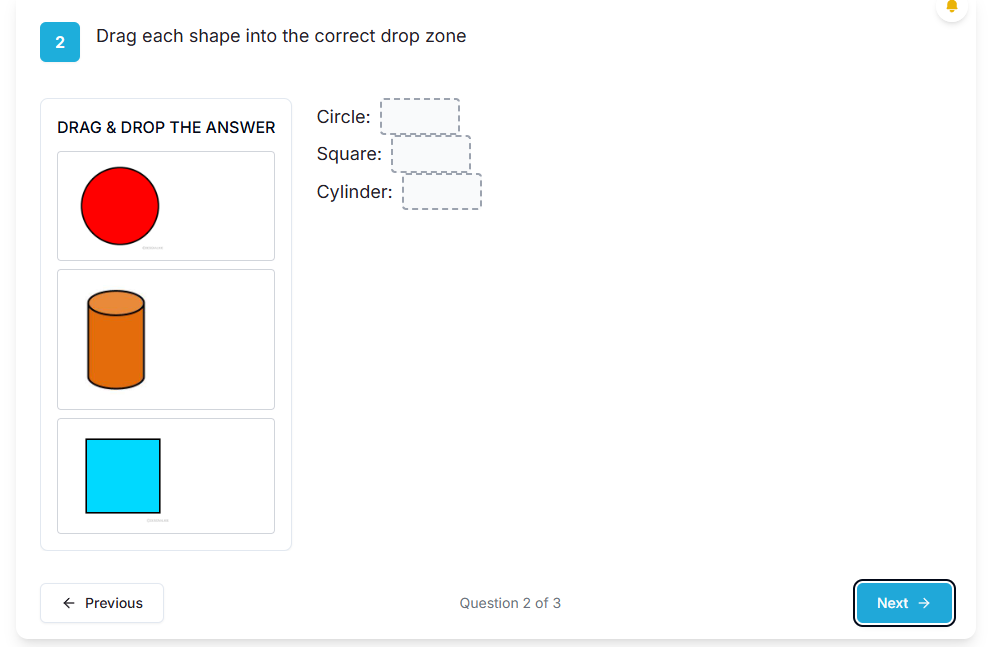
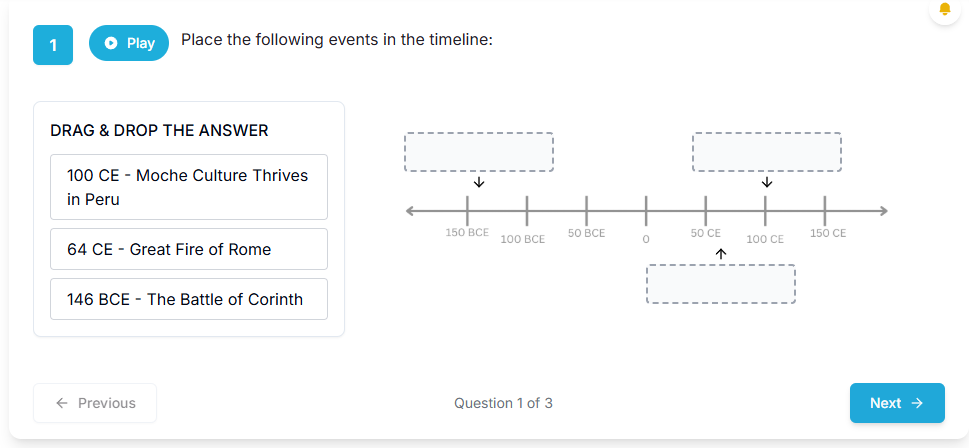
Drop Zones Over a Background Image (“Label the Image”)
A second image pattern places the drop targets on top of a picture — the student drags labels onto positions on a diagram, map, or timeline (“Label Image with Drag & Drop”). The background <img> sits in a position: relative container, and each drop zone is an absolutely-positioned <div> (carrying data-gap-id and an optional data-arrow-direction) layered over the image; each wraps one <qti-gap>. As with every Gap Match, the image and the gaps must live inside <qti-gap-match-interaction> — a stimulus placed outside the interaction is silently dropped by the player.
Adapted from live item _44808e88-bd96-416a-9bf2-a22b7fedd33b (strip <qti-catalog> / TTS and feedback before reusing). Important shape: three labels, three px drop zones on a fixed-size background image, map_response scoring.
<qti-response-declaration identifier="RESPONSE" cardinality="multiple" base-type="directedPair">
  <qti-correct-response>
    <qti-value>_gt_corinth _drop_corinth</qti-value>
    <qti-value>_gt_fire _drop_fire</qti-value>
    <qti-value>_gt_moche _drop_moche</qti-value>
  </qti-correct-response>
  <qti-mapping default-value="0" lower-bound="0">
    <qti-map-entry map-key="_gt_corinth _drop_corinth" mapped-value="0.3333333333333333"/>
    <qti-map-entry map-key="_gt_fire _drop_fire" mapped-value="0.3333333333333333"/>
    <qti-map-entry map-key="_gt_moche _drop_moche" mapped-value="0.3333333333333333"/>
  </qti-mapping>
</qti-response-declaration>
<qti-item-body>
  <qti-gap-match-interaction response-identifier="RESPONSE" shuffle="true">
    <qti-prompt>Place the following events in the timeline:</qti-prompt>
    <qti-gap-text identifier="_gt_corinth" match-max="1">146 BCE - The Battle of Corinth</qti-gap-text>
    <qti-gap-text identifier="_gt_moche" match-max="1">100 CE - Moche Culture Thrives in Peru</qti-gap-text>
    <qti-gap-text identifier="_gt_fire" match-max="1">64 CE - Great Fire of Rome</qti-gap-text>
    <div style="position: relative; display: inline-block;">
      <img src="https://mastery-track-assets.s3.us-east-1.amazonaws.com/alpha-teks-g4-social-studies-pretest-v5/3c758c8d675657f18474d8251d72def60a70564c.png" alt="Drag and drop image" style="display: block;" width="660" height="220" />
      <div style="position: absolute; top: 31px; left: 35px; width: 150px; height: 40px; border: 2px dashed #999; background: rgba(255,255,255,0.8);" data-gap-id="_drop_corinth" data-arrow-direction="down">
        <qti-gap identifier="_drop_corinth" />
      </div>
      <div style="position: absolute; top: 145px; left: 277px; width: 150px; height: 40px; border: 2px dashed #999; background: rgba(255,255,255,0.8);" data-gap-id="_drop_fire" data-arrow-direction="up">
        <qti-gap identifier="_drop_fire" />
      </div>
      <div style="position: absolute; top: 31px; left: 323px; width: 150px; height: 40px; border: 2px dashed #999; background: rgba(255,255,255,0.8);" data-gap-id="_drop_moche" data-arrow-direction="down">
        <qti-gap identifier="_drop_moche" />
      </div>
    </div>
  </qti-gap-match-interaction>
</qti-item-body>
<qti-response-processing template="https://purl.imsglobal.org/spec/qti/v3p0/rptemplates/map_response"/>
Each <div data-gap-id="X"> wraps a <qti-gap identifier="X"/>; the top/left pixels position the box over the image (the image’s width/height attributes are the coordinate frame). Correct pairs are still <gap-text-id> <gap-id> (e.g. _gt_corinth _drop_corinth). Optional data-arrow-direction is "up" or "down". Live example: test _test-08762a9a-…_v4, item _44808e88. There is no generator for this layout — copy that item, swap the picture, and remeasure each box by hand.
- Drop-zone
top/left/width/heightmust be plainpx(e.g.top: 31px; left: 35px) in the same frame as the background<img>’swidth/heightattributes - Do not use
%on the boxes, and do not size the background with responsive CSS alone (e.g.style="width:100%;height:auto") — the player only recognizestop/leftasNpxand otherwise shows the picture with zero drop zones - Copy live ref
_44808e88-bd96-416a-9bf2-a22b7fedd33b(test_test-08762a9a-…_v4) and remeasure; the AlphaTest authoring skill’s render-check rejects non-pxPattern B layouts
Hot Text (hottext)
base-type="identifier",cardinality="single"or"multiple"- Student clicks on the correct word(s) within a passage
<qti-response-declaration identifier="RESPONSE"
    cardinality="single" base-type="identifier">
  <qti-correct-response><qti-value>ht2</qti-value></qti-correct-response>
</qti-response-declaration>

<qti-item-body>
  <qti-hottext-interaction response-identifier="RESPONSE">
    <qti-prompt>Click the word that is the verb.</qti-prompt>
    <p>The cat <qti-hottext identifier="ht1">quickly</qti-hottext>
    <qti-hottext identifier="ht2">jumped</qti-hottext>
    over the <qti-hottext identifier="ht3">fence</qti-hottext>.</p>
  </qti-hottext-interaction>
</qti-item-body>
Hotspot (hotspot) — number line plot
base-type="point",cardinality="multiple"- The student places one or more points on a number line. Built with
<qti-position-object-interaction>anddata-graph-type="numberLinePlot", plus a<qti-object>SVG that draws the line.
<qti-hotspot-interaction> with <img> and <qti-hotspot-choice>) is not supported — those items do not render for test takers. The only supported "hotspot" is the number line plot below.<qti-assessment-item
xmlns="http://www.imsglobal.org/xsd/imsqtiasi_v3p0"
identifier="_340f83c7-3201-4744-977f-7c34fb07293c"
title="Line Plot" time-dependent="false" xml:lang="en-US">
<qti-response-declaration identifier="RESPONSE" cardinality="multiple" base-type="point">
<qti-correct-response>
<qti-value base-type="point">1.3333333333333335 2</qti-value>
<qti-value base-type="point">1.5000000000000002 1</qti-value>
<qti-value base-type="point">1.666666666666667 1</qti-value>
<qti-value base-type="point">1.8333333333333337 3</qti-value>
</qti-correct-response>
</qti-response-declaration>
<qti-outcome-declaration identifier="SCORE" cardinality="single" base-type="float">
<qti-default-value><qti-value>0</qti-value></qti-default-value>
</qti-outcome-declaration>
<qti-item-body>
<qti-prompt><p>Complete the line plot to show the number of hours each student spent reading.</p></qti-prompt>
<qti-position-object-interaction response-identifier="RESPONSE" max-choices="12"
data-graph-type="numberLinePlot" data-numberline="true"
data-x-min="1" data-x-max="2"
data-show-ticks="true" data-snap-to-ticks="true" data-ticks-distance="1" data-minor-ticks="5"
data-show-labels="true" data-point-face="cross" data-max-points-count="12"
data-scoring-type="partialMatch" data-layout-width="600" data-layout-height="440">
<qti-object data="data:image/svg+xml;base64,…" type="image/svg+xml" width="600" height="440"/>
</qti-position-object-interaction>
</qti-item-body>
<qti-response-processing>
<qti-set-outcome-value identifier="SCORE"><qti-base-value base-type="float">0</qti-base-value></qti-set-outcome-value>
<qti-response-condition><qti-response-if>
<qti-member><qti-base-value base-type="point">1.3333333333333335 2</qti-base-value><qti-variable identifier="RESPONSE"/></qti-member>
<qti-set-outcome-value identifier="SCORE"><qti-sum><qti-variable identifier="SCORE"/><qti-base-value base-type="float">0.25</qti-base-value></qti-sum></qti-set-outcome-value>
</qti-response-if></qti-response-condition>
<!-- one qti-response-condition per correct point (partialMatch, +0.25 each) -->
</qti-response-processing>
</qti-assessment-item>Marker shape (data-point-face): absent, "circle" or "dot" → a filled dot (the default dot-plot look); "cross" or "x" → an X mark. Leave it off for a normal dot plot; the example above keeps "cross" only because the copied reference item was authored that way.
Graphic Gap Match (graphic-gap-match)
base-type="directedPair",cardinality="multiple"- Two subtypes selected by
data-graph-type:axisLabels(drag a label onto a number line) andquadrants(plot points on a coordinate grid — grade / malha). - Children:
<qti-object>background SVG,<qti-gap-img>draggable labels,<qti-associable-hotspot>target zones. Correct response pairs a gap-img id with a hotspot id (e.g."_answer-point-1000 _hotspot_4_6").
Number line — data-graph-type="axisLabels"
<qti-assessment-item
    xmlns="http://www.imsglobal.org/xsd/imsqtiasi_v3p0"
    identifier="_ca812f00-d004-4b0d-83c7-9b8fea5bbe1b"
    title="Number Line" time-dependent="false" xml:lang="en-US">

  <qti-response-declaration identifier="RESPONSE" cardinality="multiple" base-type="directedPair">
    <qti-correct-response>
      <qti-value base-type="directedPair">_label_list-item-d1swdcr9o _hotspot_-3.6</qti-value>
    </qti-correct-response>
  </qti-response-declaration>

  <qti-outcome-declaration identifier="SCORE" cardinality="single" base-type="float">
    <qti-default-value><qti-value>0</qti-value></qti-default-value>
  </qti-outcome-declaration>

  <qti-item-body>
    <qti-prompt><p>Plot a point on the number line that represents <span data-latex="-3.6"></span>.</p></qti-prompt>
    <qti-graphic-gap-match-interaction response-identifier="RESPONSE"
        data-graph-type="axisLabels" data-numberline="true"
        data-x-min="-4" data-x-max="-3" data-y-min="-1.75" data-y-max="1"
        data-show-ticks="true" data-snap-to-ticks="true" data-ticks-distance="1" data-minor-ticks="9"
        data-scoring-type="exactMatch" data-valid-positions="-3.6"
        data-label-ids="list-item-d1swdcr9o" data-layout-width="600" data-layout-height="150">
      <qti-object data="<div></div>" type="image/png" width="100" height="100"/>
      <qti-gap-img identifier="_label_list-item-d1swdcr9o" match-max="1">
        <qti-object data="data:image/svg+xml;base64,…" type="image/svg+xml"/>
      </qti-gap-img>
      <qti-associable-hotspot identifier="_hotspot_-3.6" shape="rect" coords="0,0,50,50" match-max="1"/>
    </qti-graphic-gap-match-interaction>
  </qti-item-body>

  <qti-response-processing template="http://www.imsglobal.org/question/qti_v3p0/rptemplates/match_correct"/>
</qti-assessment-item>
Coordinate grid (grade / malha) — data-graph-type="quadrants"
<qti-assessment-item
    xmlns="http://www.imsglobal.org/xsd/imsqtiasi_v3p0"
    identifier="_5dbeeddf-eece-4974-b39d-cc77a52ff6b8"
    title="Graphing" time-dependent="false" xml:lang="en-US">

  <qti-response-declaration identifier="RESPONSE" cardinality="multiple" base-type="directedPair">
    <qti-correct-response>
      <qti-value base-type="directedPair">_answer-point-1000 _hotspot_4_6</qti-value>
      <qti-value base-type="directedPair">_answer-point-1001 _hotspot_6_4</qti-value>
      <qti-value base-type="directedPair">_answer-point-1002 _hotspot_3_0</qti-value>
    </qti-correct-response>
  </qti-response-declaration>

  <qti-outcome-declaration identifier="SCORE" cardinality="single" base-type="float">
    <qti-default-value><qti-value>0</qti-value></qti-default-value>
  </qti-outcome-declaration>

  <qti-item-body>
    <qti-prompt><p>Graph points A(4,6), B(6,4) and C(3,0) on the coordinate plane.</p></qti-prompt>
    <qti-graphic-gap-match-interaction response-identifier="RESPONSE" data-graph-type="quadrants"
        data-x-min="0" data-x-max="16" data-y-min="-2" data-y-max="10"
        data-x-distance="1" data-y-distance="1" data-show-grid="true"
        data-layout-width="700" data-layout-height="500" data-scoring-type="exactMatch">
      <qti-object data="data:image/svg+xml;base64,…" type="image/svg+xml" width="700" height="500"/>
      <qti-gap-img identifier="_answer-point-1000" match-max="1"><qti-object data="data:image/svg+xml;base64,…" type="image/svg+xml"/></qti-gap-img>
      <qti-gap-img identifier="_answer-point-1001" match-max="1"><qti-object data="…" type="image/svg+xml"/></qti-gap-img>
      <qti-gap-img identifier="_answer-point-1002" match-max="1"><qti-object data="…" type="image/svg+xml"/></qti-gap-img>
      <qti-associable-hotspot identifier="_hotspot_4_6" shape="circle" coords="175,166.67,10" match-max="1"/>
      <qti-associable-hotspot identifier="_hotspot_6_4" shape="circle" coords="262.5,250,10" match-max="1"/>
      <qti-associable-hotspot identifier="_hotspot_3_0" shape="circle" coords="131.25,416.67,10" match-max="1"/>
    </qti-graphic-gap-match-interaction>
  </qti-item-body>

  <qti-response-processing template="http://www.imsglobal.org/question/qti_v3p0/rptemplates/match_correct"/>
</qti-assessment-item>
Given / fixed reference points — data-fixed-points (coordinate plane only)
Add the data-fixed-points attribute to <qti-graphic-gap-match-interaction> (only when data-graph-type="quadrants") to draw given points on the grid. They render as gray, non-draggable, non-graded markers — use them for points the student must reference (e.g. “point P is at (−5, 4)”), never for the answer itself.
- Format: entries separated by
;; each entry isLABEL:x,yor justx,y. An empty/missing label makes the marker show its coordinate(x, y). Labels must not contain;:,. Negatives are fine (P:-5,4). - Example:
data-fixed-points="P:-5,4;:3,2;:7,2"draws three markers: P at (−5, 4), plus two coordinate-labeled points at (3, 2) and (7, 2). - Not graded: fixed points are display-only. The student still drags the answer point(s) from the prompt token, and only those are scored.
<qti-graphic-gap-match-interaction response-identifier="RESPONSE" data-graph-type="quadrants"
    data-x-min="-6" data-x-max="6" data-y-min="-6" data-y-max="6"
    data-show-grid="true" data-scoring-type="exactMatch"
    data-fixed-points="A:3,4">
  <!-- given point A(3,4) is drawn but not graded; the student drags the answer point -->
  <qti-associable-hotspot identifier="_hotspot_-3_4" shape="circle" coords="90,120,10" match-max="1"/>
</qti-graphic-gap-match-interaction>
Authoring recipe (both subtypes)
- Generate the coordinate-plane (points) version: run
python scripts/make_plot_points.py --spec pts.json --out q.xml(spec:prompt,labels,maxPoints,window,points[]). The number-line version is still a copy-a-real-one. - Placing points (click only, no drag): the student clicks the grid to place points. Names are optional (
data-point-labels, defaultfalse): unnamed = just click to add a point (up todata-max-points), click a point to remove it; named (data-point-ids="A,B,C") = click a name then a cell, and click a placed point to cycle its name (removing after the last name). The number line (axisLabels) supports the very same named tray — setdata-point-labels="true"withdata-point-idsand the student clicks a label then a tick. Each point’s display label comes from its<qti-gap-text>content (e.g.√2); the id (A, B, C) is only for grading. - Correct response:
quadrantspairs the point id with_hotspot_<x>_<y>(e.g._answer-point-A _hotspot_-3_4);axisLabels(number line) pairs the label id with_hotspot_<position>(e.g._label_p _hotspot_-2.5). - Grading: compared as full coordinate tuples within tolerance 0.01 (partial credit). Unnamed → by position, label-agnostic. Named → per label (the point labelled X must be at X’s spot). An unnamed number line is all-or-nothing; a named / labelled number line (
data-point-labels="true"+data-point-ids) is graded per label with partial credit, just like named coordinate-plane points. - Fixed points (
data-fixed-points) never show their coordinates — only an explicit label if given — so they don’t reveal the answer.
Plot a Line (plot-line)
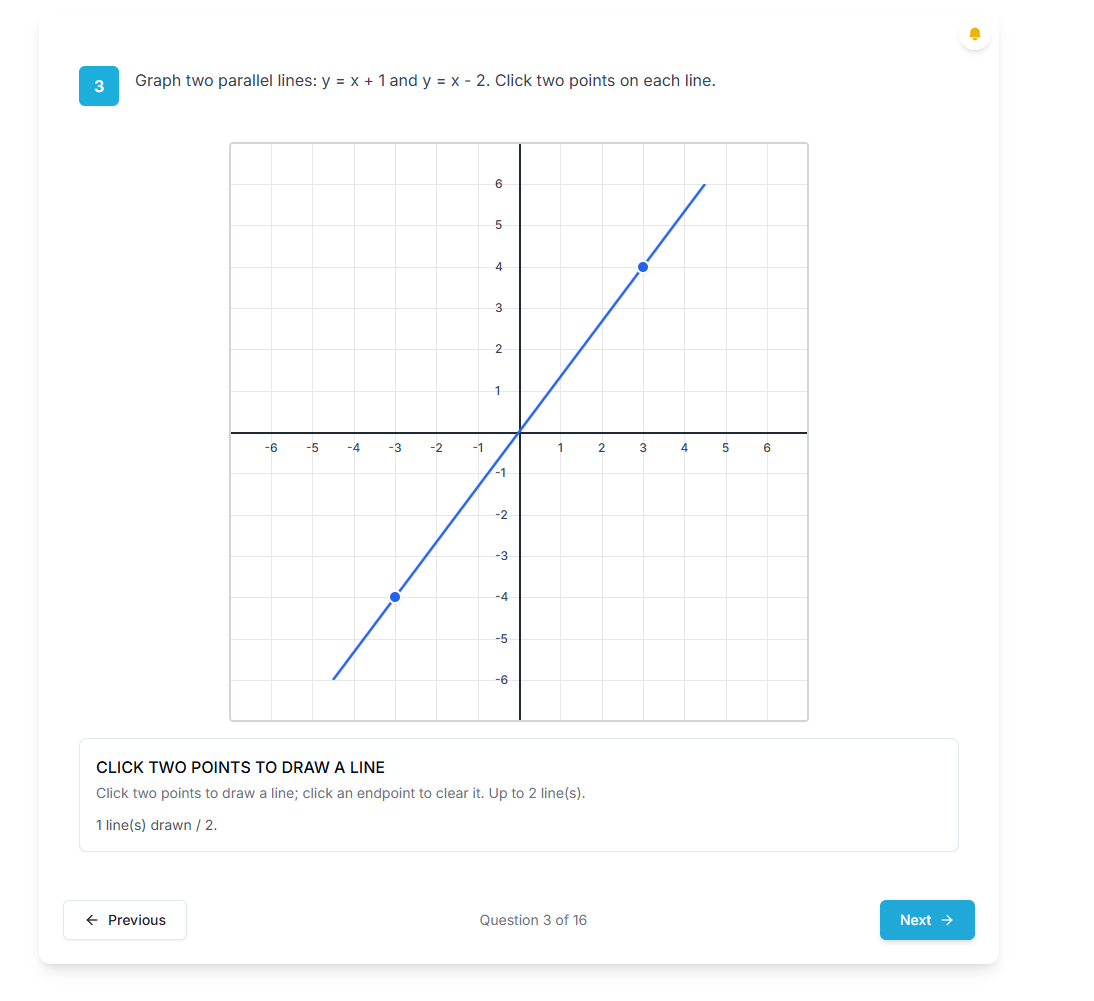
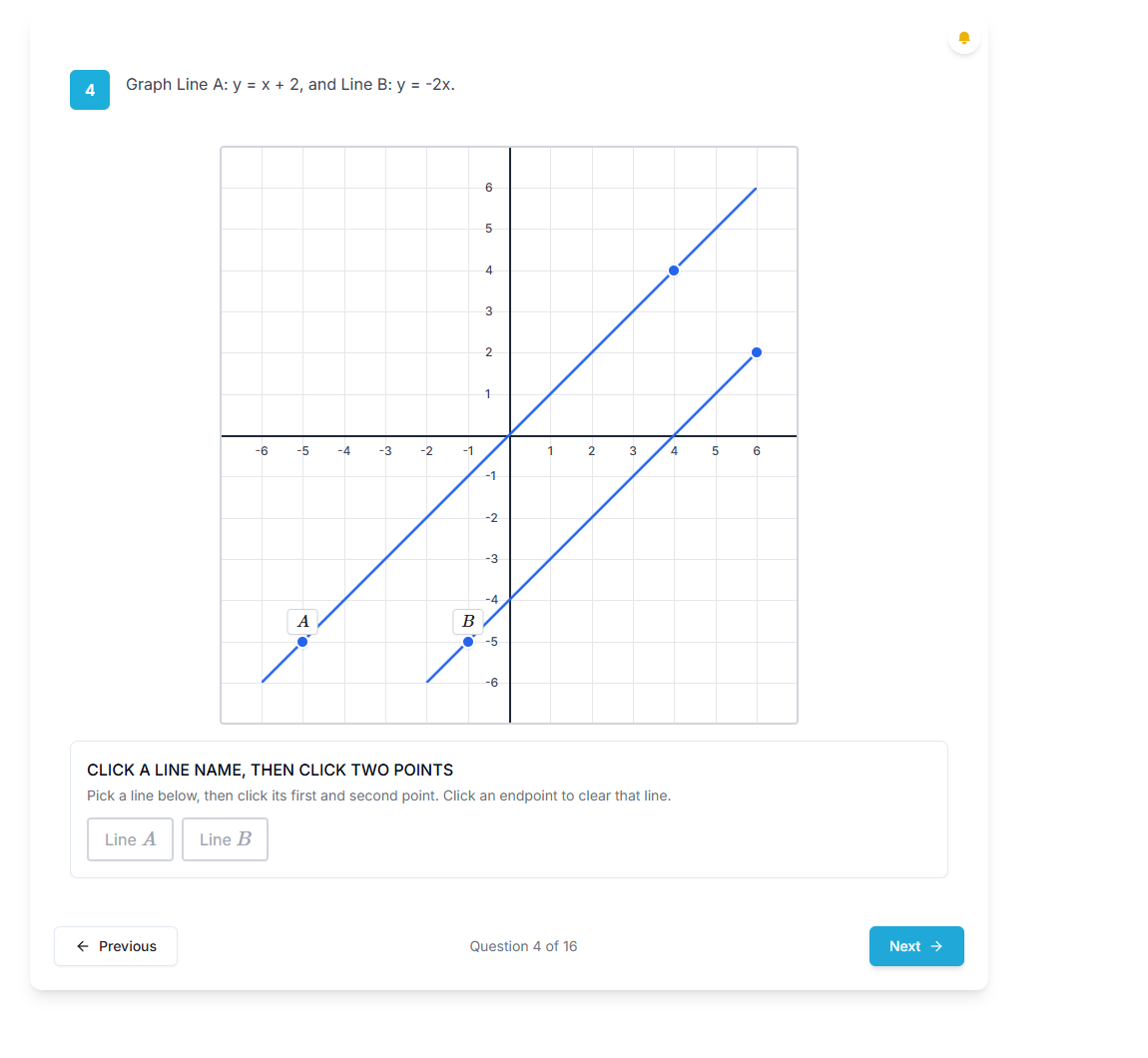
The coordinate-plane question where the student plots lines instead of points, by clicking two points (no drag). Lines can be named or unnamed (author’s choice, default unnamed), and the author sets a max number of lines. Click an endpoint to clear a line and redraw it. Use it for slope & linear functions (8.EE / 8.F) and segments (5.G, 6–8).
- One interaction:
<qti-graphic-gap-match-interaction>withdata-plot-type="line",data-line-labels(defaultfalse) anddata-max-lines; named lines adddata-line-ids="A,B". - Shape (author’s choice):
data-line-shape="line"draws the infinite line through the two points;data-line-shape="segment"draws only the segment between them. - Grading (partial credit): unnamed → by geometry, label-agnostic (each expected line matched by any line drawn the same way); named → per label (the line labelled X must match line X).
linecompares the same infinite line (slope & intercept);segmentcompares exact endpoints. Each line is two_line_<token> _hotspot_<x>_<y>pairs in the correct response. - Generate it — don’t hand-write the grid SVG/hotspots. Give Claude Code a spec and run
python scripts/make_plot_line.py --spec line.json --out q.xml, thenrender_check.pyandcreate_item.py. Full spec and XML shape:references/question-types/plot-line.mdin the skill.
What it looks like — the four variations (shape × naming):
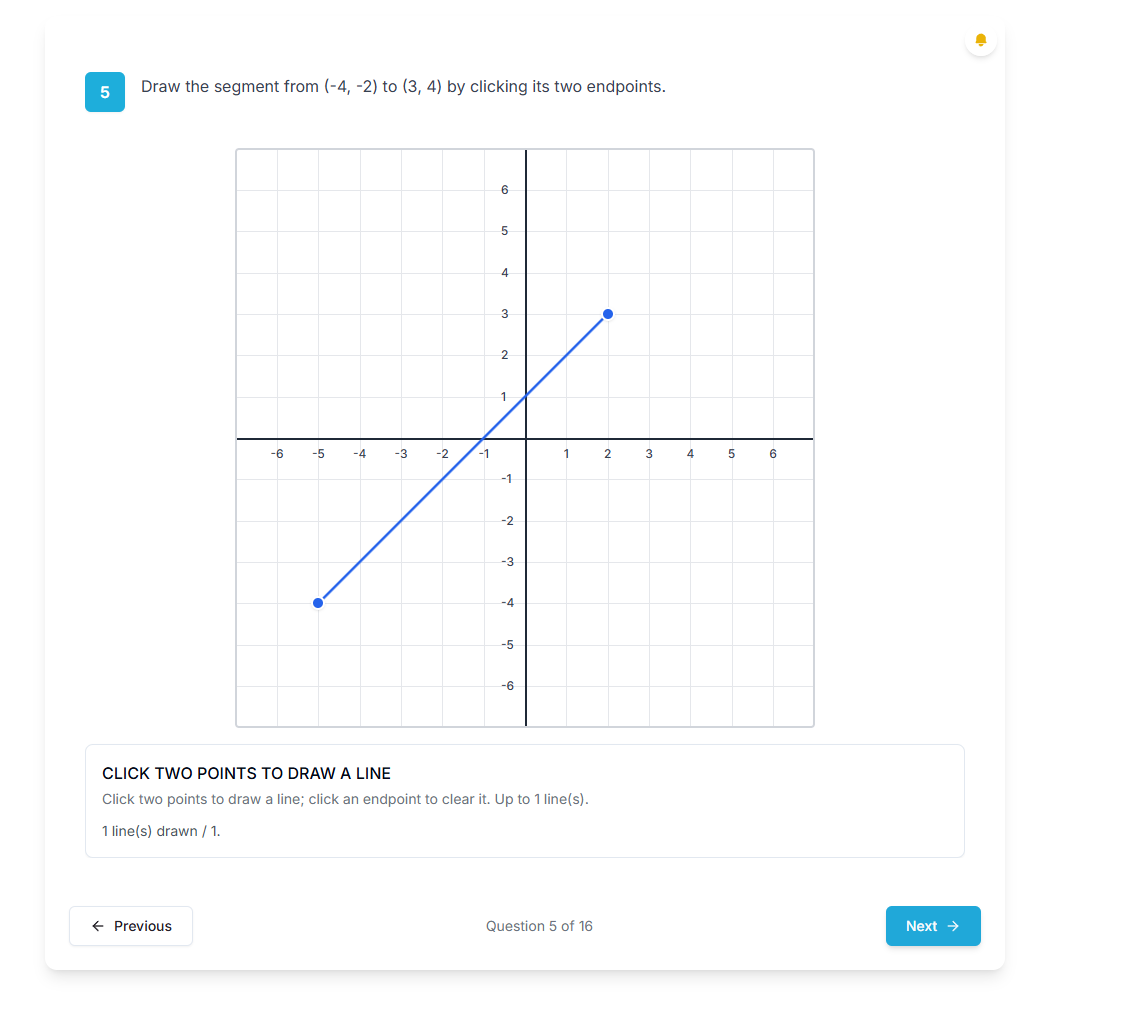
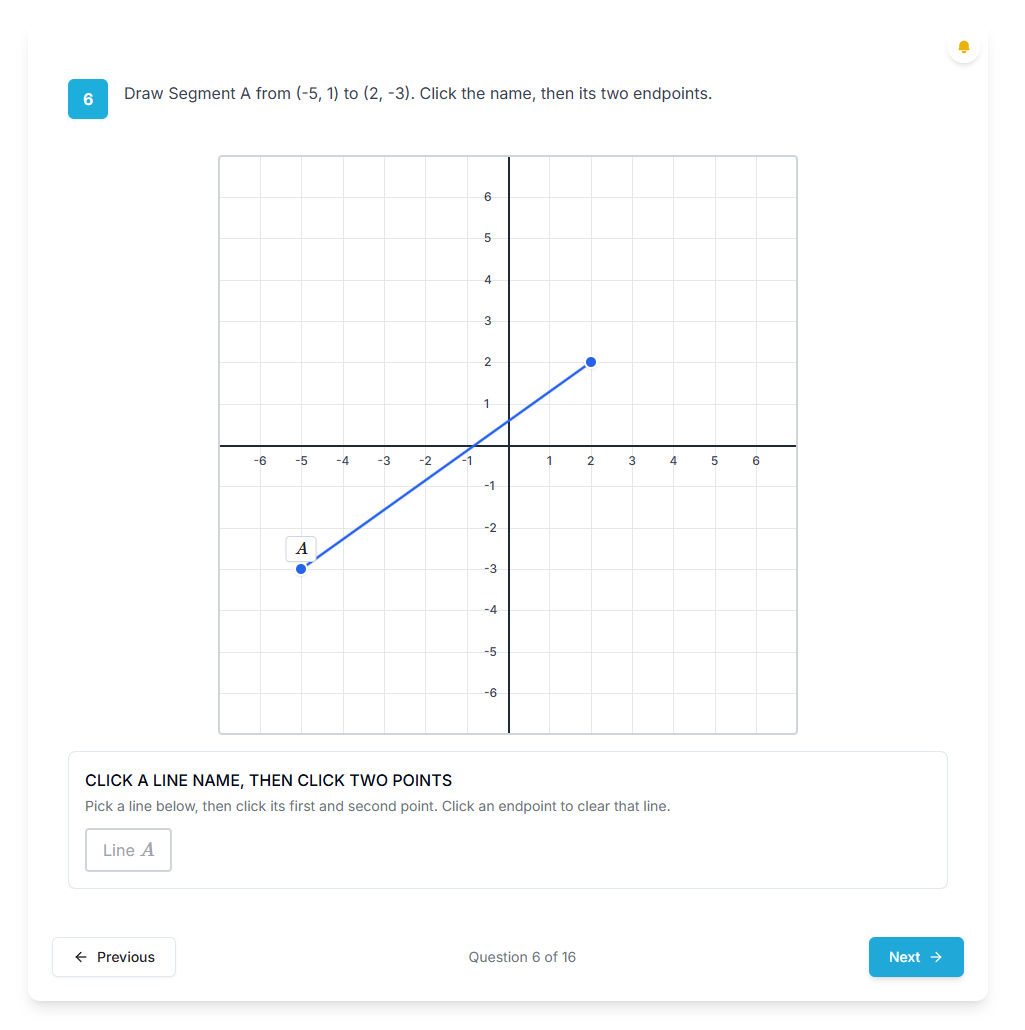
Box Plot (box-plot)
The number-line question where the student builds the five-number summary — minimum, lower quartile (Q1), median, upper quartile (Q3) and maximum. A row of value chips (Min, Q1, Median, Q3, Max) sits above a labeled number line: the student picks a chip, then clicks the line to place that stat — it snaps to the nearest tick and auto-advances to the next chip. Clicking a chip again re-selects its stat so the next click on the line moves it. The box (Q1–Q3), median line and whiskers (out to min and max) draw automatically as the points land. Use it for box-and-whisker plots (6.SP), spread and quartiles.
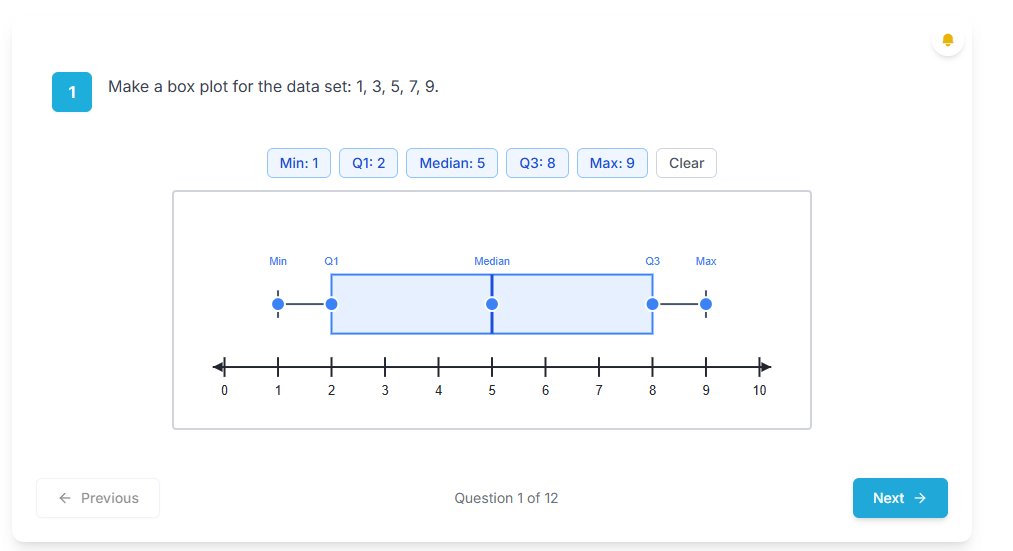
- One interaction:
<qti-position-object-interaction>withdata-graph-type="boxPlot",data-x-min/data-x-max,data-ticks-distanceanddata-layout-width/data-layout-height— the same position-object family as the number-line dot plot, so the platform treats it as ahotspot. - Answer (in the correct response): five
<qti-value base-type="point">value ordinal</qti-value>where the ordinal1..5is min, Q1, median, Q3, max. The student’s submitted answer is a JSON object{"min":…,"q1":…,"median":…,"q3":…,"max":…}. - Grading (partial credit by stat with
data-scoring-type="partialMatch"): each of the five values is graded independently and review mode colours each handle green/red;exactMatchrequires all five. - Optional:
data-prefilled="min:1,max:9"pre-places and locks some stats (given to the student, who fills in the rest). - Generate it — give Claude Code a spec and run
python scripts/make_box_plot.py --spec box.json --out q.xml, thenrender_check.pyandcreate_item.py. Full spec and XML shape:references/question-types/box-plot.mdin the skill.
Select a Point on a Number Line (select-point)
The number-line question where the student clicks a tick to place a point and, for an inequality, chooses an open/closed endpoint and a shade direction. One type, three jobs: plot a point, a single inequality, or a compound “between” region. Use it for inequalities (6.EE — “show all the heights that are allowed”), plotting points/integers/fractions, and bounded ranges.
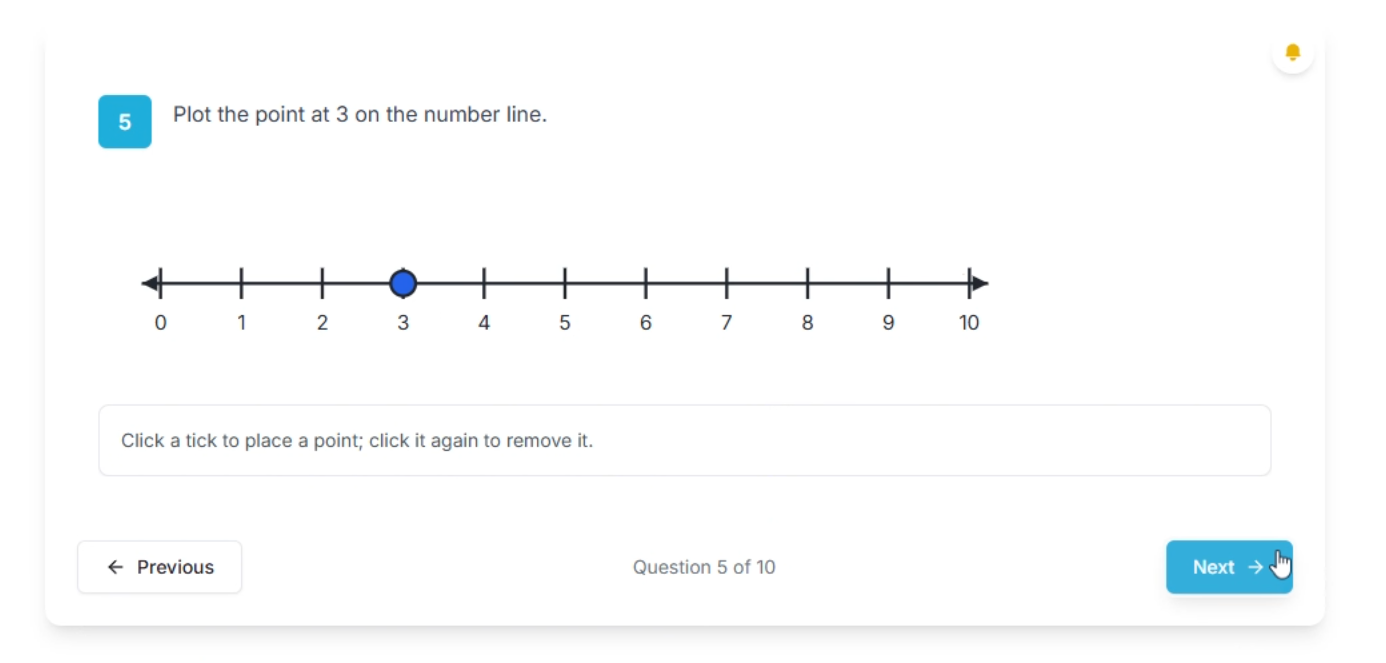
shade: "none")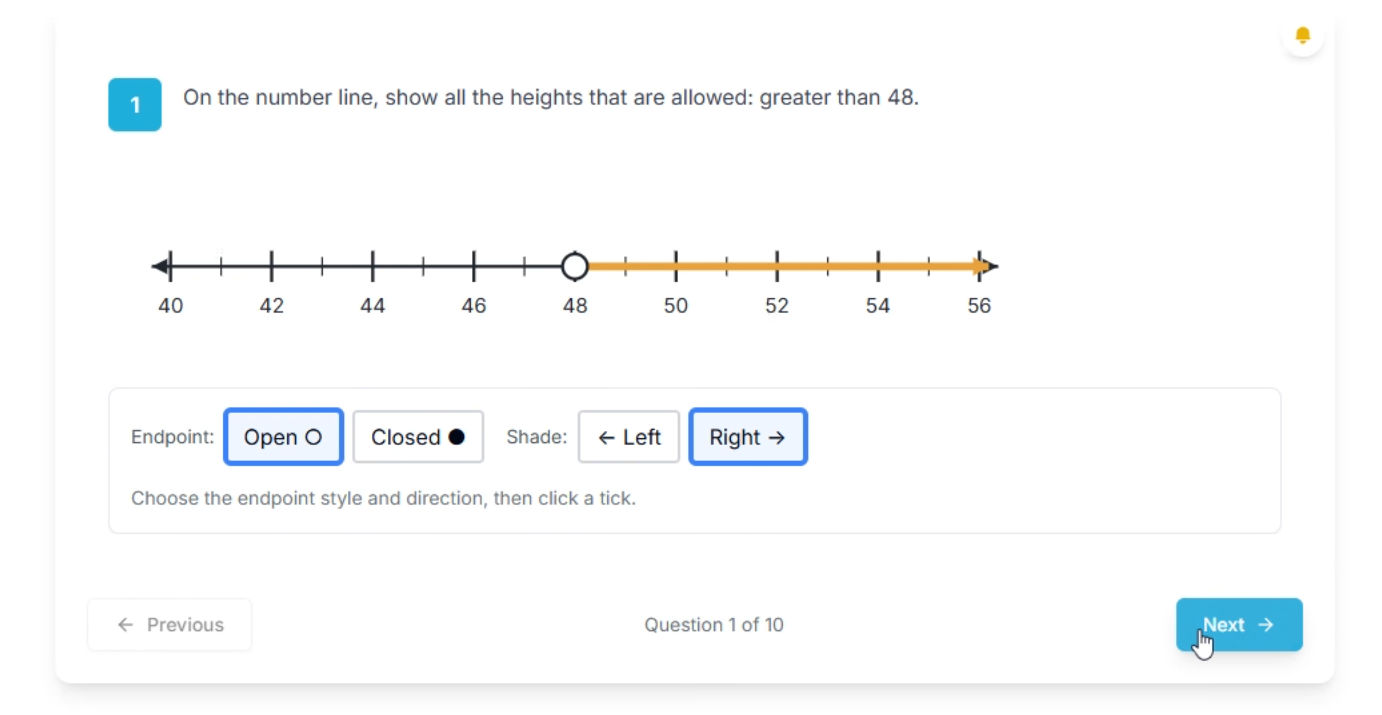
x > 48)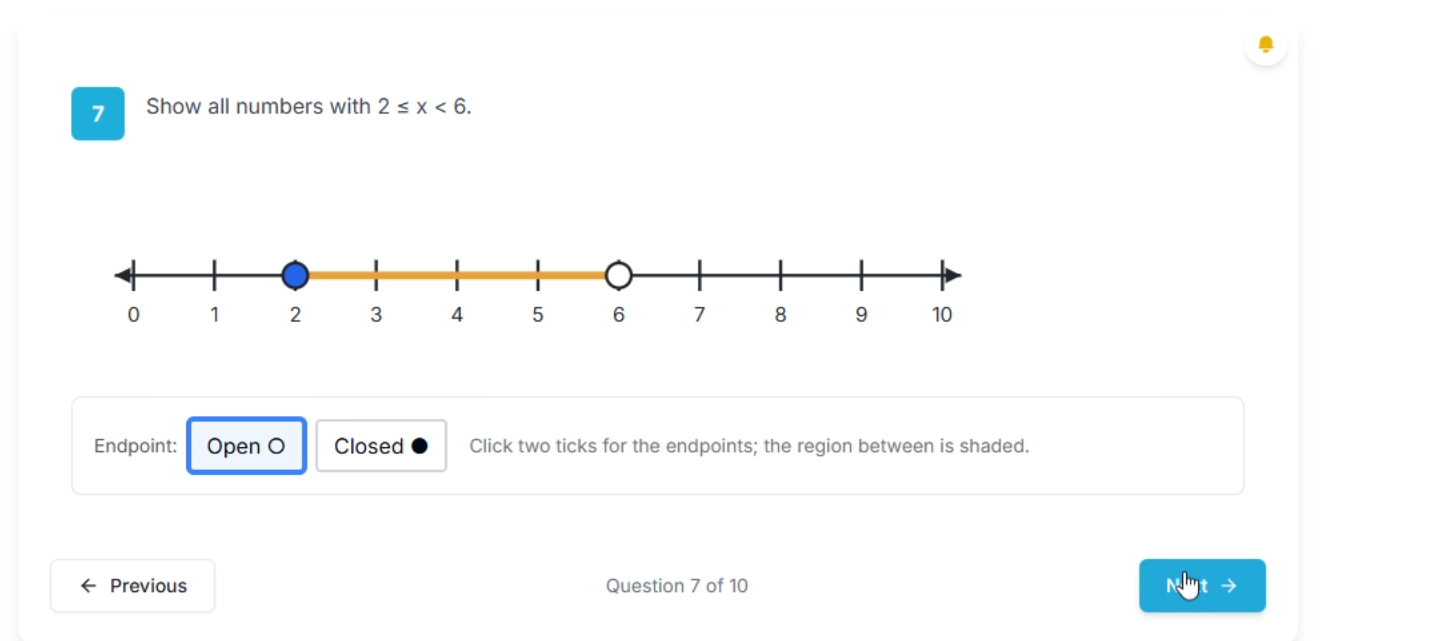
2 ≤ x < 6)- One interaction:
<qti-graphic-gap-match-interaction>withdata-graph-type="selectPoint",data-nl-min/data-nl-max/data-nl-step, plus a<qti-gap-text>token and a<qti-associable-hotspot>per tick. - Answer (in the correct response): directed pairs — an endpoint pair
_endpoint_<open|closed>_<i> _hotspot_<value>per point, plus a shade pair_shade_<none|left|right|between>. The answer lives only in the correct response (never delivered to the student). - Grading (partial credit by component): each endpoint position, each open/closed endpoint, and the shade direction count equally; review mode colours each piece green/red.
- Generate it — give Claude Code a spec and run
python scripts/make_select_point.py --spec ineq.json --out q.xml, thenrender_check.pyandcreate_item.py. Full spec and XML shape:references/question-types/select-point.mdin the skill.
Slider (slider)
The question where the student drags one handle along a track to choose a single numeric value. Slider is a first-class QTI 3.0 interaction (<qti-slider-interaction>) — unlike the number-line plots and box plot, which ride on a position-object — so the QTI API stores it as type:"slider" and the player renders a real slider. Use it for estimation, reading a value off a scale, setting a temperature / percentage / measurement, and “set the slider to …” prompts.
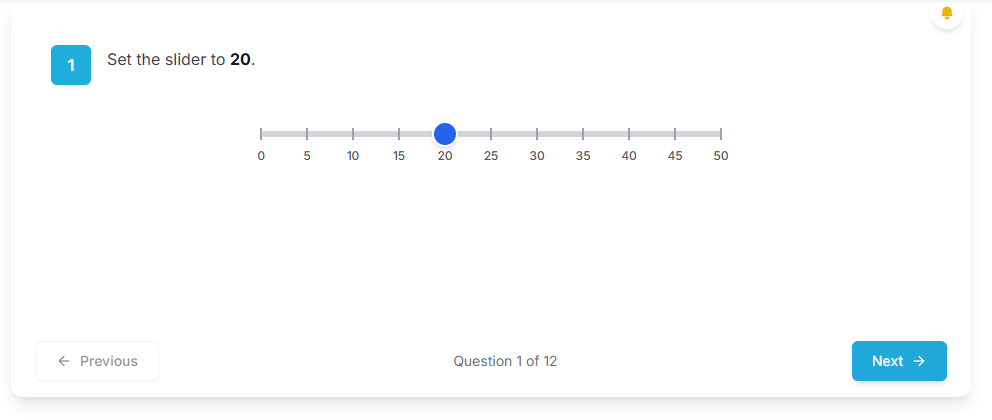
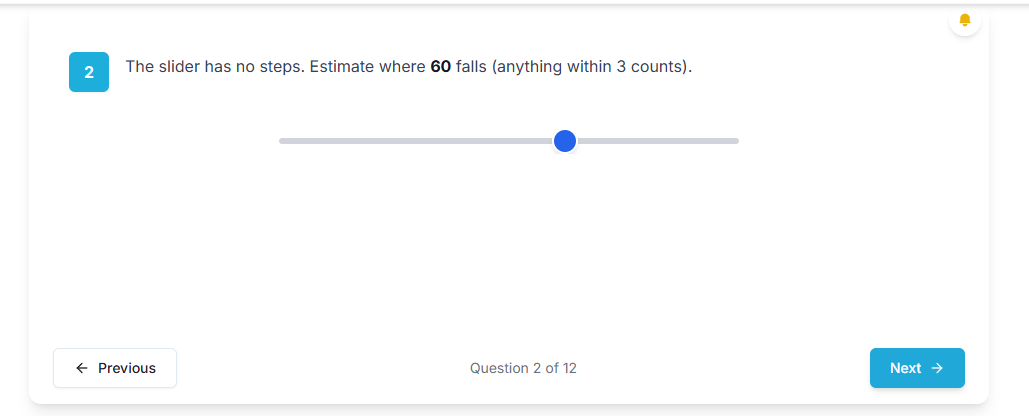
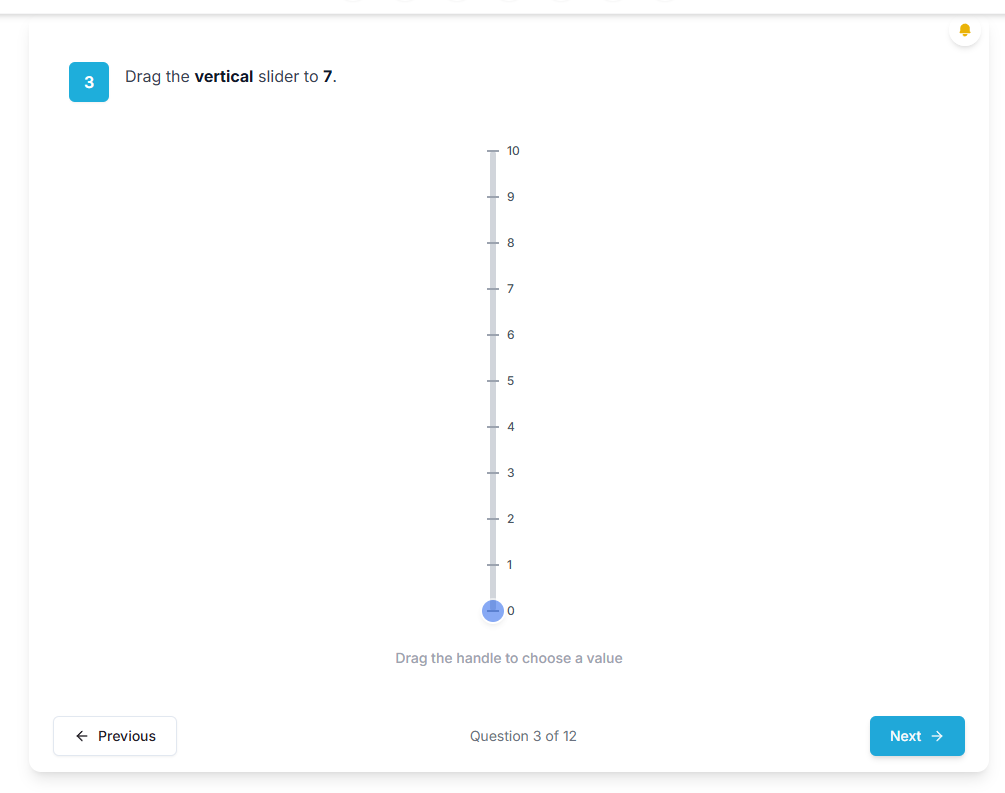
- One interaction:
<qti-slider-interaction>withlower-bound/upper-bound,orientation(horizontaldefault /vertical), an optionalstep(the handle snaps to each tick; omit for a continuous slider) andstep-label, plusdata-tolerancefor the grading band. - Answer (in the correct response): a single
<qti-value>in acardinality="single" base-type="float"response declaration.data-tolerancerides along as adata-*attribute the player and grader read (default0= exact); it survives the QTI API round-trip and the strict schema. - Grading (all-or-nothing on one value): the answer is correct when
|student − answer| ≤ data-tolerance— raise the tolerance for an estimation band, keep it0for “set the slider to exactly N.” Review mode colours the handle green / red. - Generate it — give Claude Code a spec and run
python scripts/make_slider.py --spec slider.json --out q.xml, thenrender_check.pyandcreate_item.py. Spec:prompt,lowerBound,upperBound,answer, optionalstep,orientation,stepLabel,reverseandtolerance. Full spec and XML shape:references/question-types/slider.mdin the skill.
Portable Custom Interaction (portable-custom)
base-type="string",cardinality="single"- Specialized widgets. Two subtypes supported:
| Subtype | URN | Description |
|---|---|---|
| Fraction Editor | urn:fdc:edulastic.com:2024:pci:fractionEditor | Fraction visualization with rectangles or circles |
| Histogram | urn:fdc:edulastic.com:2024:pci:histogram | Interactive bar chart construction |
<qti-assessment-item
xmlns="http://www.imsglobal.org/xsd/imsqtiasi_v3p0"
identifier="_2df13c48-a4a1-4f3e-bebe-524dddd45952"
title="Histogram" time-dependent="false" xml:lang="en-US">
<qti-response-declaration identifier="RESPONSE" cardinality="single" base-type="string">
<qti-correct-response>
<qti-value base-type="string">[{"x":"0-4","y":1},{"x":"5-9","y":3},{"x":"10-14","y":4},{"x":"15-19","y":4}]</qti-value>
</qti-correct-response>
</qti-response-declaration>
<qti-outcome-declaration identifier="SCORE" cardinality="single" base-type="float">
<qti-default-value><qti-value>0</qti-value></qti-default-value>
</qti-outcome-declaration>
<qti-item-body>
<qti-portable-custom-interaction response-identifier="RESPONSE"
custom-interaction-type-identifier="urn:fdc:edulastic.com:2024:pci:histogram"
module="histogramPCI" data-chart-type="histogram"
data-x-axis-label="Quiz Score" data-y-axis-label="Number of Students"
data-y-axis-min="0" data-y-axis-max="6" data-step-size="1" data-snap-to="1"
data-chart-data="[{"x":"0-4","y":0},{"x":"5-9","y":0},{"x":"10-14","y":0},{"x":"15-19","y":0}]"
data-width="640" data-height="440" data-margin="40"
data-show-gridlines="y_only" data-fraction-format="Decimal">
<qti-prompt>
<p>Twelve students scored these points on a 20-point quiz:</p>
<p><strong>3, 6, 7, 8, 11, 12, 13, 14, 15, 16, 18, 19</strong></p>
<p>Display the data by setting the correct frequency for each bar to complete the histogram.</p>
</qti-prompt>
<qti-interaction-modules primary-configuration="modules/module_resolution.js">
<qti-interaction-module id="histogramPCI" primary-path="modules/histogram/histogramPCI"/>
</qti-interaction-modules>
<qti-interaction-markup>
<div class="histogram-container"><div id="histogram-chart" role="img"></div></div>
</qti-interaction-markup>
</qti-portable-custom-interaction>
</qti-item-body>
<qti-response-processing template="http://www.imsglobal.org/question/qti_v3p0/rptemplates/match_correct"/>
</qti-assessment-item>data-* attributes vary between subtypes and must be precise. Note that quotes inside JSON-valued attributes (e.g. data-chart-data) must be encoded as ".Upload (upload)
base-type="file",cardinality="single"- No correct response — manually graded
<qti-response-declaration identifier="RESPONSE"
    cardinality="single" base-type="file"/>

<qti-item-body>
  <p>Upload your lab report as a PDF file.</p>
  <qti-upload-interaction response-identifier="RESPONSE"/>
</qti-item-body>
Composite / Multi-part Item
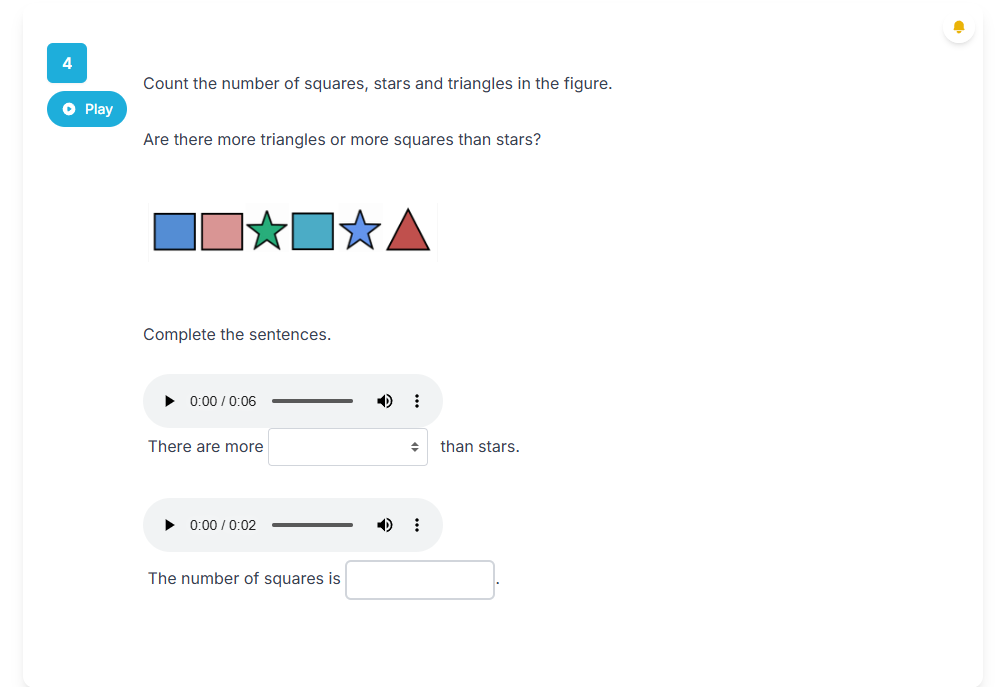
A composite item packs two or more interactions of different types into one question, each scored separately — for example a dropdown and a text box that share one stem (see the figure earlier: "There are more [▼] than stars" plus "The number of squares is [ ]"). It is not a separate API type: the platform detects a composite automatically when the body holds two or more different interaction types, and awards partial credit per part. (Two text boxes alone is a multi-blank text-entry item, not a composite.)
Not valid as composite parts: extended-text (essay), upload, and hottext. extended-text and upload are stand-alone question types only; hottext is temporarily not supported inside a composite — author it as its own standalone question for now (standalone hottext is unaffected).
- One
<qti-response-declaration>per part, each with its owncardinality/base-typeand correct value (parts can be different types). - Multiple outcome declarations for part scores: a total
SCOREplusSCORE_1,SCORE_2, … (one per part). - The body holds all the interactions in reading order. Text-entry parts can use Math Equivalency — set
data-grading-mode="math-equivalence"on that blank (or<qti-custom-operator class="math.equal">in response processing); dropdown parts always use exact choice matching. See Math Equivalency for Text Entry Questions. - Custom response processing — one condition per part adds its points to that part's
SCORE_nand the total. You can hand-write this by following the per-part recipe, or copy a real example and adapt it.
response-identifier matches its own declaration, all ids are unique across parts, and the part points sum to the item's total.Creating Tests (Assessment Tests)
Once all your questions are created and you have their IDs, assemble them into a test.
Standard Test (Untimed)
<?xml version="1.0" encoding="UTF-8"?>
<qti-assessment-test
  xmlns="http://www.imsglobal.org/xsd/imsqti_v3p0"
  xmlns:xsi="http://www.w3.org/2001/XMLSchema-instance"
  xsi:schemaLocation="http://www.imsglobal.org/xsd/imsqti_v3p0
    https://purl.imsglobal.org/spec/qti/v3p0/schema/xsd/imsqti_v3p0.xsd"
  identifier="_GENERATE-UUID"
  title="Your Test Title">

  <qti-metadata>
    <qti-metadata-entry key="subject">Math</qti-metadata-entry>
    <qti-metadata-entry key="grade">5</qti-metadata-entry>
    <qti-metadata-entry key="type">qti</qti-metadata-entry>
    <qti-metadata-entry key="subType">qti-test</qti-metadata-entry>
  </qti-metadata>

  <qti-outcome-declaration identifier="SCORE"
      cardinality="single" base-type="float">
    <qti-default-value><qti-value>0.0</qti-value></qti-default-value>
  </qti-outcome-declaration>

  <qti-test-part identifier="tp_1"
      navigation-mode="linear" submission-mode="simultaneous">
    <qti-assessment-section identifier="sec_1" title="SECTION 1"
        visible="true" required="true" fixed="true">
      <qti-assessment-item-ref identifier="ITEM-ID-1" href="ITEM-ID-1.xml"/>
      <qti-assessment-item-ref identifier="ITEM-ID-2" href="ITEM-ID-2.xml"/>
    </qti-assessment-section>
  </qti-test-part>
</qti-assessment-test>
Timed Test
Add <qti-time-limits> to the test (time-dependent="true" on the root follows from it automatically). Claude Code writes this for you with set_test_time_limit.py --test-id <id> --minutes 40 — the XML below is what it produces:
<qti-assessment-test ... time-dependent="true">
  <!-- metadata and outcome-declaration as above -->
  <qti-time-limits max-time="PT40M" allow-late-submission="false"/>
  <!-- test-part as above -->
</qti-assessment-test>
Fluency Test
Same as timed, but also add fluency="true" to <qti-time-limits> and in metadata (set_test_time_limit.py --test-id <id> --minutes 1 --fluency does both). The fluency attribute on the element is what the player actually reads — the metadata entry alone does nothing:
<qti-assessment-test ... time-dependent="true">
  <qti-metadata>
    <!-- ... other metadata ... -->
    <qti-metadata-entry key="fluency">true</qti-metadata-entry>
  </qti-metadata>
  <!-- outcome-declaration -->
  <qti-time-limits max-time="PT2M" allow-late-submission="false"
      fluency="true"/>
  <!-- test-part -->
</qti-assessment-test>{ "format": "xml", "xml": ... } wrapper. Tests are not. POST /assessment-tests looks at the request's Content-Type: send a JSON test object (application/json) or raw test XML (application/xml). The { "format": "xml" } wrapper is rejected for tests with "test.identifier is required".
POST the test as a JSON object (this is the reliable path — Claude Code does this for you):
POST https://qti.alpha-1edtech.ai/api/assessment-tests
Content-Type: application/json
Authorization: Bearer {your_token}

{
  "identifier": "_test-GENERATED-UUID",
  "title": "G5 Fractions — Practice",
  "qtiVersion": "3.0",
  "qti-test-part": [{
    "identifier": "_testpart-UUID",
    "navigationMode": "nonlinear",
    "submissionMode": "individual",
    "qti-assessment-section": [{
      "identifier": "_section-UUID",
      "title": "Main Section",
      "visible": true, "required": true, "fixed": false, "sequence": 1,
      "qti-assessment-item-ref": [
        { "identifier": "_ITEM-ID-1", "href": "https://qti.alpha-1edtech.ai/api/assessment-items/_ITEM-ID-1" }
      ]
    }]
  }],
  "qti-outcome-declaration": [{ "identifier": "SCORE", "cardinality": "single", "baseType": "float" }],
  "metadata": { "subject": "Math", "grade": "5" }
}
Response (201): returns the test with its identifier. This is your Test ID.
<qti-prompt> (a bare <p> renders nothing for most types), and "hotspot" must be a number-line plot (image hotspots don't render). Claude Code runs render_check.py on the finished test for exactly this — ask it to "render-check the test", and don't hand out the Test ID until every question reports OK. The same check also reports the test's time limit and fails a test that claims to be timed or fluency but has none stored in it.
Stimuli & Reading Passages
A reading passage is a stimulus — a shared block of text several questions are based on. You can create passages through the API (you don't have to use the admin UI). It's two steps: create the passage, then reference it from each question.
Step 1 — Create the passage (POST /stimuli)
Send the passage as XML, the same { "format": "xml", "xml": … } wrapper used for questions. The passage XML is a <qti-assessment-stimulus> with a <qti-stimulus-body> of HTML (note the stimulus schema URL):
<qti-assessment-stimulus
    xmlns="http://www.imsglobal.org/xsd/imsqtiasi_v3p0"
    xsi:schemaLocation="… imsqti_stimulusv3p0p1_v1p0.xsd"
    identifier="_stim-bees-pollination" xml:lang="en-US" title="Bees and Pollination">
  <qti-stimulus-body>
    <div><h3>Bees and Pollination</h3><p>Bees help plants reproduce by carrying pollen…</p></div>
  </qti-stimulus-body>
</qti-assessment-stimulus>
POST it to https://qti.alpha-1edtech.ai/api/stimuli with { "format": "xml", "xml": "…", "metadata": { "subject": "Reading", "grade": "3" } }. Save the returned passage identifier.
Step 2 — Reference the passage from each question
Add a <qti-assessment-stimulus-ref> to the question, after the declarations and before <qti-item-body>. The platform fetches the passage by its identifier and shows it with the question:
  <!-- after qti-outcome-declaration, before qti-item-body -->
  <qti-assessment-stimulus-ref identifier="_stim-bees-pollination"
      href="_stim-bees-pollination.xml" title="Bees and Pollination"/>
Give the same <qti-assessment-stimulus-ref> to every question that shares the passage. (href is usually {identifier}.xml, which is what the admin produces.) Claude Code and the authoring skill do all of this for you.
Editing a passage that's already published
To fix a passage's text or its read-aloud audio, edit it in place so it keeps its ID. Every question that shows it keeps working, and so does every student attempt in progress. With the skill, ask Claude Code to fix the passage. It uses scripts/update_stimulus.py, shows you the change first, saves a copy of the original, and checks the result.
PUT /stimuli/{id} with "format": "xml" fails with a 500 error on many older passages (new passages save fine, so it looks random). Update passages with the JSON form of PUT /stimuli/{id} instead. That's what update_stimulus.py does. After any narration change, open the test in the player and play the passage audio.AI Auto-Grading (Extended Text)
AlphaTest supports AI-powered grading for extended-text (essay/open-response) questions. This means students can write paragraph-length answers and the system will score them automatically using AI.
How It Works
- The student writes a response (sentence, paragraph, or essay).
- When the test is submitted, two independent AI markers evaluate the response for Organization (0–4 points) and Conventions (0–4 points).
- If the two markers disagree, a third AI validator reviews both scores and picks the most accurate one.
- Final score:
(organization score + conventions score) / 8, giving a value between 0 and 1.
About the Rubric You Provide
When you create an AI-graded question, you include a rubric (grading criteria) in the question. This rubric is provided to the AI as additional context to guide its evaluation. You can write any criteria you want (content accuracy, use of evidence, etc.), and the AI will consider them. However, the final numerical score is always calculated using the system's Organization + Conventions framework described above.
Think of it this way: your rubric tells the AI what to look for in the response, but the system's built-in scoring categories determine how the score is calculated.
Requirements for AI-Graded Questions
- Question type must be
extended-text - Must include a
<qti-rubric-block>containing the grading prompt - The rubric must be self-contained and descriptive enough for AI evaluation
Rubric Design Best Practices
<qti-content-body>. No HTML formatting needed.Rubric Example
<qti-rubric-block>
  <qti-content-body>
    Evaluate the student's response based on the following criteria:
    1. Content accuracy (0-3 points): Does the response demonstrate
       understanding of the topic? Does it include relevant facts?
    2. Use of evidence (0-3 points): Does the response cite specific
       details from the passage to support claims?
    3. Organization and clarity (0-2 points): Is the response well
       structured with a clear beginning, middle, and end?
    4. Grammar and mechanics (0-2 points): Is the writing clear
       and relatively free of spelling and grammar errors?
    Total: 10 points.
  </qti-content-body>
</qti-rubric-block>Item Variant Generation
The Item Variant Generator creates new assessment items from existing high-quality QTI items. A variant preserves the educational fingerprint of the source — same standard, sub-skill, DOK level, Bloom's level, and distractor rationale — while changing the surface content. This multiplies the value of every validated item in the bank.
How It Works
The pipeline runs in four stages:
- Decompose — extract the educational fingerprint (subject, grade, standard, sub-skill, DOK, Bloom's, question type, distractor rationale, stimulus structure)
- Generate — AI produces a new QTI item matching the fingerprint exactly
- Validate — four checks: QTI 3.0 validity, factual correctness, fingerprint equivalence, DOK match. Failed variants are rejected automatically.
- Publish — accepted variants are saved to the item bank tagged with the source item ID for lineage tracking
Using the Admin UI
Bulk Generation (recommended)
The fastest way to generate variants is from an existing test:
- Go to Tests and open the test that contains the questions you want to create variants for
- Inside the test, you will see the list of all questions — use the checkboxes to select the questions you want (you can select one, several, or all of them)
- Once you have selected the questions, click the Create Variants button
- You will be taken to the Bulk Variant Generation page, where all selected questions are processed in parallel
- For each question, compare the generated variants side-by-side with the original (source on the left, variant on the right). Use the V1 / V2 / V3 navigation to switch between the three variants
- Review each variant: click Accept to approve, or Reject to reject — when rejecting you must select at least one reason (e.g. factually incorrect, wrong standard, weak distractors)
- Click Save Selected Variants to publish all accepted variants to the item bank. They will be tagged with the source question ID for traceability
Single Question Generation
You can also generate variants one question at a time from the Item Variants page:
- Navigate to Item Variants in the sidebar
- Search for a question by ID or browse the sources dashboard
- Click into a question to see its educational fingerprint and existing variants
- Switch to the Generate tab and click Generate 3 Variants
- Three variants generate in parallel — each shows a side-by-side comparison with the source
- Review each variant: click Accept (thumbs up) or Reject (thumbs down with reason)
- Click Save Selected to publish accepted variants to the item bank
Using Claude Code (API)
Claude Code can generate variants programmatically using the API endpoints below. The workflow is: submit generation requests, poll for results, then publish accepted variants.
[question-id]"[test-id]"[question-id]"[question-id]"API Endpoints
client_id and client_secret. Claude Code handles this automatically when you provide your credentials.
1. Decompose a question
GET /authoring/item-variant/decompose/{questionId}

Response:
{
  "success": true,
  "fingerprint": {
    "questionIdentifier": "abc-123",
    "subject": "Math",
    "grade": "5",
    "standard": "5.NF.A.1",
    "subSkill": "Add and subtract fractions",
    "questionType": "choice",
    "dokLevel": 2,
    "bloomsLevel": "apply",
    "authorDifficulty": "medium",
    "stimulusStructure": "standalone",
    "distractorRationale": [...],
    "cached": true
  }
}
2. Submit variant generation (async)
POST /ai-variant/generate
Body: { "questionId": "abc-123" }

Response (202):
{
  "success": true,
  "requestId": "uuid-here",
  "status": "processing"
}
3. Poll generation status
GET /ai-variant/generate/status/{requestId}

Response (processing):
{ "status": "processing", "requestId": "uuid-here" }

Response (complete):
{
  "status": "complete",
  "success": true,
  "data": { "questions": [{ ... }] },
  "sourceQuestionId": "abc-123",
  "fingerprint": { ... },
  "validation": { "valid": true, "checks": [...] }
}
4. Publish variant to item bank
POST /authoring/question/publish
Body: {
  "questions": [{
    "questionData": {
      "identifier": "variant-id",
      "title": "Variant Title",
      "type": "choice",
      "metadata": {
        "subject": "Math",
        "grade": "5",
        "sourceQuestionId": "abc-123",
        "isVariant": true,
        "learningObjectiveSet": [...],
        "alignment": [...]
      }
    },
    "rawXml": "<qti-assessment-item>...</qti-assessment-item>"
  }]
}
5. Submit SME feedback
POST /authoring/item-variant/feedback
Body: {
  "variantRequestId": "uuid-here",
  "sourceQuestionId": "abc-123",
  "rating": "accepted",
  "rejectionCategories": [],
  "rejectionComment": null
}

Rejection categories (when rating is "rejected"):
  factually_incorrect, wrong_standard, weak_distractors,
  dok_mismatch, formatting_issue, other
6. Query lineage
GET /authoring/item-variant/lineage/{sourceId}    — list all variants of a source
GET /authoring/item-variant/source/{variantId}     — find source of a variant
GET /authoring/item-variant/sources?page=1&limit=20 — list all sources with variants
Complete Workflow (TypeScript)
The full workflow is: generate → poll → publish to QTI. After variants are generated and validated, you must publish them to the QTI item bank using the publish endpoint. Variants are not saved to the bank until you explicitly publish them.
// 1. Submit 3 variant generation requests in parallel
const submissions = await Promise.all(
  Array.from({ length: 3 }, () =>
    api.post("/ai-variant/generate", { questionId: "abc-123" })
  )
);

// 2. Poll each until complete (5s interval)
for (const { requestId } of submissions) {
  let status = "processing";
  while (status === "processing") {
    await new Promise(r => setTimeout(r, 5000));
    const res = await api.get(`/ai-variant/generate/status/${requestId}`);
    status = res.status;
    if (status === "complete" && res.validation?.valid) {
      const variant = res.data.questions[0];

      // 3. IMPORTANT: Publish the variant to the QTI item bank
      // Without this step, the variant exists only in memory
      await api.post("/authoring/question/publish", {
        questions: [{
          questionData: {
            identifier: variant.questionIdentifier,
            title: variant.title,
            type: variant.questionType,
            metadata: {
              subject: variant.metadata?.subject,
              grade: variant.metadata?.grades?.[0],
              sourceQuestionId: "abc-123",
              isVariant: true,
              learningObjectiveSet: variant.metadata?.learningObjectiveSet,
              alignment: variant.metadata?.alignment,
            }
          },
          rawXml: variant.xml
        }]
      });
      console.log("Variant published:", variant.questionIdentifier);
    }
  }
}POST /authoring/question/publish to save them to the QTI item bank. If you skip this step, the variants will not be persisted and will be lost. Always check validation.valid === true before publishing — do not publish variants that failed validation.
Math & LaTeX Formatting
The player renders math expressions using MathJax 3. When you tell Claude Code to include math in your questions, it uses LaTeX formatting automatically. The details below are for reference.
Basic Syntax
<span class="input__math" data-latex="\frac{3}{4}"></span>Common Patterns
| Pattern | LaTeX | Renders As |
|---|---|---|
| Fractions | \frac{numerator}{denominator} | A fraction (e.g., 3/4) |
| Exponents | x^{2} | x squared |
| Square root | \sqrt{16} | Square root of 16 |
| Mixed number | 3\frac{1}{4} | 3 and one quarter |
| Multiplication | \times | × |
| Division | \div | ÷ |
Inline Math with Text
Use   (not ) for spacing around inline math:
<p>What is <span class="input__math" data-latex="\frac{3}{4}"></span> + <span class="input__math" data-latex="\frac{1}{8}"></span>?</p>Critical Escaping Rule
The escaping chain works like this:
- In XML:
\frac - In JSON string:
\\frac - In Python string literal:
\\\\frac(or use raw string:r"\\frac")
If you see \f (a form-feed character) in your output, you have an escaping bug. Always verify the final JSON file contains the literal text \frac.
Blanks Inside Maths Expressions (Text Entry & Gap Match)
Ordinary inline maths uses <span class="input__math" data-latex="…"></span>. When a text-entry blank or gap-match drop target must appear inside the formula, add a second token in data-latex that matches the interaction or gap id:
| Type | Delivery / scoring | Token in data-latex |
|---|---|---|
| Text entry | <qti-text-entry-interaction response-identifier="_te_1"> | {text_entry:_te_1} (use extra {} inside \frac{}{}) |
| Gap match | <qti-gap identifier="_gap_a"/> inside the maths span | \htmlData{gapslot=_gap_a}{} — braces must be empty |
See Text Entry — Blanks Inside a Maths Expression and Gap Match — Gaps Inside a Maths Expression for complete examples. Canonical multi-blank text-entry item: _69feaa39-d3e8-41aa-8dc2-9bfd6dcc25ba.
XML Validation
Always validate XML before creating items or tests. Claude Code does this automatically. The details below are for manual API usage.
POST https://qti.alpha-1edtech.ai/api/validate
Content-Type: application/json
Authorization: Bearer {your_token}

{
  "xml": "<your XML string>",
  "schema": "item"
}
Use "schema": "item" for assessment items, "schema": "test" for tests, "schema": "stimulus" for stimuli.
Common validation errors:
- Missing namespace declaration
- Mismatched identifier references (correct response doesn't match any choice)
- Malformed XML (unclosed tags, bad escaping)
Admin Platform Overview
The AlphaTest Admin Interface at admin.alphatest.alpha.school is where you manage tests after creating them via the API.
All Admin Pages
| Page | URL | What You Can Do |
|---|---|---|
| Dashboard | /dashboard | Main landing page with student assignments overview |
| Test Inventory | /tests/inventory | Search, browse, edit, and import tests from QTI |
| Test Assignment | /tests/assignment | Assign tests to students (single or bulk CSV) |
| Custom Tests | /builder/test | List, create, duplicate, delete, and preview tests |
| Create New Test | /builder/test/create | New test wizard with metadata configuration |
| Edit Test | /builder/test/[id] | Manage questions: add, remove, reorder, edit |
| Question Builder | /question-builder | Create, edit, import questions; add media/audio |
| Passages | /passages | View and manage reading passages library |
| Results | /results | Completed assignments across students, filtered by student, test, subject, grade, date or email domain; row opens the question-by-question review; CSV export |
| Timeline | /timeline | One student's history in a subject: tests in order, progress over time, skill gaps, and question-by-question analysis |
| Letter Sound Knowledge | /letter-sound-knowledge | A student's phonics (Letter Sound Screener) progress over time: sounds known, emerging, and what to teach next |
| Reading Fluency | /reading-fluency | A student's Oral Reading Fluency progress over time: words-correct-per-minute, accuracy, comprehension, with recordings |
| Users | /users | Browse users, create new users, and manage permissions |
| Org Settings | /org | Configure testing hour restrictions and IP restrictions per Timeback organization |
Permissions
Different actions require different permissions on your account.
| Permission | What It Allows |
|---|---|
canAssignTests | Assign tests to students |
canAssembleTests | Create new tests in the builder |
canEditTests | Edit existing tests and questions |
canBuildQuestions | Access the question builder |
canAdminEdit | Edit inventory, edit user profiles, and configure org availability settings |
canManageUsers | Create new users and manage permissions on existing users (see User Management) |
canGradeWriting | Grade writing submissions manually |
canRegrade | Trigger a regrade on completed tests |
canUseInsightsAi | Access the AI Insights panel |
isQA | QA-specific features and workflows |
canBypassMasteryGate | Re-assign a test the student has already mastered or completed — for QA and dev accounts that need to re-run assessment flows |
readOnly | Read-only access — you can browse everything but cannot create, edit, assign, or delete (see Read-Only Accounts) |
Read-Only Accounts
Any account can be provisioned with read-only access. A read-only account can sign in and browse the platform, but cannot make any changes — regardless of whichever other permissions the account may have.
What You Can Do
- ✅ Browse the test inventory, custom tests, and question library.
- ✅ Open any test or question to view its content and metadata.
- ✅ View passages, student assignments, and results.
What Is Blocked
- ❌ Creating, editing, duplicating, or deleting tests.
- ❌ Creating or editing questions, including media and audio uploads.
- ❌ Assigning tests to students (single or bulk CSV).
- ❌ Grading or overriding writing responses, and triggering regrades.
- ❌ User management changes.
Read-only does not replace the other permissions in the table above — it sits on top of them. An account without canEditTests still can’t edit tests regardless of read-only, and vice versa.
User Management
The Users page (/users) lets you browse existing users and — if you have the canManageUsers permission — create new users and manage their permissions.
Creating a New User
Click the + Create User button at the top-right of the Users page. You’ll see a form with two sections:
Profile
| Field | Required | Description |
|---|---|---|
| First Name | Yes | The user’s first name |
| Last Name | Yes | The user’s last name |
| Yes | Must be unique. The user will sign in with this email via Google SSO. | |
| Campus | No | School or campus name |
| Grade | No | Grade level (PreK through 12th grade) |
Permissions
Below the profile fields, you’ll see a list of permission toggles grouped into four categories. Each toggle has a label and a short description of what it controls:
| Group | Permission | Description |
|---|---|---|
| Role | Teacher | Access the admin panel. Required for the user to sign in to this interface. |
| Manage Users | Create new users and manage permissions on existing users. | |
| QA | QA-specific features and workflows. | |
| Tests | Assign Tests | Assign tests to students (single and bulk CSV). |
| Edit Tests | Edit existing tests and their questions. | |
| Assemble Tests | Create custom test assemblies in the builder. | |
| Build Questions | Create and edit individual questions, including media and audio. | |
| Bypass Mastery Gate | Re-assign a test the student has already mastered or completed. Intended for QA and dev accounts that need to re-run assessment flows. | |
| Grading | Grade Writing | Manually grade writing submissions. |
| Regrade | Trigger a regrade on completed tests. | |
| Admin | Admin Edit | Edit user profiles, inventory, and org availability settings. |
| Read Only | Restrict the user to read-only access. This is a restriction, not a privilege — you can always toggle it on or off. |
canGradeWriting, you cannot enable it for another user. You can always revoke (turn off) any permission, and you can always toggle Read Only since it restricts rather than elevates access.
Editing Permissions on an Existing User
In the user table, each row with a linked account shows a Perms button. Click it to open the permissions editor for that user. The same toggle rules apply — you can only grant permissions you hold, but you can revoke any permission.
Changes take effect immediately. The user’s next page load or API call will use the updated permissions.
canManageUsers must make changes to your permissions.
Who Can See What
| Action | Required Permission |
|---|---|
| Browse the Users page | isTeacher |
| Edit user profile fields (name, campus, grade, accommodations) | canAdminEdit |
| See the + Create User button | canManageUsers |
| See the Perms button on each row | canManageUsers |
| Create a new user | canManageUsers |
| Change another user’s permissions | canManageUsers |
Accommodations
Set on a student from the Users page. This is the only way they are set today.
A sync from the SIS also exists, so that an accommodation recorded by a counselor reaches the student automatically. It is inert for now: the roster does not yet carry the accommodation field, so nothing arrives for it to apply. Once that changes, a value recorded in the SIS becomes authoritative and will replace a manual one on the next sync.
| Field | What it does |
|---|---|
| Text-To-Speech | Read-aloud on questions that support it. |
| Extended time | Gives the student a longer window on timed tests. Choose one of: Multiplier (1.5 is 50% extra time, 2 is double time), Fixed minutes (added to the test’s own limit), or Unlimited (the countdown is removed). A fluency test is never extended: its window is what the test measures, so a longer one would raise the number of correct answers needed to hit the same facts-per-minute target rather than lower the bar. On a test with no time limit there is nothing to extend. |
| XP Multiplier | Scales the XP the student is awarded. It does not affect the clock. Granting extra time used to inflate XP because both came from this one number; they are separate now. |
Importing a Test from QTI
After creating your test via the API, import it into AlphaTest through the admin interface.
Navigate to Test Inventory in the left menu.
Click the button in the upper-right corner of the screen.
- QTI Test ID: Paste the Test ID returned by the API
- Name: Human-readable name (e.g., "G5 Math Fractions Practice v1")
- Subject: Select from dropdown (must match question content)
- Grade: Select the appropriate grade level
Your test will now appear in the Test Inventory.
AI review. Before the test is added, AlphaTest reads every question the way a student would and checks links, pictures, audio, the answers marked as correct, and the accepted ways of writing typed answers. If nothing is found, the import continues by itself. If something is found, you see one card per problem: Loses the point means a student who answers correctly can be marked wrong, and the test cannot be imported until it is fixed in the original test; May lose the point is a warning, and you can choose Don't import to fix it first, or Import anyway. If the review can't run, or some questions could not be checked, you can still import.
When selecting a subject for a new test, you may only see "notQCed" variants (e.g., "Math-notQCed"). This is correct for a new test that hasn't been quality-checked yet. You'll change it to the final subject when activating the test.
Before a test is added, AlphaTest checks whether its time limit will actually reach students. If it will not — and the platform cannot fix it without deciding something on your behalf — the import is refused and a red panel explains what to change. Nothing is added to the inventory.
The most common one: the test is marked as a fluency test but has no time limit. A fluency test is defined by its window, and no one can guess how long it should be. Either set a time limit or turn the fluency setting off, then add the test again. A test that merely states a length without it being stored inside the test is fixed automatically — nothing is guessed there, so it imports normally.
Ask Claude Code to "render-check the test" before you import and it will tell you the same thing first.
Deleting a test is a soft delete — it's hidden from the inventory and can't be assigned, but its content is preserved. If the name of the test you're importing matches a test that was previously deleted, AlphaTest asks whether to import it as a new version of that deleted test. (Re-importing the same QTI Test ID autofills that test's title, so it matches by name too.) Confirm and the import proceeds: the deleted test's title is freed and your import becomes its latest active version. This replaces the old "a test named X already exists" error when re-importing over a deleted test. You can still choose a different title instead.
Activating Your Test
Once the test is ready to go live:
- Go to Test Inventory
- Search for your test by Timeback ID
- Click the Edit button
- Set the subject to its final value (e.g., change from "Math-notQCed" to "Math")
- Click Save
A new test starts active. To control who can get it, see Activating & Deactivating Tests.
Activating & Deactivating Tests
Two settings in Test Inventory decide who can get a test:
| Setting | Column | What it controls |
|---|---|---|
| Active | Active | Whether the test can be assigned at all. An inactive test can't be assigned on any path: the admin forms, bulk CSV, the API, assign-by-grade or placement. |
| Active sequence | Active Seq | Whether automatic assignment (assign-by-grade and placement) may pick the test. A test outside the sequence can still be assigned on purpose, by name or Timeback ID. |
A test can be active and outside the sequence (for example, a test Academics only gives in special cases). It can never be inactive and in the sequence: deactivating a test also removes it from the active sequence, and an inactive test can't be added to it.
Seeing which tests are active
- In Test Inventory, use the Status filter: Active (can be assigned), Inactive or All. Combine it with Subject and Grade, for example Subject
reading, Status Inactive. - The Active sequence filter narrows to tests in or out of the sequence.
- Through the API,
GET /authoring/inventory/searchwith nostatusreturns the live inventory: exactly the tests that can be assigned right now. See Inventory Search API.
Activating or deactivating tests (one or many)
- Filter the inventory to the tests you want (e.g. Subject
reading, Grade1). - Tick the tests, or tick the box in the header to select every test on the page.
- Click Activate, Deactivate, Add to active sequence or Remove from active sequence. Deactivating asks you to confirm.
For a single test, tick or untick its Active or Active Seq box in the table. The change takes effect immediately and can be reversed at any time.
What does not change a test's status
- Editing a test in the Test Builder (questions, name, settings) — except the Test Builder's own active-sequence setting.
- Re-importing a test from QTI, or a content import.
- Creating a new version: it keeps the previous version's Active setting.
Deactivating a test doesn't touch assignments that already exist. To stop students taking those, invalidate them in Test Assignment.
Example: stopping and restarting a set of tests
To stop every Grade PK–2 Reading test from being assigned: filter Subject reading, select the PK, K, 1 and 2 tests, and click Deactivate. To bring them back later, select them with Status Inactive and click Activate; then Add to active sequence for the ones that should be assigned automatically again.
Test Builder
The Test Builder at /builder/test lets you create and manage tests directly in the admin UI.
Creating a Test in the UI
Navigate to /builder/test/create and fill in:
- Test Name (required, must be unique)
- Subject (required)
- Grade (required)
- Time Limit (minutes, optional unless fluency)
- Fluency Test checkbox
- Calculator Support: Basic, Scientific, or Graphing
- Text-to-Speech (TTS) toggle
Managing Questions in a Test
From the test detail page (/builder/test/[id]), you can:
- Add questions from the existing question library
- Remove questions individually or in bulk
- Reorder questions — click Reorder Questions, then drag rows or type a new position in the
#box. Nothing is saved until you click Save order, which creates a single new version carrying the final order. - Preview individual questions or the entire test
- Edit questions directly
- Apply metadata to all questions at once
- Duplicate the test (optionally with all questions; each copied question gets its own copy of its reading passage, so editing the copy never changes the original)
Question Builder
The Question Builder at /question-builder provides a visual interface for creating and editing questions.
Modes
| Mode | Description |
|---|---|
| Create New | Create a question from scratch with the visual editor |
| Edit Existing | Search for a question by ID and modify it |
| Passage Mode | Create or edit reading passages |
| Import | Import questions from the Edulastic library |
Visual Editor Features
- Rich text editing (bold, italic, underline, lists)
- Tables in the statement and in choice options (see Tables in Rich Content)
- Math editor for LaTeX expressions
- Audio editor for TTS files
- Metadata editor (subject, grade, difficulty, tags, learning objectives)
- Live preview of how the question will appear to students
- Match interaction — Table/Gaps layout, Single/Multiple selection mode, per-gap
match-maxlimits, and all-or-nothing scoring (tabular:match_correct; gaps: Shape B inline block; see Matchmatch-maxper gap and Match scoring)
AI review before publishing
Publish Question, Save All and Update All first run an AI review that reads every question the way a student would. Questions you did not change are reviewed too.
- Loses the point: a student who answers correctly can be marked wrong. Such a question cannot be published. When you update a test, or add questions to an existing test, every question must be fixed first; otherwise, when you create or import questions, you can also choose Publish the other questions. The ones marked Loses the point are not published, and the results page lists them with the reason and an edit link.
- May lose the point: a warning. You can fix it or choose Publish anyway.
- View and edit opens that question in the editor. In Add Test from QTI this edits the question in the original test, everywhere it is used, and the review checks it again when you save. Otherwise, when you save again, only the questions you changed are reviewed again; the others keep their result. A question that no longer has a problem shows Fixed and stops blocking.
- I checked, it's correct appears when the AI judged that the answer is wrong or that something is missing. Write why the question is correct: the AI checks that question again with your reason. If the reason holds, the question stops blocking; if not, it stays blocked and you see why. Editing the question afterwards reviews it again.
- Go back and fix takes you to the first question that must be fixed. A banner keeps the list, with View and Dismiss.
- When the review can't run or some questions could not be checked, you can still publish.
Which Question Types Can Be Edited Here
The visual editor can author eleven interaction types. The platform delivers more than that: graph and plot questions, box plots, dot plots, sliders, hotspots and custom interactions all play and grade normally for students, but there is no visual editor for them. Author and edit those with the AlphaTest Authoring skill in Claude Code, or on the Question Builder’s XML tab.
| Editable in the visual editor | XML only |
|---|---|
| Multiple Choice, Multiple Select, Text Entry, Extended Text, Inline Choice (Dropdown), Hot Text, Gap Match (Drag & Drop), Match / Matrix, Order / Sequence, Upload (Phonics / ORF), Composite | Plot Points on a Coordinate Plane, Plot a Line, Select Point on Number Line, Number Line with Labelled Points, Number Line (Drag Labels), Number Line Plot (Dot Plot), Box Plot, Hotspot, Slider, Histogram, Fraction Editor and other custom interactions, Numeric Entry |
What you see when a question is XML-only
- In the question picker, its type carries an XML only badge — before you open it.
- On the Editor tab, an overlay names the interaction (for example Select Point on Number Line) and offers Edit via XML. The visual editor is deliberately unreachable for that question: what it would show you is not the real interaction, and editing it would replace the question.
- The XML, Metadata, Passage and Audio tabs all work normally. The Preview tab shows the real interaction, exactly as students see it.
- In the question navigation bar, an amber N XML-only chip tells you how many questions in the batch are affected, and their number pills are outlined instead of filled.
An XML-only question is published with its XML exactly as it was (including any edits you make on the XML tab). Editing and saving the other questions of the same test never changes it. It is not an error and it never blocks Save or Publish — the chip and the outlined pills are information, not a warning to resolve.
Importing an unsupported type from Edulastic
On the type-selection step, a source question the builder cannot author shows Unsupported question type with no type pre-selected. You have two options: pick a type to convert it into — which replaces the interaction and its answer key, so only do this when you actually want a different question — or skip it and author the question with the AlphaTest Authoring skill.
Math Equivalency for Text Entry Questions
For text entry math questions, Math Equivalency lets students receive credit when they type a structurally equivalent answer in a different valid format—for example, 3*(m+7) when the key is 3(m+7), or x+1 when the key is 1+x.
Math Equivalency is opt-in. Without an explicit activation signal in the question’s stored QTI XML, the grader compares answers strictly—even when two expressions are equal on paper.
Turning it on in the Question Builder
The Math Equivalence toggle is set per blank in the interactive editor:
- Open the question in Question Builder and add a math blank with + Input (Math). (The toggle does not appear on + Input (Text) blanks.)
- Click the blank to open its Acceptable Answers popup.
- Check Math Equivalence — “Accept structurally equivalent expressions (e.g.
3(m+7)and3*(m+7))”.
The toggle is off by default: a new math blank grades strictly until you check it, and it applies only to the blank you set it on. In a multi-blank item, turn it on for each blank that should accept structural variants and leave it off for blanks that must match exactly. Checking the box writes data-grading-mode="math-equivalence" onto that blank in the stored QTI XML—the same per-blank signal listed under “How grading is enabled” below.
When Math Equivalency applies
- Text entry blanks only — not multiple choice, inline choice, gap match, or essay questions.
- Not cloze or short-text items — math equivalency is disabled for these types even when a grading signal is present in the XML.
How grading is enabled
When a test is scored, the platform reads the question’s stored QTI XML. Math Equivalency activates when the XML includes one of these signals:
| Signal | Scope | Typical source |
|---|---|---|
data-grading-mode="math-equivalence" on the text-entry interaction | That blank only | Algebra text-entry items (including one blank in a multi-blank item) |
math.equal in response processing | Item-wide (legacy) | Older imported math questions / legacy items (new imports default to exact match) |
The standard match-correct template alone does not enable Math Equivalency. Use strict grading for a fixed number or word with one right form (e.g. 213, Paris). Use Math Equivalency for algebraic expressions where students may write valid structural variants.
Strict still ignores trivial formatting of the same value—e.g. 42.0 = 42, $42 = 42, 1 000 = 1000, 80 % = 80%, and \frac{3}{4} = 3/4—but it never converts different forms (15/6 ≠ 5/2, 1/2 ≠ 0.5).
What students can enter
With Math Equivalency enabled, the grader uses structural equivalence—not a full computer-algebra system. These patterns are accepted:
- Parentheses and implicit multiplication (
3*(m+7)and3(m+7)) - Commutative reordering (
x+1and1+x) - LaTeX fractions as quotients (
x/2and\frac{x}{2}) - Decimal vs whole number for numeric answers (
42.0and42) - Case-insensitive plain words when both sides are plain text (
parisandParis) - Equations compared side by side, with the sides swappable (
2x-3=0,-3+2x=0, and0=2x-3all match)
Supported expression syntax includes +, -, *, /, ^, parentheses, implicit multiplication (2x, ab), LaTeX \frac{}{}, \sqrt{}, common trig/log commands, and constants such as \pi.
Forms that are not accepted automatically
Do not assume the platform will derive equivalent forms. Add each acceptable form as a separate correct answer when you need any of these to count:
| Student might type | Your key only | Why |
|---|---|---|
3m+21 | 3(m+7) | No automatic distribution / expansion |
6 | 3*2 | No numeric simplification |
0.5 | \frac{1}{2} or 1/2 | No fraction ↔ decimal conversion |
2 | \sqrt{4} | No evaluation of roots |
(x+1)^2 | x^2+2x+1 | No binomial expansion |
2x=3 | 2x-3=0 | No equation solving — terms not moved across the = |
Tips for authors
- Text entry only. Math Equivalency applies to text entry blanks, not multiple choice, inline choice, or essay questions.
- Add separate acceptable answers when needed. If you want to accept forms the system does not treat as equivalent—such as both
3(m+7)and3m+21—list each one as a separate correct answer. - Short-text and cloze items do not use Math Equivalency.
- Composite items: dropdown blanks always use exact choice matching; only text-entry blanks can use Math Equivalency, and only when the XML signal is present on that blank.
Match match-max per gap (Match Interaction)
In QTI, match-max on each <qti-simple-associable-choice> limits how many associations that row or column may have. For gaps layout, the column’s match-max is what allows multiple draggable items in the same drop zone. For tabular layout, row match-max="1" means one column per statement (typical true/false grids); column match-max may be higher so many rows can select the same category.
The Question Builder exposes Single / Multiple selection mode and Table / Gaps layout. Selection mode controls how many correct pairings you can author per row (table) or per drop zone (gaps). The admin maps those settings to match-max when generating XML.
Loading and editing
When you open an existing match question (POST /authoring/question/parse-existing), the response includes matchRows, matchColumns, matchLayout, and the item XML. Per-gap limits may appear only on the XML as match-max attributes — not on matchRows / matchColumns. The admin:
- Reads
matchMaxfrom the backend JSON when present. - Otherwise parses
match-maxfrom the stored XML and attaches it to the matching row/column byid. - Infers Single vs Multiple selection mode from correct pairings and layout (e.g. gaps with two rows mapped to the same drop zone opens in Multiple).
- Preserves valid
matchMaxvalues through the visual editor round-trip.
Create and update payloads
When saving, the admin sends matchMax (camelCase) on each entry in questionData.matchRows and questionData.matchColumns to:
POST /authoring/question/generate-xml— primary path when creating or editing in Question BuilderPOST /authoring/question/update-xml— when syncing the visual editor to existing XML
Example fragment:
{
  "questionData": {
    "type": "match",
    "matchLayout": "gaps",
    "matchSelectionMode": "multiple",
    "matchRows": [
      { "id": "row-1", "content": "<p>Gap 1</p>", "correctColumns": ["col-1"], "matchMax": 2 }
    ],
    "matchColumns": [
      { "id": "col-1", "content": "<p>Drop 1</p>", "matchMax": 2 },
      { "id": "col-2", "content": "<p>Drop 2</p>", "matchMax": 1 }
    ]
  }
}
The backend maps matchMax to QTI match-max on the corresponding <qti-simple-associable-choice> elements. New questions without explicit limits receive defaults derived from selection mode, layout, and correct pairings.
Legacy behavior (no per-gap limits)
Older match items may have no match-max in XML and no matchMax in JSON. For those items, the admin omits matchMax from generate/update payloads so the backend keeps its previous behavior. Limits are only added or updated when the item already has explicit per-gap limits (in XML or JSON) or when authoring a new match question.
Edge cases (developers)
- Invalid values —
0, negative numbers, non-integers,NaN, and non-numeric strings are treated as absent; they are not sent to the backend. - Never overwrite explicit limits — an existing valid
matchMaxon a row or column is preserved unchanged on save. cardinality="multiple"≠ Multiple selection mode — true/false tables usecardinality="multiple"but Single selection in the builder (one column per row).- Tabular (
qti-match-tabular) / choice-matrix imports — use the choice-matrix path; behavior is unchanged by thismatchMaxhandling. - Inconsistent limits vs pairings — the admin does not auto-correct
matchMaxwhen it disagrees with authored correct pairings; values are passed through as stored. - All-or-nothing scoring — tabular:
match_correct; gaps (no tabular class): Shape B inline block (required). See Match scoring.
Media, TTS & Images
Adding Audio (TTS)
AlphaTest uses ElevenLabs for text-to-speech. There are two ways to add it.
Via Claude Code (recommended)
You don't need to write any code or run anything. Use the AlphaTest Authoring skill: download the skill, send it to Claude, and ask — in plain English — to read the test aloud. Claude makes the audio and turns narration on for you.
- Whole test (the default): say “use the authoring skill to add narration to this test and turn it on for the whole test.” Claude reads every question aloud.
- Only certain questions: say “add narration to these questions only” and name them. Claude narrates just those.
Via the admin (Question Builder)
- Go to Question Builder in the left menu
- Click Edit Existing Question
- Select the Search Questions Directly tab
- Paste your Question ID and click Search
- Select the question and click Continue with 1 question
- Open the Audio tab. Either generate the narration with ElevenLabs (it reads the question aloud — pick stimulus only or stimulus + options) or upload your own audio file.
- Check Enable Text-to-Speech for this question so the play button shows for it — see “Enabling TTS per question” for how this works with the test-level setting.
- Click Update All (1) Questions. Update All runs the AI review first.
Adding Images
You can add images to a question and the AI (Claude Code) inserts the image URL directly into the raw XML before the question is posted to QTI. You don't have to open the visual editor unless you want to.
Option A: Upload via Claude Code (recommended)
If your image is a file on your computer, the AI uploads it for you with the AlphaTest Authoring skill — no admin website needed. Download the skill, send it to Claude together with your image file, and ask — in plain English — to add the picture to the question.
- Say “use the authoring skill to upload this image and put it in the question.”
- Claude uploads the file to our S3 bucket (returning a durable
https://mastery-track-assets…URL) and writes the<img src="…" alt="…"/>into the question’s raw XML where it belongs. - Supported files: PNG, JPG, GIF, SVG, WebP, BMP (keep them under ~4 MB).
This is the safest path and needs no clicking around: the image lives in our bucket, is durable, won’t disappear, and is served over HTTPS automatically. It also works for a question that’s already published — Claude builds a fresh copy with the image and leaves the original in place.
Option B: Upload via the admin (Question Builder)
- Go to Question Builder → Create New.
- Use the image upload control to drop your file. It uploads to our S3 bucket and the admin gives you back a URL that looks like this:
https://mastery-track-assets.s3.us-east-1.amazonaws.com/question-builder/images/imported-7f3c9a1e-...png - Copy that URL and hand it to the AI: “Insert this image URL into the raw XML of the question, inside the
<qti-prompt>as an<img src="..."/>tag.” - The AI edits the
rawXmlfield and posts the question to QTI for you.
Option C: External host
If you already have the image hosted somewhere else (Imgur, Cloudinary, GitHub raw, your own CDN, etc.), you can give that URL directly to the AI and ask it to insert the <img> tag into the raw XML. No upload step needed.
https://. The player runs on HTTPS, and browsers block http:// images as “mixed content” — the image silently fails to load and the student sees a broken question.
Risks of using an external host:
- The host can disappear. If the external site goes down, deletes your image, or changes its URL, every question that points to it breaks at the same time. Students see “[Image failed to load]”.
- HTTP only / mixed content. Many older hosts don't serve HTTPS. Those URLs will not work — see the box above.
- No control over the content. If the host is compromised or replaces the image, your question silently shows different content. For high-stakes content (STAAR / MCAS / production tests), don't risk it — use Option A.
- Privacy & compliance. Hot-linking from a third party may leak student traffic patterns (Referer header) to that host. Prefer our S3 for anything that touches student-facing assessments.
Rule of thumb: use external hosts only for quick prototyping or throw-away tests. For anything that students will actually sit, upload to our bucket via Option A.
Inline Audios (not TTS) — a “listen” button on options / stimulus
This is different from TTS narration above. TTS reads the whole question aloud from a play button on the question. Inline option audio is a small audio clip attached to a single answer option or draggable — the student plays each one on its own. It's the same control choice (MCQ) options already support, now available on gap-match drag options. It's ideal for K–2 vocabulary and Drag-to-Match, where each option needs its own sound.
Unlike TTS, this audio is not a <qti-catalog> block — it's a plain <audio> element embedded inside the option's HTML, exactly like an image lives inside an option. It rides in the option content and plays on the draggable in the tray and after it's placed in a gap.
Option A: Upload via Claude Code (recommended)
If your audio is a file on your computer, the AI uploads it for you with the AlphaTest Authoring skill — no admin website needed. Download the skill, send it to Claude together with your audio file(s), and ask — in plain English — to add a listen button to the drag options.
- Say “use the authoring skill to upload these audio clips and add a listen button to each drag option.”
- Claude uploads each file to our S3 bucket (returning a durable
https://mastery-track-assets…URL) and writes an<audio>tag inside the matching<qti-gap-text>in the question's raw XML. - Supported files: MP3, M4A, MP4, WAV, OGG, WebM (keep them under ~4 MB).
The tag Claude inserts looks like this (URL from our S3 upload):
<qti-gap-text identifier="_gt_moscow" match-max="1">Moscow<audio style="max-width:100%" contenteditable="false" controls="controls" src="https://mastery-track-assets.s3.us-east-1.amazonaws.com/q41-mp3/moscow.mp3">Audio is not supported on this browser.</audio></qti-gap-text>Option B: Add via the admin (Question Builder)
- Go to Question Builder and open (or create) a Gap Match question.
- In the answer-options list, each option row has an Add audio button (next to the image button). Click it and choose your audio file.
- It uploads to our S3 bucket and inserts the audio into that option; the option then shows a small player with a remove control. Type option text as usual — the audio is preserved.
- Save the question. Students see a listen button on that draggable in the player.
https:// (same mixed-content rule as images). The <audio> must sit inside the <qti-gap-text> (or option) — an audio placed next to the interaction, not inside it, is silently dropped, just like a stranded image.
Test-Level TTS
You can enable TTS for an entire test when creating it in the Test Builder. Toggle the Text-to-Speech option. When enabled, students will see audio controls for question text and passages.
Player TTS Features
- Play/pause controls on each question
- Separate audio for passages and question text
- Audio auto-stops on navigation
- TTS can be enabled per-assignment or per-test
Ruler & Protractor
The ruler and protractor are on-screen measuring tools the student drags over a question — the ruler measures lengths (in centimeters and inches), the protractor measures angles (0–180°). They are made for Math and Geometry items where the student measures a figure. Like the calculator, the tool can be turned on for a whole test or only for the specific questions you choose.
Via Claude Code (recommended)
You don't need to write any code or run anything. Use the AlphaTest Authoring skill: download the skill (the .zip), send it to Claude, and ask — in plain English — to turn the ruler on. Claude enables it for you.
- Only the questions you choose (most common): say “use the authoring skill to enable the ruler on questions 2 and 5” — name the questions you want. Claude turns the ruler on for just those; the rest get no ruler.
- Whole test: say “use the authoring skill to enable the ruler for the whole test.” Every question gets the ruler.
- Pick the instruments: add “ruler only” or “ruler and protractor” — by default you get both.
- Turn it off for one question: say “turn the ruler off on question 3” — that question shows no ruler even inside a ruler-enabled test.
.zip and send it to Claude, and (2) ask it to use the authoring skill to enable the ruler — either for the whole test or for the specific questions you want.In the player, the enabled ruler appears as a tool the student opens from the toolbar; it floats over the question as a draggable, rotatable ruler (with a protractor when enabled) so they can line it up against the figure. After enabling, have someone open the test in the player to confirm the ruler button shows on the right questions.
Designing questions students will measure
The on-screen ruler is drawn at a fixed scale (a real-world centimeter / inch at a nominal 96 DPI) — it is not calibrated to each student's monitor, and it does not stretch to fit your figure. So the accuracy of a measurement question depends entirely on the image you put in the question: a segment that should read “6 cm” only reads 6 cm if the figure is sized so the ruler lands exactly there.
- Check the figure's dimensions match the ruler. Open the question in the player, lay the ruler (or protractor) on the figure, and verify the measurement is exactly the value you expect — e.g., the segment really lands on 6 cm, the angle really reads 45°.
- Mind the image size. Depending on how the image was exported or scaled, the figure may not be at the ideal size for the ruler (too small or too large), so the ruler won't read the value you meant. Resize or re-export the image until it matches.
- Do this for every measurement question. There is no auto-calibration — precision is the author's responsibility. If the reading isn't exact when you check it, students will measure the wrong value.
Managing Passages
The Passages Library at /passages allows you to create and manage reading passages that can be shared across questions.
- Create new passages with rich text, images, and tables
- Search existing passages by title or content
- Edit passage content at any time
- Link passages to questions in the test builder
Preview & Review
Before assigning a test to students, always preview it to verify everything displays correctly.
How to Preview
- Go to Custom Tests
- Search for your Test ID (Timeback ID)
- Click Open to review test details and see individual question IDs
- Click Preview Test to see the student's view
What to Check During Preview
- All questions display correctly (text, images, math expressions)
- Answer choices are present and the correct answer is properly marked
- For timed tests: the countdown clock appears and works
- For fluency tests: backward navigation is disabled, timer is visible
- Passages and media (audio, images) load and display properly
- LaTeX math expressions render without "Math input error"
Player Accessibility Features
During preview, you'll see the same tools students have access to:
Test Assignment
Navigate to Test Assignment.
Self-Testing (Recommended First)
- Paste your Test ID into the "OR provide Timeback ID" field
- Enter your own email address
- Click Assign
- Click the generated link in the response
- Click Start Test and complete it as a student would
Single Student Assignment
Same process, but enter the student's email address. The student receives a unique test link.
FastMath Assessment Type
FastMath fluency tests are assessed one operation at a time, and the assign request has to say which one — the test on its own does not tell the system. Choose it in FastMath Assessment Type: Addition, Subtraction, Division, Multiplication or Mixed.
It is sent whenever the Subject is FastMath, or the Timeback ID you pasted turns out to name a FastMath test. A FastMath test above PreK cannot be assigned without it.
When you paste a Timeback ID the form looks the test up and shows its name, subject and grade under the field, so you can confirm what you are about to assign. It then checks your choice against that test and disables Assign, with an explanation, in two cases:
- No operation chosen for a FastMath test above PreK. If the test's name says which operation it is, the message tells you which one to pick.
- The operation disagrees with the test — Multiplication selected, a Division test pasted. The operation is stored on the assignment and Timeback reads it back to decide which stage of the FastMath sequence the result belongs to, so a wrong one is worse than a missing one. The server refuses this too, so a bulk CSV row cannot slip one through either.
The form also warns if the test has no CQPM target — the number of correct facts per minute a student must reach to pass. Above PreK such a test cannot be assigned at all: every FastMath assign needs an operation, and every operation needs a target to be graded against. The Fluency Test setting is about delivery (the timer and the tools) and does not change this — unticking it will not make an untargeted test assignable.
To set one: Tests → Inventory, find the test (you can search by its Timeback ID), and use the row's Edit action. In the test's settings the CQPM Target field sits next to Time Limit and Fluency Test; it only appears for FastMath tests. Typical values run from 14 to 40. Leaving it empty clears it, and a PreK FastMath accuracy test does not need one.
The Inventory list has a CQPM column, so you can see at a glance which FastMath tests are still missing a target.
On the Subject + Grade Rank route there is no pasted test to check against, so leaving the type on None is refused by the server instead, with FastMath grade-assessment requires metadata.gradeAssessmentTag.
PreK (grade rank -1) FastMath accuracy tests do not need it. If you paste one while an operation is still selected, the operation is simply not sent — it would make that test unassignable.
Bulk Assignment (CSV)
Switch to the Bulk assign tab and upload a CSV with these columns:
| Column | Required | Description |
|---|---|---|
student_email | Required | Student's email address |
timeback_id | Either/Or | Test ID (use this OR subject+grade_rank) |
subject | Either/Or | Subject name (used with grade_rank) |
grade_rank | Either/Or | Grade number (used with subject) |
test_type | Required | Placement, Test Out, or End of Course. The file is rejected if the header is missing |
fastmath_assessment_type | Optional | addition, subtraction, division, multiplication or mixed. Works with either format — timeback_id rows too. Blank or unrecognised values are ignored |
Seeing Who Assigned a Test
On the Dashboard, a test assigned from this page (single or bulk) carries an Admin Portal badge next to its name. Hover the badge to see who assigned it — for example Assigned by: jane.doe@alpha.school. The same badge appears on the student's Timeline.
Tests assigned by the progression pipeline or the 100for100 program show a Progression or 100for100 badge instead; those badges have no hover detail.
Assignment Lifecycle
Students can also PAUSE a test (auto-save preserves their progress) or it may be marked ABANDONED.
After 30 minutes of inactivity, the student gets a 10-second warning before the test automatically pauses. See Idle & Auto-Pause. You can also read test progress in Timeback, including the percentage answered and whether the attempt is unfinished.
Results & Reporting
The Results page at /results lists completed assignments across students. Search a date range, narrow it down, then open any row for the full question-by-question review.
Filtering
From date is the only required filter — the page stays empty until you pick one. Everything else is optional and combines:
| Filter | What it matches |
|---|---|
| From date / To date | When the result was recorded. To date defaults to today. |
| Test-outs only | Only test-out attempts, excluding assignments that came from a TimeBack assessment result. |
| Student | Pick a student from the list, or type part of an email address. Case-insensitive, matches anywhere in the address. |
| Test | Any test whose name contains what you type. Case-insensitive. |
| Subject | One subject, exactly (see Allowed Values). |
| Grade | The grade the test is written for, PreK through 12 — not the student's own grade. |
| Domains to include / exclude | The email domain of the student, e.g. alpha.school. Hold Cmd/Ctrl to pick more than one. |
Reset clears every filter.
Reading the results
Each row is one completed assignment: Test, Subject, Grade, User Email, Correct, Total, Accuracy and Completed. A test taken on a superseded version is flagged Outdated version, with the current version in the tooltip.
Click any row to open that attempt's review: every question, what the student answered, and what the correct answer was. Extended-text answers show the score and the marker feedback there too — see AI Auto-Grading for how those scores are produced. Writing that is still waiting on a human marker is queued on the Dashboard's Tests to Grade tab, which needs the canGradeWriting permission.
Export
Export CSV downloads every row matching your filters, not just the page you are looking at, as results.csv. The columns are id, test_name, subject, grade, user_email, correct_questions, total_questions, accuracy, endDate. The button is disabled until a search returns at least one row.
One student over time
For a single student's history rather than a list of attempts — growth across every test in a subject, skill gaps, peer comparison, and how a whole cohort did on each question — use the Timeline page.
Timeline
The Timeline page at /timeline is the per-student report. Search a student by email to get an overview of every subject, then pick one subject to see:
- Their tests in order, each opening to score, dates, the full review, and its gap report where one exists.
- Progress over time — score trajectory, growth, time on task, grade placement, and MAP projections where MAP data exists.
- Skill gaps — standards mastery, error types, recommended lessons, and whether earlier remediation worked.
- Question-by-question — a grid of every question in every test, coloured correct / partial / wrong / pending, plus how the whole cohort did on each question of a chosen test.
Teacher accounts only. Analytics sections are collapsed until you open them, and the AI narrative is only generated when you ask for it.
For programmatic access to an assignment's gap report and recommended lessons, see the Gap Analysis API.
Letter Sound Knowledge
The Letter Sound Knowledge page at /letter-sound-knowledge (under Reporting) gives a longitudinal, per-student view of phonics progress from the Letter Sound Screener — built for guides, parents, and the curriculum team. Search a student to see:
- Sounds known now vs. before — a summary (e.g. 20 / 26) and the change since the previous screening.
- Sounds known over time — a growth line across every screening, with a reference line at all sounds assessed.
- A sound board — the alphabet grouped by sound type and color-coded Known / Emerging / Not yet, with a scrubber to view the board as of any past screening.
- Teach next — the highest-priority sounds still to work on, plus any confusions to watch (e.g. saying one letter's sound for another).
The view is available to teacher accounts. A student who hasn't taken a Letter Sound Screener yet shows an empty state. Click a letter to open its timeline and hear the student's recorded attempts; each screening links to the full test review. Use Export to PDF to open your browser's print dialog and choose "Save as PDF".
Reading Fluency
The Reading Fluency page at /reading-fluency (under Reporting) gives a longitudinal, per-student view of Oral Reading Fluency (ORF) progress. Search a student to see:
- Latest words-correct-per-minute (WCPM), accuracy, and comprehension, with the change since the previous session.
- Fluency over time — a chart of WCPM (left axis) plus accuracy and comprehension % (right axis) across every reading session.
- Reading sessions — each administration with its averaged metrics, a link to the full player review, and each passage with a play button for the student's recording.
Teacher accounts only. A student who hasn't completed an ORF test yet shows an empty state. Export to PDF opens the browser print dialog — choose "Save as PDF".
Active Time Tracking
AlphaTest measures how long a student is actively working on each question and reports that time to Timeback. Time spent away from the test is not treated as continuous work.
What counts toward active time
| Student activity | What happens to the time |
|---|---|
| Working in the test with the tab visible and the window focused | Time counts toward the question currently open. |
| Reading or thinking without using the mouse, keyboard or touchscreen | Time continues to count for up to 5 minutes after the last interaction, then stops silently. |
| Switching tabs or moving to another window | Counting stops immediately. Returning to the visible, focused test before the 30-minute warning threshold automatically resumes counting with a fresh 5-minute reading allowance. Time spent away is not added back. |
| Closing the laptop, losing the connection or closing the browser unexpectedly | No more than 30 seconds beyond the last confirmed activity is credited, rather than counting the entire absence. |
| Returning to a question | The new time is added to the time already spent on that question. |
| Answering very quickly | Time is reported in whole seconds. A first visit that would otherwise record zero seconds receives 1 second; later zero-second visits do not increase the total. |
| Working across midnight UTC | Time is attributed to the respective UTC dates. |
| Pausing or submitting | Time counting stops. |
Example: returning to a question
A student works on question 2, comes back to it after a break, and reviews it before submitting. Each visit contributes to the same question total:
| Visit | Active time |
|---|---|
| Initial work | 72 seconds |
| Further work before pausing | 12 seconds |
| First return after resuming | 2 seconds |
| Another brief return | 3 seconds |
| Final review | 36 seconds |
| Question total | 125 seconds (2:05) |
The break adds no time. Returning to the question does not reset or replace its earlier time.
Active time and result duration are different
Lifecycle duration measures the periods between starting or resuming and pausing or submitting. The Timeline's existing Time on task analytics still use that duration. Active time excludes time away from the test and inactivity beyond the reading allowance.
Older tests
Completed tests from before per-question tracking keep their existing time records. A test started before the change can contain an earlier test-level time contribution alongside newer per-question contributions; that earlier time cannot be broken down by question.
Reading active time from Timeback
Use Timeback's weekly facts endpoint to retrieve the student's individual time contributions. Supply a Timeback access token authorized to read that student's analytics, their Timeback student sourcedId, and a date in the week you want to inspect:
curl --get 'https://api.alpha-1edtech.ai/edubridge/analytics/facts/weekly' \
  -H "Authorization: Bearer $TIMEBACK_TOKEN" \
  --data-urlencode "studentId=$STUDENT_SOURCED_ID" \
  --data-urlencode 'weekDate=2026-09-07' \
  --data-urlencode 'timezone=UTC'
The response contains a facts array and the week's startDate and endDate. You can use email instead of studentId. For a test spanning multiple weeks, retrieve each week covering the attempt.
| Field in each fact | How to identify AlphaTest time |
|---|---|
app | Select "Alpha Test" (with a space). |
eventType | Select "TimeSpentEvent". |
activityId | Question time uses https://alphatest.alpha.school/assignment/{assignmentId}/question/{qtiId}. Earlier test-level time uses https://alphatest.alpha.school/assignment/{assignmentId}. |
activeSeconds | The active-time contribution, in seconds. This endpoint returns it as a numeric string, such as "72" or "72.00"; convert it to a number before summing. |
date / datetime | Use these to select the reporting dates. The example requests UTC dates. |
id | Identifies the fact. If you combine overlapping responses, count each id only once. |
For one question: match its exact activityId and sum activeSeconds across all matching facts. The question part is its stable QTI identifier, not its position such as q2. Separate visits can have identical durations — do not discard them just because the number of seconds matches.
For the whole test: sum facts whose activityId starts with https://alphatest.alpha.school/assignment/{assignmentId}/question/, plus any earlier test-level contribution whose activityId exactly equals https://alphatest.alpha.school/assignment/{assignmentId}. These URLs identify records; they are not additional API endpoints to call.
Idle Detection & Auto-Pause
Two inactivity thresholds apply while a student is taking a test. Moving the mouse, clicking, typing, scrolling or touching the screen counts as activity while the test tab is visible and its window is focused.
The 30-minute warning
The warning looks like this (shown partway through the countdown):
Choose I'm here to continue. Interacting with the page during the countdown also clears the warning and resumes time counting on the current question. The time spent idle is not added back.
When the countdown expires
While this happens, the warning reads Saving and pausing your assessment…. Auto-pause does not submit the test for grading. The student can resume it later with their saved answers.
The Paused tab and the "Last paused" badge
After auto-pause, the Dashboard opens on the Paused tab. The test that just paused is marked Last paused, making it easy to find and resume:
The badge highlights that return from auto-pause; it is not a permanent label on the test or a history of every pause. Manually choosing Exit test does not add the badge.
If the test cannot be paused
The warning stays open and says We couldn't pause your assessment. Confirm when you're back. Active time remains stopped. Choose I'm here when ready to continue; in this case, moving the mouse or typing alone does not dismiss the message.
When these rules apply
Active-time tracking and idle warnings apply to a test being taken, not to admin previews or reviews of completed tests. They are also off during the fluency Get ready warm-up, while or after submitting, after pausing, or when the test has been stopped by proctoring or an availability restriction.
The 5-minute inactivity threshold, 30-minute pause warning and 10-second countdown are the same across schools and tests; there is no setting to adjust them.
Live Test Progress in Timeback
Timeback shows whether an AlphaTest attempt has started, how much the student has answered, and whether it has been completed. Read this information from the test-level assessment result, not the individual question results.
What changes as the student works
| Student's test state | What Timeback shows |
|---|---|
| Assigned, not yet started | inProgress: "false" and scoreStatus: "not submitted". |
| Started or resumed | inProgress: "true". Answer-progress fields may be absent until the student changes an answer. |
| Answering questions | The last changed question, its answer-change time, and the percentage answered are updated. |
| Paused | inProgress remains "true": the attempt is unfinished, even though the student is not currently working. |
| Completed | inProgress: "false" and pctCompleteTest: "100%". Once grading is available, scoreStatus is "fully graded". |
inProgress: "true" means an attempt has started but is unfinished, not that the student is online. pctCompleteTest describes completion, not correctness. Answering every question can produce "100%" before submission, so use the result's status fields as well when identifying completed tests.
The progress fields
| Field | How to read it |
|---|---|
inProgress | The string "true" or "false", not a JSON boolean. Interpret it alongside scoreStatus: both an unstarted and a completed test can have inProgress: "false". |
metadata.lastQuestionAnswered | The one-based question number whose answer most recently changed. Answer question 9 and then revise question 2, and this reads 2 — not 9, an answered-question count, or a QTI identifier. |
metadata.lastQuestionAnsweredAt | The timestamp of that answer change, for example 2026-09-08T13:41:07.412Z. Reading, thinking or simply navigating does not make this a new answer change. |
metadata.pctCompleteTest | A percentage string, rounded to at most one decimal place: "70%", "46.9%", "0%" or "100%". |
Examples: answers, revisions and skipped questions
| Student action | Effect on reported progress |
|---|---|
| Answers 7 of 10 questions | pctCompleteTest: "70%". |
| Answers 15 of 32 questions | pctCompleteTest: "46.9%". |
| Revises an answer without changing how many questions are answered | The question number and timestamp update; the percentage stays the same. |
| Clears one of 7 answers in a 10-question test | The percentage drops to "60%". The last-question number and timestamp identify the answer that was cleared. |
| Skips an unanswered question | The question is still unanswered. The percentage does not increase, and the last-answer fields do not move. |
| Resumes a paused test | Saved answers remain. Resuming alone does not count as answering another question. |
| Completes the test with some questions left blank | pctCompleteTest becomes "100%" because the attempt is complete, not because every question was answered or correct. |
Reading progress from Timeback
Use a Timeback access token authorized to read the student's gradebook and their Timeback sourcedId. This basic example retrieves their AlphaTest result records, which can include both whole-test and individual-question results:
curl --get 'https://api.alpha-1edtech.ai/ims/oneroster/gradebook/v1p2/assessmentResults/' \
  -H "Authorization: Bearer $TIMEBACK_TOKEN" \
  --data-urlencode "filter=status='active' AND \
student.sourcedId='$STUDENT_SOURCED_ID' AND metadata.toolProvider='AlphaTest'" \
  --data-urlencode 'limit=100' \
  --data-urlencode 'offset=0'
Read the assessmentResults array and exclude records whose metadata.resultType is "question". To find one assignment, match metadata.assignmentId. Read progress from the whole-test result, not from its question results. If more records remain according to totalCount, continue with the next offset.
metadata.resultType. Graded whole-test results use "assessment", while question results use "question". Keep records where the field is absent rather than requiring resultType: "assessment" to find unfinished tests. Its absence does not by itself mean the test or its progress is missing.
Once you know the whole-test result's sourcedId, read that result directly:
curl "https://api.alpha-1edtech.ai/ims/oneroster/gradebook/v1p2/assessmentResults/$RESULT_SOURCED_ID" \
  -H "Authorization: Bearer $TIMEBACK_TOKEN"
This response contains a single assessmentResult. Its sourcedId is the Timeback result identifier, not the AlphaTest assignment id or the test id.
When progress updates appear
pctCompleteTest for the current completion percentage. Some older results also contain its previous name, partiallyCompleted; do not treat that older field as a separate progress measure.
Org Settings
canAdminEdit permission to access Org Settings. The page is hidden from the sidebar if you don't have this permission.
Org Settings lets you control when and where students from specific Timeback organizations can take AlphaTests. You can limit a school to testing only during school hours (7:30 AM–3:30 PM on weekdays) using availability windows, and restrict testing to approved network locations using IP restrictions. Outside allowed hours or from unapproved IPs, students see a friendly message and cannot start or resume tests.
What Are Org Settings?
An org in AlphaTest maps directly to an organization in Timeback. Each student in Timeback belongs to one or more orgs (typically their school). Org Settings lets you attach availability windows (time-based restrictions) and IP restrictions (location-based restrictions) to those orgs.
How It Works
Source of truth
Live lookup
Enforces
Timeback is the source of truth for which students belong to which orgs. AlphaTest only stores the availability configuration (timezone, windows, messages). When a student opens the test player, AlphaTest calls Timeback in real time to check which orgs they belong to, then applies matching availability rules.
This means if a student transfers schools in Timeback, the change takes effect in AlphaTest within minutes — no manual update needed.
Configuring an Org
In the admin sidebar, click Org Settings (or go to /org). You'll see a list of orgs that already have configurations.
Click "Add Org Configuration" in the top-right corner. A dialog opens with a search field that queries your Timeback organization catalog.
Type the school or org name in the search field. The dropdown shows matching Timeback organizations that don't yet have a configuration. Click the one you want.
Select the org's timezone from the dropdown (e.g., America/Chicago for Central Time). All availability window times will be interpreted in this timezone. You can also enter a custom IANA timezone name if needed.
Click "Create configuration". You'll be taken to the org detail page. The configuration exists but has no windows yet — meaning no restrictions. Click "Add Window" to define when students can test.
Schedule Types
Each availability window applies to certain days of the week. There are three schedule types:
| Type | Applies To | Use When |
|---|---|---|
| Weekdays | Monday through Friday | School hours that are the same every weekday |
| Weekends | Saturday and Sunday | Weekend testing hours (or to explicitly block weekends by not adding a window) |
| Individual | One or more specific days | When a particular day has different hours (e.g., half-day Wednesday) |
Precedence Rules
If an org has multiple windows, the system picks the most specific match for the current day:
- Individual day window (e.g., "Wednesday") — highest priority
- Weekdays / Weekends window — used if no individual day match exists
Example: You set Weekdays 7:30–15:30 and an Individual Wednesday 7:30–12:00. On Wednesday, the 7:30–12:00 window applies. On all other weekdays, 7:30–15:30 applies.
End-of-Window Behaviors
When a student is in the middle of a test and the availability window closes, the system takes one of three actions:
| Behavior | What Happens | What the Student Sees | Best For |
|---|---|---|---|
| Auto-Pause | Test is paused and progress is saved. Student can resume in the next available window. | A "Saving your progress…" overlay, then a dialog: "The scheduled testing window has closed. Your test has been paused and your progress has been saved." | Most situations. Recommended default. |
| Auto-Submit | Test is automatically submitted for grading with whatever answers the student has provided. | A submission overlay, then a dialog: "Your test was submitted automatically because the testing window ended." | When you don't want students to continue later (e.g., exam-style settings). |
| Allow Finish | Nothing happens. The student can continue working. | An informational banner that the window is ending, but no interruption. | When the window end is advisory, not enforced. |
Window Settings
When adding or editing an availability window, you configure:
| Setting | Description | Default |
|---|---|---|
| Schedule type | Weekdays, Weekends, or Individual days | — |
| Start time | When the window opens (in the org's timezone) | — |
| End time | When the window closes | — |
| Warn before end | Minutes before end time to show a heads-up warning to students starting a test | 75 minutes |
| When window ends | Auto-pause, Auto-submit, or Allow finish | Auto-pause |
| Effective from / until | Optional date range for when this window is active. Leave blank or check "No expiration" for a permanent window. | No expiration |
| Blocked message | Custom message shown to students when testing is blocked (outside the window) | "AlphaTests are only available during school hours…" |
| Warning message | Custom message shown to students starting a test within the warning period | "Heads up — AlphaTest closes soon…" |
Managing Windows
Editing a Window
On the org detail page, click the pencil icon next to a window. The edit dialog lets you change times, behavior, messages, and effective dates. The schedule type cannot be changed after creation — delete and recreate if you need a different type.
Deleting a Window
Click the trash icon next to a window. A confirmation dialog appears. Deleting a window immediately lifts restrictions for those days (unless another window covers them).
Copying Windows from Another Org
If multiple orgs share the same schedule, use "Copy from…" on the org detail page. Select a source org and choose whether to replace existing windows or add alongside them. This copies all window configurations (times, behaviors, messages) from the source org.
Enabling / Disabling Restrictions
Each org has a "Restrictions enforced" toggle on its detail page. When disabled, all windows for that org are ignored — students can test anytime regardless of configured windows. This is useful for temporarily lifting restrictions (e.g., during exam week) without deleting the windows.
What Students See
The student experience has four stages, each triggered at a different point in the testing flow:
1. Blocked Modal (Dashboard)
When a student from a restricted org opens their dashboard outside the availability window, a modal dialog appears:
🕐
Testing currently unavailable
AlphaTests are only available during school hours: 7:30am–3:30pm CT.
In the meantime, you can keep making progress from home by working on your coursework!
Got it
The student can dismiss the modal by clicking "Got it" and still browse their dashboard. However, the Start and Continue buttons on all tests are disabled. The View Results button on completed tests still works — students can always review past results.
2. Warning Dialog (Test Start)
When a student tries to start a test within the warning period (e.g., 75 minutes before the window closes), a dialog appears before the test begins:
Heads Up
Heads up — AlphaTest closes at 3:30pm. Your session will be paused at 3:30pm regardless of if you've finished, so please make sure to submit your test before then.
Go back I understand, start test
The student must click "I understand, start test" to proceed. This ensures they know the window is ending soon.
3. Countdown Banner (During Test)
Five minutes before the window closes, a persistent banner appears below the test header:
The banner counts down and the message adapts based on the configured end-of-window behavior (pause, submit, or informational).
4. Window End Action
When the window closes:
- Auto-pause: A loading overlay shows "Saving your progress…", the test is paused, then a dialog confirms the pause and redirects the student to the dashboard.
- Auto-submit: A loading overlay shows "Submitting your assessment…", the test is graded, then a dialog lets the student view their results.
- Allow finish: Nothing happens. The student continues working.
Troubleshooting
- Confirm the org configuration has the "Restrictions enforced" toggle turned ON.
- Confirm at least one availability window exists for the relevant days.
- Confirm the student belongs to that org in Timeback — check their Timeback profile and roles.
- Check that the window's effective date range covers today (or is set to "No expiration").
- The availability check caches org membership for 5 minutes. If you just moved a student, wait 5 minutes and try again.
- Check the student's Timeback org roles — they might belong to a configured org you didn't expect.
- Check the org's timezone setting. If the timezone is wrong, the window times may not match the real local time.
- Check if a default org is set. A default config applies to all students who don't match any configured org. If you don't intend this, clear the default.
AlphaTest looks up org membership from Timeback in real time (with a 5-minute cache). Once the student's Timeback roles are updated, AlphaTest will automatically apply the new org's availability rules within 5 minutes. No manual action is needed in AlphaTest.
All window times are stored and displayed in the org's configured timezone. If the org's timezone is set to America/Chicago (Central Time) and you enter 7:30 AM, the window opens at 7:30 AM CT — regardless of where the admin is located. Double-check the timezone on the org detail page.
Also note that Daylight Saving Time transitions are handled automatically. A 7:30 AM CT window correctly shifts to the CDT/CST offset as needed.
IP Restrictions
IP restrictions let you control where students can take tests by maintaining an allowlist of approved IP addresses. When enabled, students from the org must connect from an approved IP to start a test. This is ideal for proctored testing environments where you want to ensure students are physically present in a specific building or campus network.
Enabling IP Restrictions
On the org detail page, the IP Restrictions card has a master toggle labeled “IP restriction enforced”. When toggled on, students from this org must connect from an approved IP address to start tests. When toggled off, students can take tests from any location — the allowlist is preserved but not enforced.
Managing the IP Allowlist
The allowlist is a table of approved IP addresses. Click “Add IP” to add a new entry. Each entry has the following fields:
| Field | Description | Required |
|---|---|---|
| IP Address | An IPv4 address (e.g., 192.168.1.1) or a CIDR range (e.g., 10.0.0.0/24 for a subnet of 256 addresses). Each octet must be 0–255; CIDR prefix must be 0–32. | Yes |
| Label | A human-readable name to identify this IP or range (e.g., “Main Campus”, “Testing Lab A”). Shown in the table for easy reference. | No |
Each IP entry has an individual enable/disable toggle, letting you temporarily deactivate an entry without deleting it. For example, you can disable a branch campus IP during maintenance without losing the entry.
IP Violation Behavior
The “When IP violation detected mid-test” dropdown configures what happens when a student’s IP address changes to one that is not on the allowlist while they are in the middle of a test:
| Behavior | What Happens | Best For |
|---|---|---|
| Auto-Pause | Test is paused and progress is saved. The student can resume when they return to an approved IP. | Most situations. Recommended default. |
| Auto-Submit | Test is automatically submitted for grading with whatever answers the student has provided so far. | High-stakes proctored exams where leaving the approved network is not acceptable. |
| Allow Finish | Nothing happens. The student can continue working despite the IP change. | When IP monitoring is advisory only and you want to log violations without interrupting. |
Student-Facing Messages
Click “Show student-facing messages” on the IP Restrictions card to configure two custom text messages:
| Message | When Shown | Default |
|---|---|---|
| Blocked message | When a student tries to start a test but their IP is not on the allowlist. | (empty — system default is used) |
| Warning message | When a student’s IP changes mid-test to one not on the allowlist (before the violation behavior is applied). | (empty — system default is used) |
Messages auto-save when you click outside the text area (on blur).
What Students See
Blocked at Test Start
When a student from an IP-restricted org tries to start a test from an unapproved IP, a modal dialog appears:
🔒
Access restricted
You are not connecting from an approved location. Please make sure you are on your school’s network and try again.
Got it
The student can dismiss the modal, but the Start button remains disabled until they connect from an approved IP.
IP Change Mid-Test
If the student’s IP changes mid-test (e.g., they switch from the school Wi-Fi to a personal hotspot), the system:
- Shows the configured warning message
- Applies the violation behavior (auto-pause, auto-submit, or allow finish)
Combining IP Restrictions with Availability Windows
IP restrictions and availability windows are independent features that work together. A student must satisfy both to start a test:
- Their current time must fall within an availability window, and
- Their IP must be on the allowlist (if IP restriction is enabled)
Each feature has its own master toggle. You can use one, both, or neither per org.
IP Restrictions Troubleshooting
- Confirm the IP entry is enabled (the toggle next to the IP in the allowlist table should be on).
- Verify the correct IP is listed. Have the student visit whatismyipaddress.com to confirm their public IP.
- If using a CIDR range, verify the student’s IP falls within that range. For example,
10.0.0.0/24covers10.0.0.0through10.0.0.255. - Check that the “IP restriction enforced” toggle is on — if it’s off, IP restrictions are not being applied (so the issue may be elsewhere, like availability windows).
- Confirm the “IP restriction enforced” toggle is turned ON.
- Confirm the allowlist has at least one enabled entry.
- Confirm the student belongs to the org in Timeback — check their Timeback profile and roles.
- The IP check caches org membership for 5 minutes. If you just configured the org, wait 5 minutes and try again.
Toggle the “IP restriction enforced” switch to OFF. This preserves all your IP entries and settings but stops enforcing them. Students can take tests from any IP. Toggle it back on when you’re ready to re-enable enforcement.
Origin Settings
canAdminEdit permission to access Origin Settings. Editing rules on the _default origin additionally requires canEditDefaultRules.
Origin Settings lets you control how the student progression pipeline behaves for different test origins. An origin is a label that identifies where an assessment came from — for example, 100for100 (practice-loop program), timeback_ui (teacher-assigned from the Timeback interface), or the built-in _default origin that catches everything not matched by a specific rule.
For each origin, you can configure analysis rules that control three key decisions in the pipeline:
How Origins Work
When a student completes a test, the system looks at the test’s origin to decide which rules apply. The origin is set when the test is assigned via the Delivery Assign API using the origin field in the request body. Different systems set different origins: Timeback’s progression pipeline sets timeback_ui, the 100for100 program sets 100for100, and the admin UI sets admin-ui. If no origin is set, the _default rules apply.
The Rule Resolution Chain
When the system needs to find the right rule for a test result, it follows a three-step cascade:
- Origin rules — checked first. If the test’s origin has a rule matching the subject and test type, that rule is used.
- Org rules — checked second. If the student’s Timeback organization has a matching rule, it’s used as a fallback.
_defaultorigin — the system-wide catch-all. Always has rules for every subject/test-type combination. Used when neither origin nor org has a matching rule.
Managing Origins
In the admin sidebar, click Origin Settings (or go to /origin). You’ll see a list of configured origins.
Click “Add Origin”. Enter the origin name (e.g., summer_program) and an optional description. Origin names are case-sensitive and must exactly match the origin value passed in the Delivery Assign API request body.
On the origin detail page, click “Add Rule” to create analysis rules that control how the pipeline behaves for tests from this origin. See Analysis Rules below for details.
Analysis Rules
Analysis rules are the core configuration for each origin. Each rule defines what happens when a student completes a test that matches the rule’s subject pattern and test type pattern.
Rule Matching
Each rule has two pattern fields that determine when it applies:
| Field | What It Matches | Examples |
|---|---|---|
| Subject Pattern | The test’s subject. Use * to match all subjects, a specific name like Math, or a suffix pattern like *-ISEE to match any subject ending in -ISEE (e.g., Language-ISEE, Math-ISEE). |
*, Math, *-ISEE, *-unit |
| Test Type Pattern | The test’s type. Use * to match all types, or enter a specific type. |
*, placement, end of course, test out |
Grade Filtering
Rules can optionally be limited to a grade range using the Grade Min and Grade Max dropdowns. When set, the rule only applies to students in that grade range. This allows different settings for different grade levels — for example, enabling hole-filling for Math K–3 but disabling it for Math 4–8.
Rule Settings
| Setting | What It Controls | Default |
|---|---|---|
| Gap Analysis | Whether the system analyzes wrong answers after grading. When OFF, no gap report is generated and the DCAN and custom hole-filling toggles are automatically disabled. | ON |
| DCAN Recommendations | Whether the AI generates lesson recommendations from the gap report. Requires gap analysis to be ON. When OFF, the custom hole-filling toggle is automatically disabled. | ON |
| Progression Enqueue | Whether the student is advanced to the next step in Timeback (next course or next test). The “Min Score” field sets a minimum accuracy threshold — scores below it are not enqueued even if the toggle is ON. | ON |
| Score Floor | Minimum score threshold (percentage). Scores below this bypass gap analysis and are routed to course enrollment instead of hole-filling. Leave empty for no lower bound. | Empty (no floor) |
| Score Ceiling | Maximum score threshold (percentage). For placement tests, scores at or above this bypass gap analysis (student mastered the material). For other test types (test-out, end-of-course), gap analysis runs regardless — the mastery decision happens downstream in Timeback. The standard system value is 89.5%. | 89.5 |
| Mastery Gate | When enabled, skips gap analysis if the test grade is at or below the student’s highest mastered grade. Used by programs like 100for100 where students re-test already-mastered content. When grade data is unavailable, the gate fires defensively (bypasses). XP multiplier and related settings are only visible when this is ON. | OFF |
| XP Multiplier | A multiplier applied to the student’s XP for tests matching this rule. Set to 1 for normal XP, 0 to award no XP, or a higher value to boost rewards. Only visible when the mastery gate is enabled. |
1 |
| Exact Match | When checked, the subject and test type patterns are matched exactly (case-insensitive) with no wildcard or suffix interpretation. Use for origins where the pattern text is a literal value, not a search pattern. | OFF |
- Test users — accounts with
@reachbeyond.aiemails ormetadata.type = test - Zero scores — 0% accuracy (likely untaken or invalid attempt)
- First placement test — the first completed placement in a subject (unless the student is at the lowest grade in the sequence)
*-ISEE / * (wildcard test type), it will be overridden by any * / placement rule when the test type is placement (because wildcard+exact beats suffix+wildcard in precedence). To avoid this, also create explicit rows for each test type: *-ISEE / placement, *-ISEE / test out. The pre-seeded default rules already include these explicit rows.
Example Scenarios
| Scenario | Subject | Test Type | GA | DCAN | Enqueue | Custom HF |
|---|---|---|---|---|---|---|
| Standard progression (default behavior) | * |
* |
ON | ON | ON | OFF |
| Practice program — no remediation, just re-test | * |
* |
OFF | OFF | OFF | OFF |
| Standardized test — just score, no pipeline | * |
* |
OFF | OFF | OFF | OFF |
| Math K–3 with custom hole-filling | Math |
* |
ON | ON | ON | ON |
Custom Hole-Filling
Custom hole-filling is an advanced feature that lets the system automatically create targeted remediation courses when a student scores within a specific range. Unlike standard hole-filling (which Timeback controls), custom hole-filling is triggered by AlphaTest based on the analysis rules you configure.
When to Use Custom Hole-Filling
Timeback’s standard progression has specific score ranges where hole-filling is enabled or disabled. For example, Math grades 4–8 currently have no standard hole-filling — students who score below mastery are simply enrolled in the course. Custom hole-filling lets you override this gap and create AI-recommended remediation courses for score ranges that would otherwise receive no targeted help.
Custom HF Settings
| Setting | What It Controls | Default |
|---|---|---|
| Custom HF Enabled | Whether to trigger custom hole-filling for scores in the configured range. Requires both gap analysis and DCAN to be enabled. | OFF |
| Custom HF Floor | Minimum score (percentage) for the custom HF range. Scores below this are not targeted by custom hole-filling. Must be within the GA score range — custom HF can only trigger for scores where gap analysis runs. | Empty (no floor) |
| Custom HF Ceiling | Maximum score (percentage) for the custom HF range. Scores at or above this are not targeted. Must be within the GA score range. | Empty (no ceiling) |
| Unenroll from same-subject courses | When checked (default), the student is removed from other active courses of the same subject before enrolling in the custom HF course. Manual XP courses and class enrollments are always protected. Uncheck to keep the student in all existing courses. | ON (checked) |
Default Rules
canEditDefaultRules permission in addition to canAdminEdit. This is a separate, elevated permission because default rules affect all students who don’t match a specific origin or org rule.
Default rules are the system-wide fallback. They live on a special _default origin that cannot be renamed or deleted. When no origin-specific or org-specific rule matches a student’s test result, the default rules apply.
The Default Rules page (accessible from Default Rules in the sidebar, or at /default-rules) shows the same analysis rules table as any origin, but for the _default origin. You can add, edit, and delete rules following the same patterns described in Analysis Rules.
What Default Rules Cover
The _default origin is pre-seeded with rules that reproduce the system’s historical behavior:
| Subject | Test Type | Grade | Floor | Ceiling | GA | DCAN | Enqueue | Custom HF | Purpose |
|---|---|---|---|---|---|---|---|---|---|
* | * | All | — | 89.5 | ON | ON | ON | OFF | Catch-all: GA runs for all subjects |
* | test out | All | 60.0 | 89.5 | ON | ON | ON | OFF | Test-out with 60% floor |
* | placement | All | 59.5 | 89.5 | ON | ON | ON | OFF | Placement with 59.5% floor |
Math | placement | PK–3 | 79.5 | 89.5 | ON | ON | ON | OFF | Math K–3 placement: higher floor |
Math | placement | 4–12 | 89.5 | 89.5 | ON | ON | ON | OFF | Math 4+ placement: floor = ceiling (no HF band) |
*-ISEE | * | All | — | — | OFF | OFF | OFF | OFF | ISEE tests bypass the pipeline |
*-unit | * | All | — | — | OFF | OFF | OFF | OFF | Unit tests bypass the pipeline |
fastmath | * | All | — | — | OFF | OFF | OFF | OFF | FastMath uses its own progression |
_default origin is hidden from the Origin Settings list to prevent accidental edits. Since default rules affect every student globally, they have their own dedicated page and require an elevated permission. This separation ensures that program-specific origins can be managed freely without risking the system-wide defaults.
When Are Default Rules Used?
The default rules are the last resort in the resolution chain. They ensure that every test result, regardless of origin or organization, always has a defined behavior. If you add a new origin and don’t create any rules for it, the _default rules automatically apply.
API Endpoints Reference
Assessment Items (Questions)
| Action | Method | Endpoint |
|---|---|---|
| Search and filter items | GET | /assessment-items |
| Create a new item | POST | /assessment-items |
| Get a specific item | GET | /assessment-items/{identifier} |
| Update an item | PUT | /assessment-items/{identifier} |
| Delete an item | DELETE | /assessment-items/{identifier} |
| Bulk update metadata | PUT | /assessment-items/metadata |
Assessment Tests
| Action | Method | Endpoint |
|---|---|---|
| Search tests | GET | /assessment-tests |
| Create test | POST | /assessment-tests |
| Get test | GET | /assessment-tests/{identifier} |
| Update test | PUT | /assessment-tests/{identifier} |
| Delete test | DELETE | /assessment-tests/{identifier} |
| Get all questions in test | GET | /assessment-tests/{identifier}/questions |
| Add item to section | POST | /assessment-tests/{testId}/test-parts/{partId}/sections/{sectionId}/items |
| Remove item from section | DELETE | /assessment-tests/{testId}/test-parts/{partId}/sections/{sectionId}/items/{itemId} |
| Reorder items | PUT | /assessment-tests/{testId}/test-parts/{partId}/sections/{sectionId}/items/order |
Stimuli & Validation
| Action | Method | Endpoint |
|---|---|---|
| Create stimulus | POST | /stimuli |
| Get stimulus | GET | /stimuli/{identifier} |
| List stimuli | GET | /stimuli |
| Update stimulus | PUT | /stimuli/{identifier} |
| Delete stimulus | DELETE | /stimuli/{identifier} |
| Validate XML | POST | /validate |
| Validate batch | POST | /validate/batch |
Reporting (AlphaTest)
Use the AlphaTest base https://l407b3xadi.execute-api.us-east-1.amazonaws.com/prod and an authorized X-Auth-Token, not the QTI base. See Gap Analysis API for parameters, response variants and examples.
| Action | Method | Endpoint |
|---|---|---|
| Read an assignment's gap report | GET | /reporting/gap-analysis |
| Read per-course lesson recommendations | GET | /reporting/lesson-recommendations |
LLM Technical Reference
Critical Rules
- Subject must match allowed values exactly.
MathnotMathematics.LanguagenotEnglish. Case-sensitive. - All identifiers must start with
_or a letter. QTI ids are XML names and cannot start with a digit, so a bare UUID (often digit-leading) is rejected by the validator. Prefix every id — item and choices/gaps/rows — with_(e.g._a1b2c3d4-…), or use readable ids like_choice_a. Never reuse across items. - LaTeX escaping is the #1 bug source.
\fracin XML,\\fracin JSON,\\\\fracin Python (orr"\\frac"). - Always use
"format": "xml". JSON item format is experimental and not supported. - Always validate before creating. Use
POST /validatewith"schema": "item"or"schema": "test". - Use the
match_correctresponse processing template for standard types:
https://purl.imsglobal.org/spec/qti/v3p0/rptemplates/match_correct - Use
 (not ) for non-breaking spaces in XML. - Edit anything; copies get their own passages. A test, question or passage a colleague built — or one built here on AlphaTest — can be edited normally: the tooling has the platform make the edit in the background, records who made it, and the educator is never asked about it. Deleting someone else’s content is never done for them. A passage can be shared by many tests, and so can a question, so a change meant for one test only goes on copies of that test’s questions (
duplicate_item.py, which copies the passage too;--use-passagekeeps several copies on one passage) or of the whole test (duplicate_test.py);swap_item.pyputs a copy in place of the original, same Test ID. - Fetch real examples before writing. Always start from a fetched
rawXml. - Build JSON payloads programmatically. Never use shell heredocs or string concatenation with XML.
- Strip audio/TTS when cloning items. Remove
<qti-catalog>blocks anddata-audio-*attributes. - Render-check the finished test — validation is not enough. A question can validate yet render blank. The player reads the stem from
<qti-prompt>(a bare<p>renders nothing for non-inline types), and "hotspot" must be a number-line plot (qti-position-object-interaction); image hotspots (qti-hotspot-interaction) do not render. After creating the test, runrender_check.py --test-id <id>(callsGET /assessment-tests/{id}/questions) and confirm every question is OK before sharing the Test ID. - Create tests as JSON, not with the
{ "format": "xml" }wrapper. That wrapper works for items only.POST /assessment-testsdispatches onContent-Type: send a JSON test object (application/json) withidentifier,title, andqti-test-part[].qti-assessment-section[].qti-assessment-item-ref[], or raw XML withapplication/xml. The item wrapper returns "test.identifier is required".
_ or a letter — bare UUIDs are rejected; (2) tests are created as a JSON object (or application/xml), not with the item-style { "format": "xml" } wrapper. The reference text embedded further below predates these fixes — follow the two rules above where they conflict.
Troubleshooting
"I got this error when trying to create a question: [paste the error message]. Can you help me fix it?"
Claude Code can diagnose most issues (invalid XML, missing fields, authentication problems) and fix them for you automatically.
| Problem | Likely Cause | Solution |
|---|---|---|
| Match question gives no partial credit | Match grading is all-or-nothing (SCORE 1 or 0) |
Match items: tabular uses match_correct; gaps (no qti-match-tabular) must use Shape B inline <qti-response-processing>. Both grade all-or-nothing (SCORE 1 or 0). Example: _669c0dca-27c8-4b0a-a561-9f570df60683. For partial credit per row/pair, use map_response. See Match scoring. |
| Test not appearing in Test Inventory | Test ID incorrect or API didn't return 201 | Verify the Test ID. Confirm the API returned a 201 response when creating. |
| Question renders blank / "Question content is missing" | The stem is in a bare <p> instead of <qti-prompt>, or it's an unsupported image hotspot |
Move the stem into <qti-prompt> (for hotspot, use a number-line plot). Run render_check.py on the test — it flags exactly this. Validation alone won't catch it. |
| Questions showing "Math input error" | Incorrect LaTeX formatting in XML | Go to Question Builder → Edit Existing → Search directly. Re-enter math with the built-in math editor. |
| Images or audio not playing | Narration not added yet (or added to the wrong question) | Narration: ask Claude Code to add it with the AlphaTest Authoring skill, or use Question Builder → Edit Existing → Audio tab. Images are added through Claude Code. |
| Fluency test allows going back | Incorrect fluency settings | Ensure fluency: true in metadata and correct navigation modes. Recreate if needed. |
| Test not scoring correctly | Correct response values don't match choice IDs | Review question XML. Ensure correct answer ID matches a choice ID exactly. |
| Extended-text not being graded | Missing rubric block | Every extended-text question must include a <qti-rubric-block> with evaluation criteria. |
| Validation error: missing namespace | XML headers incomplete | Ensure all three namespace attributes (xmlns, xmlns:xsi, xsi:schemaLocation) are present and exact. |
\f appearing in LaTeX |
Escaping bug: \frac became form-feed |
Use Python raw strings or double-escape: \\\\frac in Python → \\frac in JSON → \frac in XML. |
Quick Reference Cards
API Endpoint Cheat Sheet
Base URL: https://qti.alpha-1edtech.ai/api

# Questions
GET    /assessment-items                         # Search
POST   /assessment-items                         # Create
GET    /assessment-items/{id}                     # Get one
PUT    /assessment-items/{id}                     # Update
DELETE /assessment-items/{id}                     # Delete

# Tests
GET    /assessment-tests                          # Search
POST   /assessment-tests                          # Create
GET    /assessment-tests/{id}                     # Get one
GET    /assessment-tests/{id}/questions            # Get all questions
PUT    /assessment-tests/{id}                     # Update
DELETE /assessment-tests/{id}                     # Delete

# Stimuli
POST   /stimuli                                   # Create
GET    /stimuli/{id}                              # Get one

# Validation
POST   /validate                                  # Validate single XML
POST   /validate/batch                            # Validate multiple
Question Type Quick Reference
| Type | base-type | cardinality | Key Element |
|---|---|---|---|
| choice | identifier | single | <qti-choice-interaction> |
| text-entry | string | single | <qti-text-entry-interaction> |
| extended-text | string | single | <qti-extended-text-interaction> |
| inline-choice | identifier | single | <qti-inline-choice-interaction> |
| match | directedPair | multiple | <qti-match-interaction> |
| order | identifier | ordered | <qti-order-interaction> |
| gap-match | directedPair | multiple | <qti-gap-match-interaction> |
| hottext | identifier | single/multiple | <qti-hottext-interaction> |
| hotspot | identifier | single/multiple | <qti-hotspot-interaction> |
| graphic-gap-match | directedPair | multiple | <qti-graphic-gap-match-interaction> |
| plot-line | directedPair | multiple | <qti-graphic-gap-match-interaction> (data-plot-type="line") |
| box-plot | point | multiple | <qti-position-object-interaction> (data-graph-type="boxPlot") |
| select-point | directedPair | multiple | <qti-graphic-gap-match-interaction> (data-graph-type="selectPoint") |
| slider | float | single | <qti-slider-interaction> |
| portable-custom | string | single | <qti-portable-custom-interaction> |
| upload | file | single | <qti-upload-interaction> |
Admin Platform URLs
Base: https://admin.alphatest.alpha.school

/dashboard              # Main dashboard
/tests/inventory        # Browse & manage tests
/tests/assignment       # Assign tests to students
/builder/test           # Custom tests list
/builder/test/create    # Create new test
/builder/test/[id]      # Edit specific test
/question-builder       # Create/edit questions
/passages               # Manage reading passages
/results                # Test results & reporting
/timeline               # One student's progress over time
/users                  # User management
/origin                 # Origin settings & analysis rules
/origin/[id]            # Origin detail with rules
/default-rules          # Default rules (_default origin)
Developer API
The AlphaTest Developer API provides endpoints for managing educational test assignments programmatically. Use it to authenticate, search the test inventory, assign tests to students, and invalidate assignments.
You can also read gap-analysis reports and lesson recommendations for an assignment, and read a completed assignment as a Markdown review of its questions and answers.
System Overview
| Endpoint | Purpose | Authentication |
|---|---|---|
| Authorizer | User authentication and session token generation | API Key |
| Inventory Search | Search and filter available tests | JWT Token |
| Delivery Assign | Assign tests to students | JWT Token |
| Gap Analysis | Read a diagnostic report, optionally including per-course recommendations | JWT Token + reporting access |
| Lesson Recommendations | Read the per-course recommendations map | JWT Token + reporting access |
| Invalidate Assignment | Invalidate a student's test assignment | JWT Token |
| Review Summary | Read a completed assignment as Markdown: each question, the student’s answers, the answer key and the result | Timeback token, JWT Token (teacher or API access), or a review-link token |
Key Features
- Secure Authentication: Token-based authentication with 1-hour expiration
- Flexible Search: Filter tests by name, grade, subject, or timeback_id
- Assignment Management: Assign supported tests to students with duplicate prevention
- Comprehensive Error Handling: Detailed error codes and messages
Getting Started
Prerequisites
Before using the API, you need:
- Registered User Email with API access — contact Thiago or Gui
- API Key for authentication — contact Thiago or Gui
Base URLs
| Environment | Base URL |
|---|---|
| Staging | https://269nc3pr7c.execute-api.us-east-1.amazonaws.com/dev |
| Production | https://l407b3xadi.execute-api.us-east-1.amazonaws.com/prod |
- Token Expiration: JWT tokens expire in 1 hour (3600 seconds). Refresh after ~50 minutes.
- API Key for Dev/Prod: Your API key works on both staging and production.
- Supported Tests Only: Only tests marked as “supported” can be assigned to students.
- Duplicate Prevention: Active assignments prevent reassignment of the same test to the same student.
Authentication
Authentication Flow
- Obtain JWT Token: Use the Authorizer endpoint with your API key and registered email
- Include in Headers: Add the JWT token to the
X-Auth-Tokenheader for all subsequent requests - Token Refresh: Refresh tokens before they expire (recommended after 50 minutes)
Required Headers for All Authenticated Requests
X-Auth-Token: Bearer {your-jwt-token}
Content-Type: application/json
Authorizer API
| Method | URL | Purpose |
|---|---|---|
POST | /authorizer | Authenticate users and provide session tokens |
Request Details
Required Headers:
x-api-key: {your-api-key}
Content-Type: application/json
Request Body:
{
  "email": "your-registered-email@example.com"
}
cURL Example
curl -X POST "https://l407b3xadi.execute-api.us-east-1.amazonaws.com/prod/authorizer" \
  -H "Content-Type: application/json" \
  -H "x-api-key: YOUR_API_KEY" \
  -d '{
    "email": "your-registered-email@example.com"
  }'
Response Examples
Success (200 OK):
{
  "success": true,
  "jwt": "eyJhbGciOiJIUzI1NiIsInR5cCI6IkpXVCJ9..."
}
Error Responses:
| Status | Code | Message |
|---|---|---|
| 401 | UNAUTHORIZED | Invalid API key |
| 403 | ACCESS_DENIED | User not found or does not have API access |
| 400 | MISSING_PARAMETER | Email is required |
| 500 | INTERNAL_ERROR | Internal server error |
Inventory Search API
| Method | URL | Purpose |
|---|---|---|
GET | /authoring/inventory/search | Search for available tests in the inventory |
Query Parameters
| Parameter | Type | Required | Description |
|---|---|---|---|
name | String | No | Filter by test name (case-insensitive) |
timeback_id | String | No | Filter by specific timeback ID |
grade | String | No | Filter by grade level (case-insensitive) |
subject | String | No | Filter by subject (case-insensitive) |
all | Boolean | No | Include non-supported tests (default: false) |
status | String | No | active (default), inactive or all. The default returns the live inventory: exactly what the assign paths can pick. |
activeSequence | Boolean | No | true: only tests in the active sequence (what assign-by-grade can pick). false: only tests outside it. |
cURL Examples
Basic Search (Supported Tests Only):
curl -X GET "https://l407b3xadi.execute-api.us-east-1.amazonaws.com/prod/authoring/inventory/search" \
  -H "X-Auth-Token: Bearer YOUR_JWT_FROM_AUTHORIZER" \
  -H "Content-Type: application/json"
Search with Multiple Parameters:
curl -X GET "https://l407b3xadi.execute-api.us-east-1.amazonaws.com/prod/authoring/inventory/search?name=Alpha%20Standardized%20Math%20G3.1&grade=Third%20grade&subject=math" \
  -H "X-Auth-Token: Bearer YOUR_JWT_FROM_AUTHORIZER" \
  -H "Content-Type: application/json"
Search by Timeback ID:
curl -X GET "https://l407b3xadi.execute-api.us-east-1.amazonaws.com/prod/authoring/inventory/search?timeback_id=_677e37c49e904cafcc66fdb4" \
  -H "X-Auth-Token: Bearer YOUR_JWT_FROM_AUTHORIZER" \
  -H "Content-Type: application/json"
Search All Tests (Including Non-Supported):
curl -X GET "https://l407b3xadi.execute-api.us-east-1.amazonaws.com/prod/authoring/inventory/search?all=true" \
  -H "X-Auth-Token: Bearer YOUR_JWT_FROM_AUTHORIZER" \
  -H "Content-Type: application/json"
Success Response (200 OK)
{
  "success": true,
  "data": [
    {
      "id": 1,
      "timeback_id": "_677e37c49e904cafcc66fdb4",
      "name": "Alpha Standardized Math G3.1",
      "subject": "Math",
      "grade": "Third Grade",
      "grade_rank": 3,
      "version": 1,
      "active": true,
      "supported": true,
      "metadata": { ... },
      "created_at": "2024-01-16T12:00:00Z"
    }
  ]
}
Search Behavior
- Default: Returns only tests marked as “supported”
- All Tests: Use
all=trueto include non-supported tests - Sorting: Results ordered by subject, grade_rank, name, and version (descending)
- Support Status: Computed based on whether all question types are supported by the player
- Status: Only active tests by default. Use
status=inactiveorstatus=allto list the rest
Inventory Status API
Activate or deactivate tests, and add or remove them from the active sequence, one or many at a time. See Activating & Deactivating Tests for what each setting means.
| Method | URL | Purpose |
|---|---|---|
PUT | /authoring/inventory/status | Set active and/or activeSequence on up to 500 tests |
| Field | Type | Required | Description |
|---|---|---|---|
ids | Number[] | Yes | Inventory ids (the id field from the search results), 1–500 |
active | Boolean | One of the two | Activate (true) or deactivate (false). Deactivating also removes the test from the active sequence |
activeSequence | Boolean | One of the two | Add to (true) or remove from (false) the active sequence. Refused for a test that is or stays inactive |
curl -X PUT "https://l407b3xadi.execute-api.us-east-1.amazonaws.com/prod/authoring/inventory/status" \
  -H "X-Auth-Token: Bearer YOUR_JWT_FROM_AUTHORIZER" \
  -H "Content-Type: application/json" \
  -d '{"ids": [2526, 2527], "active": false}'
The response lists what happened to each id: updated (the changed rows), unchanged (already set), refused (with the reason) and notFound. Repeating a request changes nothing. Setting both fields at once works, e.g. {"active": true, "activeSequence": true} to bring a test back into automatic assignment.
Delivery Assign API
| Method | URL | Purpose |
|---|---|---|
POST | /delivery/assignments/assign | Assign a test to a specific student |
Request Body
{
  "student_email": "student@example.com",
  "timeback_id": "_677e37c49e904cafcc66fdb4",      // Optional
  "subject": "Math",                              // Optional
  "grade_rank": 3,                                  // Optional
  "assessment_line_item_sourced_id": "...",       // Optional
  "assessment_result_sourced_id": "...",          // Optional
  "test_type": "test out",                        // "placement", "test out", or "end of course"
  "origin": "my_program",                            // Optional — links to Origin Settings rules
  "metadata": { "gradeAssessmentTag": "multiplication" } // Required for a FastMath fluency test above PreK
}
Assignment Variants
| Variant | Required Fields | Behavior |
|---|---|---|
| v1 | student_email + timeback_id | Assigns the specific test to the student |
| v2 | student_email + subject | Triggers the placement flow for the student/subject, using active-sequence tests only |
| v3 | student_email + timeback_id + sourced IDs | Assigns test and writes result back to the items sent |
| v4 | student_email + subject + grade_rank | Assigns the first untaken active-sequence test for grade/subject; once all are taken, repeats the sequence |
| v5 | student_email + subject + grade_rank + sourced IDs | Same as v4, and writes result back |
- In all cases you should send a
test_typeproperty:"placement","test out", or"end of course". Defaults to"test out"if omitted. - The optional
originfield controls which analysis rules apply when the test is graded. If the origin matches a configured origin in Origin Settings, those rules determine gap analysis, DCAN, and progression behavior. If omitted or unmatched, the_defaultrules apply. - When
assessment_line_item_sourced_idandassessment_result_sourced_idare sent, XP is NOT sent. The caller is responsible for sending XP. - The
test_urlin the response is the deep link for the student. If logged in, it goes directly to the test; otherwise to login first. - The student must exist in Timeback. If the student exists in Timeback but not in MasteryTrack, the API will automatically create the user.
cURL Example
curl -X POST "https://l407b3xadi.execute-api.us-east-1.amazonaws.com/prod/delivery/assignments/assign" \
  -H "X-Auth-Token: Bearer YOUR_JWT_FROM_AUTHORIZER" \
  -H "Content-Type: application/json" \
  -d '{
    "student_email": "student@example.com",
    "timeback_id": "_677e37c49e904cafcc66fdb4",
    "test_type": "end of course",
    "origin": "my_program"
  }'
Success Response (201 Created)
{
  "success": true,
  "platform": "Mastery Track",
  "data": {
    "assignment": {
      "id": 123,
      "student_email": "student@example.com",
      "test_name": "Math Assessment Grade 3",
      "test_url": "https://masterytrack.ai/assignment/123",
      "status": "ASSIGNED",
      "expires_at": "2024-02-15T12:00:00Z"
    },
    "message": "Test successfully assigned to student@example.com"
  }
}
Error Responses
| Status | Code | Message |
|---|---|---|
| 401 | UNAUTHORIZED | Invalid or expired JWT |
| 400 | MISSING_PARAMETER | student_email is required |
| 404 | USER_NOT_FOUND | User with email not found |
| 404 | TEST_NOT_FOUND | Test not found with timeback_id |
| 422 | TEST_NOT_SUPPORTED | The requested test is not yet supported |
| 409 | ASSIGNMENT_EXISTS | Assignment already exists (active assignment prevents duplicate) |
Assignment Rules
- Supported Tests Only: Only tests marked as “supported” can be assigned
- Active: An inactive test can't be assigned on any path. See Activating & Deactivating Tests
- Active Sequence: Assigning by grade (v4, v5) and placement (v2) only pick from active tests that are in the active sequence (the Active Seq column in Tests → Inventory), in
mt_orderorder - Sequence Repeat: Once a student has taken every active-sequence test for a grade and subject without mastering it, assigning by grade starts the sequence again from the test after the last one they were given, wrapping from the last test back to the first. Every test in the sequence is given before any repeats, and the same test is never given twice in a row unless the sequence has only one test. A mastered grade is not repeated
- Expiration: Assignments expire 30 days after creation by default
- Duplicate Prevention: Active assignments (ASSIGNED, IN_PROGRESS, PAUSED) prevent reassignment
- Reassignment: Completed or abandoned assignments can be reassigned
Gap Analysis API
Retrieve the report explaining why a student missed questions: their overall performance, groups of related learning gaps, and question-by-question explanations. Where available, you can also read the recommended lessons and their assignment status.
These are read-only endpoints. Reading a report does not run a new analysis or assign lessons.
| Method | Endpoint | Use it to |
|---|---|---|
GET | /reporting/gap-analysis | Read the report, optionally including per-course lesson recommendations. |
GET | /reporting/lesson-recommendations | Read only the per-course recommendations map. See Lesson Recommendations API. |
Access and base URL
Use the AlphaTest production base URL https://l407b3xadi.execute-api.us-east-1.amazonaws.com/prod, with X-Auth-Token: Bearer <token>. The token must represent an AlphaTest account with teacher or API access and permission to call these reporting endpoints. API consumers can obtain a token through the Authorizer API. A Timeback OAuth token is not interchangeable with this token.
Choose the report
| Query parameter | Requirement | Meaning |
|---|---|---|
assignmentId | One identifier required | Numeric AlphaTest assignment id. Returns the most recently created report for that assignment, not necessarily a report containing lesson recommendations. |
reportId | Alternative to assignmentId | The report's UUID, returned as data.id. Selects that specific record, not the latest report for its assignment. |
include_recs | Optional | Use the exact value true to include report.lessonRecommendationsByCourse, if stored. That field is omitted by default. Other report fields, including the recommendation plan and any model transcript, are unaffected. |
Supply one identifier in normal requests. If both are supplied, reportId takes precedence. These are different from the QTI test id or the Timeback assessment-result id.
If an assignment is re-analyzed, its latest report can change. Save data.id to return to the same record later, but do not treat it as an immutable snapshot: the record can be updated as recommendations are added.
Example requests
The identifiers below are illustrative; replace them with your assignment or report id.
BASE="https://l407b3xadi.execute-api.us-east-1.amazonaws.com/prod"
TOKEN="<your-authorized-token>"

# Latest report for an assignment
curl -sS --get "$BASE/reporting/gap-analysis" \
  -H "X-Auth-Token: Bearer $TOKEN" \
  --data-urlencode 'assignmentId=12345'

# Include stored per-course recommendations
curl -sS --get "$BASE/reporting/gap-analysis" \
  -H "X-Auth-Token: Bearer $TOKEN" \
  --data-urlencode 'assignmentId=12345' \
  --data-urlencode 'include_recs=true'

# Read one specific report
curl -sS --get "$BASE/reporting/gap-analysis" \
  -H "X-Auth-Token: Bearer $TOKEN" \
  --data-urlencode 'reportId=11111111-1111-4111-8111-111111111111'
Response envelope
A successful response contains a report record under data. The diagnostic content lives inside data.report; the example leaves those contents empty to show the outer structure.
{
  "success": true,
  "data": {
    "id": "11111111-1111-4111-8111-111111111111",
    "assignment_id": 12345,
    "metadata": {},
    "report": {},
    "created_at": "2026-09-09T10:00:00.000Z",
    "updated_at": "2026-09-09T10:05:00.000Z"
  }
}
Reading the report: three common variants
Check which variant you received before trying to read diagnostic arrays. A successful request does not guarantee that a full analysis was performed.
| Variant | How to recognize it | What it means |
|---|---|---|
| Bypassed | data.report.bypassed === true | Analysis was intentionally skipped. Read report.reason and metadata.bypassCode/bypassReason; do not expect diagnostic content. |
| Perfect score | data.report.gapAnalysis.perfectScore === true | No wrong questions were found, so full analysis was unnecessary. Expect a summary and an empty gaps array, not clusters or per-question error analyses. |
| Analyzed | data.report.gapAnalysis contains diagnostic fields | Read overallProfile, patternClusters and missedQuestionAnalyses where present. |
report and metadata are flexible JSON, and older reports can differ from the current structured examples below. Check for missing values and verify arrays/objects before reading them. There is no response version field. A missing gapAnalysis should not crash a report viewer.
Bypassed record fragment:
{
  "report": { "bypassed": true, "reason": "low_score_below_floor" },
  "metadata": {
    "bypassCode": "low_score_below_floor",
    "bypassReason": "Score below rule floor — gap analysis skipped, progression triggered"
  }
}
Other possible codes include placement_subsequent_passed, gap_analysis_disabled and test_user. This is not an exhaustive list.
Perfect-score record fragment:
{
  "report": {
    "gapAnalysis": {
      "perfectScore": true,
      "summary": "Perfect score - no gaps identified",
      "gaps": []
    }
  }
}
Interpreting an analyzed report
Under data.report.gapAnalysis | What to read |
|---|---|
assessmentTitle, inferredSubject, inferredGrade | Assessment context. Inferred subject or grade can be null. |
overallProfile | Question totals, accuracy, strengths and areas for growth. Accuracy is a fraction from 0 to 1: 0.8 means 80%. |
patternClusters[] | Groups of related root causes. priority: 1 is highest; questionIds connects each group to the affected questions. |
missedQuestionAnalyses[] | The student's answer, the expected answer, the suspected error and supporting evidence for each missed question. |
Overall profile fields: totalQuestions, totalMissed and accuracy are numbers; strengths, areasForGrowth and concludingStatement are narrative strings. dataSufficiencyNote is an optional string or null describing limits on the available evidence.
Pattern clusters:
| Field | Current structured form |
|---|---|
clusterName, rootCause | Strings naming and explaining the gap. |
priority, gapType | Priority number; gap type such as single-skill or systemic. |
questionIds, errorTypes, confidenceLevels | Arrays of strings. Error types can include conceptual, procedural, transfer, vocabulary, task-comprehension and prerequisite. |
primaryStandards | An array of objects with code and description, not just standard-code strings. |
isRecurring | Boolean indicating a recurring pattern. |
prerequisiteGap, priorAttemptNote | Strings or null. |
Per-question analyses:
| Field | Current structured form |
|---|---|
questionId, itemType | Question identifier (may be null) and item type, such as MCQ, MSQ or CR. |
questionPrompt, stimulusSummary | Question text and optional stimulus summary. |
studentAnswer, correctAnswer | A string or an array of strings. |
errorType, hypothesis, confidence | Error category, explanation and confidence label such as High, Medium or Low. |
primaryStandard | An object with code, description and source (metadata or inferred). |
errorAnalysis | An object with correctAnswerLogic and a supportingEvidence string array. |
scoringType, pointsEarned, pointsPossible | Scoring category and numeric point values. |
selectedDistractorAnalysis | Text explaining the selected distractor. |
allDistractorsAnalysis | An array of objects with choice, isSelected, isCorrect and misconceptionIfChosen. |
relatedQuestionIds | An array of objects with questionId, skill and studentCorrect, not just identifiers. |
vocabularySkillType, targetWords | Vocabulary-specific skill label and word array, when available. |
Other optional context may appear in data.metadata: subject, grade, app, model, flowType, wrongQuestions, processedAt and lastDCANRunAt. These describe processing context; their timestamps are not confirmation of lesson assignment.
Recommendations versus assigned lessons
data.report.dcanRecommendations describes the recommendation plan. It may contain an overall diagnosis, lesson choices, unmatched gaps and review notes. An accepted recommendation — or a plan total named totalLessonsAssigned — is not proof that those lessons were successfully assigned. To check assignment outcomes, request the per-course data described in the next section.
Under report.dcanRecommendations | Meaning |
|---|---|
gapAnalysisId, studentEmail, subject, grade, createdAt | Report/student context and plan timestamp, when present. |
overallDiagnosis, summary | Summary and plan counts, such as totalClusters, clustersWithLessons, clustersUnmet, lessonsAccepted, lessonsAcceptedWithFlags, totalLessonsAssigned and retryRoundsUsed. |
recommendations[] | Gap groups with gapGroupId, rootCause, standardCodes and lessons[]. Optional catalogGapFlag, alternativesConsidered and noMatchReason explain missing or alternative matches. |
recommendations[].lessons[] | Lesson objects with lessonId, lessonTitle, app and optional order, phase, verdict, matchQuality, matchReasoning, confidenceLevel, errorTypeAddressed, flags or metadata. |
unmetGaps[] | Gaps with no resolved recommendation; may include gapGroupId, priority, rootCause, reason and escalation. |
catalogGaps, reviewNotes | Additional explanation or review notes. |
Older recommendations may instead use single-lesson fields lessonTitle and recommendedLessonId. When a lesson verdict is present, accept and accept-with-flags describe accepted recommendations; reject does not describe assigned work. Do not assume verdicts are present on every historical lesson.
Lesson Recommendations API
Use GET /reporting/lesson-recommendations when you need only the stored per-course recommendations map, without the full diagnostic report. It uses the same base URL, token and identifier rules as Gap Analysis API.
| Query parameter | Meaning |
|---|---|
assignmentId or reportId | Choose the latest report for an assignment or one exact report. If both are supplied, reportId wins. |
courseCode (optional) | An exact key from the returned map. Despite the name, it may be a course UUID or another stored identifier, not a friendly course code. First fetch the map without this parameter to discover its keys. |
Using assignmentId still selects the latest report, not the latest report with recommendations. This endpoint does not generate missing recommendations.
BASE="https://l407b3xadi.execute-api.us-east-1.amazonaws.com/prod"
TOKEN="<your-authorized-token>"

# Read the whole recommendations map
curl -sS --get "$BASE/reporting/lesson-recommendations" \
  -H "X-Auth-Token: Bearer $TOKEN" \
  --data-urlencode 'assignmentId=12345'

# Read one course entry from a specific report
# Replace courseCode with an exact key from this report's map
curl -sS --get "$BASE/reporting/lesson-recommendations" \
  -H "X-Auth-Token: Bearer $TOKEN" \
  --data-urlencode 'reportId=11111111-1111-4111-8111-111111111111' \
  --data-urlencode 'courseCode=22222222-2222-4222-8222-222222222222'
Response and assignment outcomes
The data value is the map itself — it does not contain the report envelope, its timestamps or another report property. A course-filtered response keeps the same map shape with one key. Illustrative response:
{
  "success": true,
  "data": {
    "22222222-2222-4222-8222-222222222222": {
      "holeFilling": {
        "status": "success",
        "lessonsAssigned": 3,
        "holeFillCourseSourcedId": "33333333-3333-4333-8333-333333333333"
      }
    }
  }
}
Some entries contain holeFilling assignment progress. Its status can include in_progress, adapter_complete, success, partial_success or failure. adapter_complete is an intermediate stage, not final proof of successful assignment. Read the final status alongside available fields such as lessonsAssigned, totalRequested, failedLessons, failedLessonIds and the destination course id.
Entry details vary by learning app and report age. You may encounter fields such as app, primaryApp, timestamp, courseSourcedId, originCourseSourcedId, lessonsRequested or lessonsFailed. Do not require one universal set of counters or depend on the shape of a nested adapterResponse.
Status codes and common outcomes
These status codes apply to both read endpoints:
| Status | Meaning and next step |
|---|---|
200 | The requested record or map was found. A bypassed or perfect-score report is still a successful response. An existing empty recommendations map returns { "success": true, "data": {} } when no course filter is supplied. |
400 | Neither identifier was supplied: Either assignmentId or reportId is required. Use a numeric assignment id or a valid report UUID; do not rely on every malformed value producing a 400. |
401 | Authentication is missing or invalid. Obtain a valid AlphaTest token. |
403 | The account lacks the required access, or its API credentials do not permit this route (OUT_OF_SCOPE). Confirm reporting access with your administrator. |
404 | Gap analysis report not found means no stored report matched. Lesson recommendations not found can also mean the report has no recommendations map or the requested course key was not found. |
503 | Permission service unavailable. Respect the Retry-After header (currently 30 seconds) before retrying. |
500 | Internal server error. Check the identifiers you supplied and the returned error details when reporting the failure. |
For example, a missing report returns:
{ "success": false, "error": "Gap analysis report not found" }A 404 is not the same as a bypassed report: bypassed reports, when stored, return 200 and explain why analysis was skipped. Likewise, include_recs=true does not guarantee recommendations exist yet.
Practical reading guidance
- Check for a bypass or perfect score before reading diagnostic arrays.
- Leave
include_recsoff unless you need the per-course map. It does not removegapAnalysisConversation, which can be large; avoid rendering or retaining that transcript if you do not need it. - These endpoints fetch one report at a time; they do not provide a list or bulk export.
- Reports can include student identifiers and full student answers. Keep access and storage restricted to authorized users.
Invalidate Assignment API
| Method | URL | Purpose |
|---|---|---|
POST | /delivery/assignments/invalidate | Invalidate a student’s test assignment |
Request Body
{
  "student_email": "student@example.com",
  "assignment_id": 123,                            // Optional
  "timeback_id": "_677e37c49e904cafcc66fdb4",      // Optional
  "subject": "Math",                              // Optional
  "grade_rank": 3                                   // Optional
}
Invalidation Scenarios
| Scenario | Required Fields | Behavior |
|---|---|---|
| By Assignment ID | student_email + assignment_id | Invalidates a specific assignment by its ID |
| By Timeback ID | student_email + timeback_id | Invalidates all active assignments for a specific test and student |
| By Subject/Grade | student_email + subject + grade_rank | Invalidates active assignment for a specific subject and grade |
cURL Example (Invalidate by Assignment ID)
curl -X POST "https://l407b3xadi.execute-api.us-east-1.amazonaws.com/prod/delivery/assignments/invalidate" \
  -H "X-Auth-Token: Bearer YOUR_JWT_FROM_AUTHORIZER" \
  -H "Content-Type: application/json" \
  -d '{
    "student_email": "student@example.com",
    "assignment_id": 123
  }'
Success Response (200 OK)
{
  "success": true,
  "data": {
    "message": "Assignment(s) invalidated successfully.",
    "total_invalidated": 1,
    "invalidated_assignments": [
      {
        "assignment_id": 123,
        "student_email": "student@example.com"
      }
    ]
  }
}
Invalidation Rules
- Active Assignments Only: Only assignments with ASSIGNED, IN_PROGRESS, or PAUSED statuses can be invalidated
- One-Time Invalidation: Once invalidated, an assignment cannot be reactivated. Create a new assignment instead.
- Partial Success: When invalidating by timeback_id or subject/grade_rank, all matching active assignments are invalidated. The
total_invalidatedcount reflects how many were affected.
Review Summary API
Read a completed assignment as a Markdown document: for each question, what the student was shown, every answer choice, what the student answered, the answer key and the recorded result. It is written for AI agents and other tools that read text, and it states facts only: it does not explain why a student missed a question. For that, see the Gap Analysis API.
These are read-only endpoints. Reading a review never changes the assignment or its results.
| Method | Endpoint | Use it to |
|---|---|---|
GET | /delivery/review/{assignmentId}/md | Read the review of the whole assignment, filtered by scope. |
GET | /delivery/review/{assignmentId}/{question}/md | Read the review of one question. |
GET | /delivery/teacher/assignment/{assignmentId}/review-link | Create a signed review link: a 30-minute URL that opens the review page and can read this one assignment’s review without an account. |
GET | /delivery/review/{assignmentId} | Read the review data the review page renders (JSON). |
Access and base URL
Use the AlphaTest production base URL https://l407b3xadi.execute-api.us-east-1.amazonaws.com/prod. Each request needs one of these tokens:
| Token | Send it as | Accepted when |
|---|---|---|
Timeback access token — from Timeback’s Cognito client_credentials flow (see Authentication) | Authorization: Bearer <token> | The token is an application token with a OneRoster v1p1 or v1p2 read scope (for example roster.readonly or gradebook.readonly), or the OneRoster v1p1 admin scope. QTI, Caliper or timeback/read scopes alone are refused. Production only. |
| AlphaTest JWT — from the Authorizer API | X-Auth-Token: Bearer <token> | The account has teacher or API access. |
Review-link token — the part of a review link after #t= | Authorization: Bearer <token> (only this header) | The request is for the link’s own assignment, within 30 minutes of creating the link. It reads that assignment’s review only; it cannot create links. |
The Timeback token and the AlphaTest JWT work in either header (Authorization or X-Auth-Token); if both headers are sent, X-Auth-Token is used. On the review endpoints (/delivery/review/…), a review-link token in Authorization is the exception: it is always used, whatever X-Auth-Token holds.
Choose what to read
| Parameter | Where | Meaning |
|---|---|---|
assignmentId | Path, required | Numeric AlphaTest assignment id — the assignment_id used by the other Delivery endpoints. Not the QTI test id or a Timeback assessment-result id. The assignment must be COMPLETED. |
question | Path, optional | Question number, from 1 to the number of questions in the test. With it, the document covers that question only and scope is not used (if sent, it must still be a valid value). |
scope | Query, optional | Which questions the whole-assignment document includes: incorrect (default), all or correct. Lowercase and exact; any other value, including an empty one, returns 400. |
scope | Questions included |
|---|---|
incorrect (default) | Incorrect, partially correct, not answered and skipped. If there are none, the document says No questions match this scope (incorrect). |
correct | Correct only. |
all | Every question, including any whose result is still pending. |
For FastMath fluency drills, which offer more questions than the time allows, whole-assignment documents cover only the questions the student saw.
Example requests with a Timeback token
The assignment id below is illustrative; replace it with your own. Allow at least 180 seconds per request (--max-time 200): a report that has not been generated yet can take that long. See Report in progress.
BASE="https://l407b3xadi.execute-api.us-east-1.amazonaws.com/prod"

# 1. Get a Timeback access token (Cognito client_credentials; see Authentication)
TB_TOKEN=$(curl -sS -X POST "https://prod-beyond-timeback-api-2-idp.auth.us-east-1.amazoncognito.com/oauth2/token" \
  -H "Content-Type: application/x-www-form-urlencoded" \
  -d "grant_type=client_credentials&client_id=<your-client-id>&client_secret=<your-client-secret>" \
  | jq -r .access_token)

# 2. Questions the student got wrong, partly wrong, left unanswered or skipped (default scope)
curl -sS --max-time 200 "$BASE/delivery/review/12345/md" \
  -H "Authorization: Bearer $TB_TOKEN"

# Every question, saved to a file
curl -sS --max-time 200 -o assignment-12345-all.md "$BASE/delivery/review/12345/md?scope=all" \
  -H "Authorization: Bearer $TB_TOKEN"

# Only the questions answered correctly
curl -sS --max-time 200 "$BASE/delivery/review/12345/md?scope=correct" \
  -H "Authorization: Bearer $TB_TOKEN"

# One question (question 5)
curl -sS --max-time 200 "$BASE/delivery/review/12345/5/md" \
  -H "Authorization: Bearer $TB_TOKEN"
Example request with an AlphaTest JWT
BASE="https://l407b3xadi.execute-api.us-east-1.amazonaws.com/prod"
TOKEN="<your-jwt-from-the-authorizer>"

curl -sS --max-time 200 "$BASE/delivery/review/12345/md?scope=all" \
  -H "X-Auth-Token: Bearer $TOKEN"
Response
A successful request returns 200 with the Markdown document as the body. The headers are Content-Type: text/markdown; charset=utf-8 and Content-Disposition: inline; filename="assignment-12345-incorrect.md". The file name ends in -incorrect, -all or -correct, or in -q5 for one question.
| Part of the document | Contents |
|---|---|
| Header | Test name, assignment id, assessment identifier (QTI test id), subject, grade, overall score recorded, question counts by status, which questions this document covers, and how many question records were written by AI. |
| How to read this document | The same short guide in every document: the statuses (CORRECT, INCORRECT, PARTIALLY CORRECT, PENDING, NOT ANSWERED, SKIPPED), and the [ANSWER KEY] and [STUDENT RESPONSE] tags. |
| Questions in this document | A table of the questions covered, with type, status and recorded result. It appears when the document covers more than one question. |
| Stimulus sections | The passages and other shared resources used by the questions in this document, verbatim as the student saw them, placed before the question sections. They are labelled S1, S2… across the whole test, so a document can contain S2 without S1. |
| One section per question | Item identifier, status, recorded result, question type and, if it has one, its stimulus (Uses stimulus: S1 "Kayaks and Kayaking"); then How this question works, What the student saw, Answer choices (the answer key and the student’s choices are tagged [ANSWER KEY] / [STUDENT RESPONSE]; untagged choices are distractors), Student response and Answer key. |
Statuses, recorded results, answer keys, student responses and passage text come from the system of record. The question records (how the question works, what was shown, the choices) are written by AI from the item and the student’s response. If the AI does not finish a question, that question is shown as a “structured record” listing the same facts. Images are links (Q5-IMG1, S1-IMG2) and are not described; math is written in LaTeX between $ signs.
The document does not contain the student’s name or email.
Example document
This is a real response for GET /delivery/review/12345/md (default scope) for a Grade 1 math test with one incorrect answer. Only the assignment id has been changed.
# Assessment review: Alpha Standardized Math G1.7

- Assignment ID: 12345
- Assessment identifier: _67911cb88ac6685bd5181a32
- Subject: Math
- Grade: First grade
- Overall score recorded: 96%
- Questions in the assessment: 25 (correct: 24, incorrect: 1)
- Scope of this document: 1 of 25 questions (scope: incorrect)
- Question records: 1 AI-written (model claude-opus-5-5)

---

## How to read this document

- Each question shows its **Status** (CORRECT, INCORRECT, PARTIALLY CORRECT, PENDING, NOT ANSWERED or SKIPPED) and the result recorded by the platform.
- Stimulus sections reproduce passages and resources exactly as shown to the student. ⟦4⟧ marks a paragraph or sentence number displayed in a badge.
- Images are links (for example Q5-IMG1 or S1-IMG2); open the URL to see an image. They are not described in this document.
- Question records explain how the question works, reproduce what the student saw, list every answer choice and tag the correct one(s) per the answer key with [ANSWER KEY] and the student's submission with [STUDENT RESPONSE]. Untagged choices are distractors.
- Passage text, statuses, answer keys, student responses and results come from the system of record. Question records are AI-generated from that data; a question marked "structured record" lists the same facts in a structured form.
- Math is written in LaTeX between $ signs.

---

## Question 5 of 25

- Item identifier: _aff90df0-806b-4fc5-b6bc-795f7716e868
- Status: INCORRECT
- Recorded result: Incorrect (0 of 1).
- Question type: Multiple choice (single answer)

### How this question works
The student saw a short question with an image and a list of four answer options. They could select exactly one option. The response is recorded as the single option chosen. The options are shown in a fixed order (not shuffled).

### What the student saw
A number has six tens and zero ones. What is the number?

[Q5-IMG1](https://mastery-track-assets.s3.us-east-1.amazonaws.com/alpha-standardized-math-g1-7/fd9e2e2c23e1a1afede2a42db39634b3e9e9b22a.png) (alt text: "Image")

[Choice 1: select one option]

### Answer choices
- A. $6$
- B. $10$
- C. $60$ [ANSWER KEY]
- D. $100$ [STUDENT RESPONSE]

### Student response
- D. $100$

The student selected option D, "100".

### Answer key
- C. $60$

The answer key defines option C, "60", as the correct answer.An excerpt of the default-scope document for a Grade 10 language test: question 3 earned partial credit, and question 6 uses the passage. The passage and the other questions are shortened where marked […]; the assignment id has been changed.
# Assessment review: Alpha Standardized Language G10.6

- Assignment ID: 67890
- Assessment identifier: _65bba954a0549700082369fa_v2
- Subject: Language
- Grade: Tenth grade
- Overall score recorded: 81%
- Questions in the assessment: 24 (correct: 19, partially correct: 1, incorrect: 4)
- Scope of this document: 5 of 24 questions (scope: incorrect)
- Question records: 5 AI-written (model claude-opus-5-5)

---

[… "How to read this document", as above …]

---

## Questions in this document

| Question | Type | Status | Recorded result |
| --- | --- | --- | --- |
| 3 | Multiple choice (multiple answers) | PARTIALLY CORRECT | Partially correct (0.5 of 1). |
| 6 | Multiple choice (single answer) | INCORRECT | Incorrect (0 of 1). |
| 7 | Multiple choice (single answer) | INCORRECT | Incorrect (0 of 1). |
| 15 | Multiple choice (single answer) | INCORRECT | Incorrect (0 of 1). |
| 18 | Multiple choice (single answer) | INCORRECT | Incorrect (0 of 1). |

---

## Stimulus S1: Kayaks and Kayaking

- Identifier: _65bba954a054970008236a13
- Source: https://qti.alpha-1edtech.ai/api/stimuli/_65bba954a054970008236a13

### Text (verbatim)

Read the following passage and answer the adjoining questions.

**Kayaks and Kayaking**

Kayaks are lightweight canoes originally used for hunting and fishing by the Inuit peoples of the northern coasts of North America. Today, many people use kayaks recreationally for white-water sports and for touring wilderness areas ⟦1⟧ that are extremely wild.

Most kayaks are made of rubberized cloth, molded plastic, or fiberglass. ⟦2⟧ It is covered except for the opening in which the paddler or paddlers sit. ⟦3⟧ The two principal types of ⟦4⟧ kayaks are; the smoothly ⟦5⟧ maneuverable white-water kayak and the larger sea kayak.

[… rest of the passage, verbatim …]

---

## Question 3 of 24

- Item identifier: _04a7deed-6fd8-4930-87a4-65cc6a10ccf8
- Status: PARTIALLY CORRECT
- Recorded result: Partially correct (0.5 of 1).
- Question type: Multiple choice (multiple answers)

### How this question works
The student saw a prompt with a quoted passage and a list of five sentences labelled A–E. The student could select up to 2 of the options by clicking them. The response is the set of options selected. Options were shown in a fixed order (not shuffled).

### What the student saw
Read the quote below from Chapter 5, pages 232–233 of Fyodor Dostoyevsky's *Crime and Punishment*.

| "His nervous shudder had passed into a fever that made him feel shivering; in spite of the heat he felt cold." |
| --- |

According to MLA guidelines, determine which sentence(s) correctly cite this quote within the text of an essay. Assume that the essay includes a works cited page. Select *all* that apply.

[Options A–E, select up to 2]

### Answer choices
- A. Dostoyevsky says, "His nervous shudder had passed into a fever that made him feel shivering; in spite of the heat he felt cold" (232–233). [ANSWER KEY]
- B. "His nervous shudder had passed into a fever that made him feel shivering; in spite of the heat he felt cold" (Dostoyevsky 232–233). [ANSWER KEY] [STUDENT RESPONSE]
- C. "His nervous shudder had passed into a fever that made him feel shivering; in spite of the heat he felt cold" (Dostoyevsky, 232–233).
- D. "His nervous shudder had passed into a fever that made him feel shivering; in spite of the heat he felt cold" (Crime and Punishment 232–233). [STUDENT RESPONSE]
- E. "His nervous shudder had passed into a fever that made him feel shivering; in spite of the heat he felt cold" (Dostoyevsky 232).

### Student response
- D. "His nervous shudder had passed into a fever that made him feel shivering; in spite of the heat he felt cold" (Crime and Punishment 232–233).
- B. "His nervous shudder had passed into a fever that made him feel shivering; in spite of the heat he felt cold" (Dostoyevsky 232–233).

The student selected two options: D, which ends with the citation "(Crime and Punishment 232–233)", and B, which ends with the citation "(Dostoyevsky 232–233)".

### Answer key
- A. Dostoyevsky says, "His nervous shudder had passed into a fever that made him feel shivering; in spite of the heat he felt cold" (232–233).
- B. "His nervous shudder had passed into a fever that made him feel shivering; in spite of the heat he felt cold" (Dostoyevsky 232–233).

The answer key defines two correct options: A, which names Dostoyevsky in the sentence and ends with "(232–233)", and B, which ends with "(Dostoyevsky 232–233)".

---

## Question 6 of 24

- Item identifier: _b8771f2e-1f0c-466b-8236-b26b58928df9
- Status: INCORRECT
- Recorded result: Incorrect (0 of 1).
- Question type: Multiple choice (single answer)
- Uses stimulus: S1 "Kayaks and Kayaking"

### How this question works
The student saw a short prompt tied to the passage "Kayaks and Kayaking" and a list of four options, and could select exactly one by clicking it. The prompt is labelled with the marker "2", which refers to a numbered location in that passage, and the options are wordings for that location. The response is recorded as the single option selected. Options were shown in a fixed order (not shuffled), and only one selection was allowed.

### What the student saw
This question uses the passage "Kayaks and Kayaking" (Stimulus S1).

⟦2⟧ Choose the best answer.

[Choice 1: select one of options A–D]

### Answer choices
- A. NO CHANGE [STUDENT RESPONSE]
- B. One is
- C. They are [ANSWER KEY]
- D. Which are

### Student response
- A. NO CHANGE

The student selected option A, "NO CHANGE".

### Answer key
- C. They are

The answer key defines option C, "They are", as the correct answer.

---

[… questions 7, 15 and 18 …]
The header of a FastMath drill with scope=all. Only the questions the student saw are counted and included:
# Assessment review: Grade 1 Addition Fluency Test — Sequence Expansion 1252-B

- Assignment ID: 24680
- Assessment identifier: _test-391f0de7-3a0f-4067-b164-17817b7149b2
- Subject: FastMath
- Grade: First Grade
- Overall score recorded: 100%
- Questions in the assessment: 45; seen by the student: 28 (correct: 27, not answered: 1)
- Scope of this document: all 28 questions the student saw
- Question records: 28 AI-written (model claude-opus-5-5)
Report in progress (202)
Whole-assignment documents are generated once and then stored, so later requests return at once. After a test is graded, its report is usually generated automatically (FastMath drills are not); a single question is always answered directly.
If a report has not been generated yet, the request waits up to 150 seconds for it. If it is still not ready, the response is 202 Accepted with a Retry-After: 20 header and a short Markdown body. Request the same URL again until you get 200:
# Report in progress

The review is still being generated: 12 of 36 questions done.
Request the same URL again in about 20 seconds.URL="$BASE/delivery/review/12345/md?scope=all"
while :; do
code=$(curl -sS --max-time 200 -o review.md -w '%{http_code}' "$URL" \
-H "Authorization: Bearer $TB_TOKEN")
[ "$code" = 202 ] || break # 202: still being generated
sleep 20 # the Retry-After value
done
echo "HTTP $code" # 200: review.md is the document; 4xx/5xx: it holds the JSON errorA stored report belongs to the results it was generated from: if the assignment is regraded, a new report is generated on the next request.
Review links
A review link shares one assignment’s review for 30 minutes without an account. Opening its url shows the review page in the player. The token after #t= also authenticates the review endpoints for that assignment. Creating a link also starts generating the default (incorrect) report, so the link’s first request is usually instant. Links can be created only for completed assignments.
timeback:<client id> for a Timeback token). Share links only with people allowed to see the review.
# Create the link with a Timeback token or an AlphaTest JWT (a review-link token cannot create links)
LINK=$(curl -sS "$BASE/delivery/teacher/assignment/12345/review-link" \
  -H "Authorization: Bearer $TB_TOKEN" | jq -r .data.url)

# Its token is everything after "#t="; it reads only assignment 12345, for 30 minutes
REVIEW_TOKEN=${LINK#*#t=}
curl -sS --max-time 200 "$BASE/delivery/review/12345/md" \
  -H "Authorization: Bearer $REVIEW_TOKEN"
Response:
{
  "success": true,
  "data": {
    "assignmentId": 12345,
    "url": "https://alphatest.alpha.school/r/12345#t=eyJhbGciOiJIUzI1NiIsInR5cCI6IkpXVCJ9…",
    "expiresAt": "2026-11-01T21:36:25.000Z"
  }
}
Review data (JSON)
GET /delivery/review/{assignmentId} returns what the review page renders. The assignment’s per-question metadata holds the student’s answer and the result in correct (1 correct; 0 incorrect, not answered or skipped, where a skip is "answer": ["skipped"]; a fraction for partial credit; -1 not scored yet). FastMath drills can also include cqpm and cqpmTarget. test.questions holds the QTI items: test.questions[N-1] is question qN. The student’s name and email are not included. Shortened example:
{
  "success": true,
  "data": {
    "assignment": {
      "id": 12345,
      "status": "COMPLETED",
      "assessment_name": "Alpha Standardized Math G1.7",
      "subject": "Math",
      "timeback_id": "_67911cb88ac6685bd5181a32",
      "grade": "First grade",
      "score": 96,
      "metadata": {
        "q5": { "answer": ["_option_a640ac7b-8906-463e-b751-3b41ee6708ae"], "correct": 0 }
      }
    },
    "test": {
      "title": "Alpha Standardized Math G1.7",
      "assessmentTest": "_67911cb88ac6685bd5181a32",
      "totalQuestions": 25,
      "questions": [
        "… questions 1–4 …",
        {
          "identifier": "_aff90df0-806b-4fc5-b6bc-795f7716e868",
          "title": "Multiple Choice - Standard",
          "qti-assessment-item-type": "choice",
          "qti-item-body": {},
          "tts": "https://…"
        }
      ]
    }
  }
}
In Timeback results
The results AlphaTest writes to Timeback already link to these documents. The test result has metadata.responses.aiSummaryLink, pointing to /delivery/review/{assignmentId}/md?scope=all; each question result has metadata.responses.response.aiSummaryLink, pointing to /delivery/review/{assignmentId}/{question}/md. Call those URLs with a token as described above.
Status codes and common outcomes
Errors are JSON, for example:
{
  "success": false,
  "error": "Only completed assignments can be reviewed.",
  "code": "ASSIGNMENT_NOT_COMPLETED"
}| Status | code | Meaning and next step |
|---|---|---|
200 | — | The document (or JSON review data, or the new link). |
202 | — | The report is still being generated. Retry after Retry-After seconds; see above. |
400 | INVALID_SCOPE | scope is not incorrect, all or correct. |
401 | — | Unauthorized: no token, an AlphaTest JWT that is not valid or has expired, or a review-link token sent in X-Auth-Token, used to create a link, or sent to any other path. |
401 | TIMEBACK_TOKEN_INVALID / TIMEBACK_TOKEN_EXPIRED | The Timeback token is not valid or has expired (they last one hour). Get a new token. |
401 | REVIEW_LINK_INVALID / REVIEW_LINK_EXPIRED | The review-link token is not valid, or is more than 30 minutes old. Create a new link. |
403 | TIMEBACK_ACCESS_DENIED | The Timeback token has no OneRoster read or admin scope. |
403 | — | Access denied. Teacher or API access required.: the AlphaTest account has neither. |
403 | OUT_OF_SCOPE | The AlphaTest API credentials are scoped to other endpoints. Confirm access with your administrator. |
403 | REVIEW_LINK_WRONG_ASSIGNMENT | The review-link token is for a different assignment. |
404 | ASSIGNMENT_NOT_FOUND | No assignment has this id. |
404 | QUESTION_NOT_FOUND | The question number is outside the test, for example Question 26 does not exist; this assessment has 25 questions. |
404 / 403 | — / TIMEBACK_OPERATION_NOT_SUPPORTED | The path is not one of the endpoints above, for example a question number that is not a number. An AlphaTest JWT gets 404 Not found; a Timeback token gets this 403. |
409 | ASSIGNMENT_NOT_COMPLETED | The assignment is not completed yet (also when creating a link). |
503 | TIMEBACK_AUTH_UNAVAILABLE | Timeback authentication could not be checked. Retry after the Retry-After header (30 seconds). |
503 | PERMISSION_SERVICE_UNAVAILABLE | AlphaTest permissions could not be checked. Retry after the Retry-After header (30 seconds). |
503 | REVIEW_LINK_UNAVAILABLE | The review-link signing key could not be loaded. This affects only creating links and reading with a review-link token; Timeback tokens and AlphaTest JWTs can still read reviews. Retry later. |
500 | — | Failed to process review link or Internal server error: an unexpected error. Retry; if it persists, report the assignment id and the time. |
Practical reading guidance
- Start with the default scope: it holds the questions the student needs to review.
- Use one question (
/{question}/md) when a Timeback question result links to it, or to avoid waiting for a whole report. - Trust statuses, answer keys and student responses as recorded data; treat the AI-written question records as descriptions of the item, and open image links when an image matters.
- Timeback tokens and AlphaTest JWTs expire after an hour, and review-link tokens after 30 minutes. Get a new one rather than retrying a 401.
- When a request times out on your side (no status code), repeat it: a whole-assignment report keeps being generated in the background (a failed run restarts on your next request), and question records already written are reused.
- The documents contain full student answers. Keep access and storage restricted to authorized users.
Complete Workflow Example
Step 1: Authenticate and Get Session Token
# Request JWT token
curl -X POST "https://l407b3xadi.execute-api.us-east-1.amazonaws.com/prod/authorizer" \
  -H "Content-Type: application/json" \
  -H "x-api-key: YOUR_API_KEY" \
  -d '{ "email": "your-registered-email@example.com" }'

# Expected: {"success":true,"jwt":"eyJhbGciOiJS...."}
Step 2: Search for Available Tests
# Search for math tests for grade 3
curl -X GET "https://l407b3xadi.execute-api.us-east-1.amazonaws.com/prod/authoring/inventory/search?name=math&grade=3" \
  -H "X-Auth-Token: Bearer YOUR_JWT_FROM_STEP_1" \
  -H "Content-Type: application/json"

# Response includes available tests with their timeback_ids
Step 3: Assign Test to Student
# Assign selected test to student
curl -X POST "https://l407b3xadi.execute-api.us-east-1.amazonaws.com/prod/delivery/assignments/assign" \
  -H "X-Auth-Token: Bearer YOUR_JWT_FROM_STEP_1" \
  -H "Content-Type: application/json" \
  -d '{
    "student_email": "student@example.com",
    "timeback_id": "_677e37c49e904cafcc66fdb4",
    "test_type": "test out"
  }'

# Response includes assignment details and test URL
Error Handling
Standard Error Response Format
{
  "success": false,
  "error": "Human-readable error message",
  "code": "MACHINE_READABLE_ERROR_CODE",
  "details": { "additional": "context when available" }
}
Common Error Codes
| Code | Description | Common Causes |
|---|---|---|
UNAUTHORIZED | Invalid or expired authentication | Invalid API key, expired JWT |
ACCESS_DENIED | User lacks required permissions | User not registered for API access |
MISSING_PARAMETER | Required parameter not provided | Missing email, student_email, or timeback_id |
USER_NOT_FOUND | Student email not found | Student not registered in system |
TEST_NOT_FOUND | Test ID not found | Invalid timeback_id |
TEST_NOT_SUPPORTED | Test not yet supported | Test contains unsupported question types |
ASSIGNMENT_EXISTS | Assignment already exists | Active assignment prevents duplicate |
INVALID_PARAMETERS | Invalid parameter format | Malformed grade or subject values |
INTERNAL_ERROR | Server-side error | Database or system issues |
Error Handling Best Practices
- Check Response Status: Always verify the
successfield - Handle JWT Expiration: Implement automatic token refresh after ~50 minutes
- Retry Logic: Implement exponential backoff for temporary failures (500 errors)
- Logging: Log error codes and details for debugging
- User Feedback: Provide meaningful error messages to end users